Track a campaign send
Find the campaign in the list
Section titled “Find the campaign in the list”In the office panel open Email campaigns. The table has the Campaign, Status, Date, and Recipients columns. The search box filters by working name, and the Status button narrows the list to the statuses you pick.
The Date column shows the date that matters for the campaign’s status, preceded by a label: edited (a draft — its last change), scheduled (the send deadline), has been running since and sent (the start of the send), canceled (the moment of cancellation), interrupted (the moment the send was stopped). An archived campaign shows the label and date of the status it had before archiving. Campaigns canceled before this column was introduced show the label alone, without a date.
The list is split into pages of ten campaigns, with the paginator under the table. The search and the filter apply to all campaigns, not only to the page in front of you — once you type a name or change the filter, the list returns to the first page of the result.
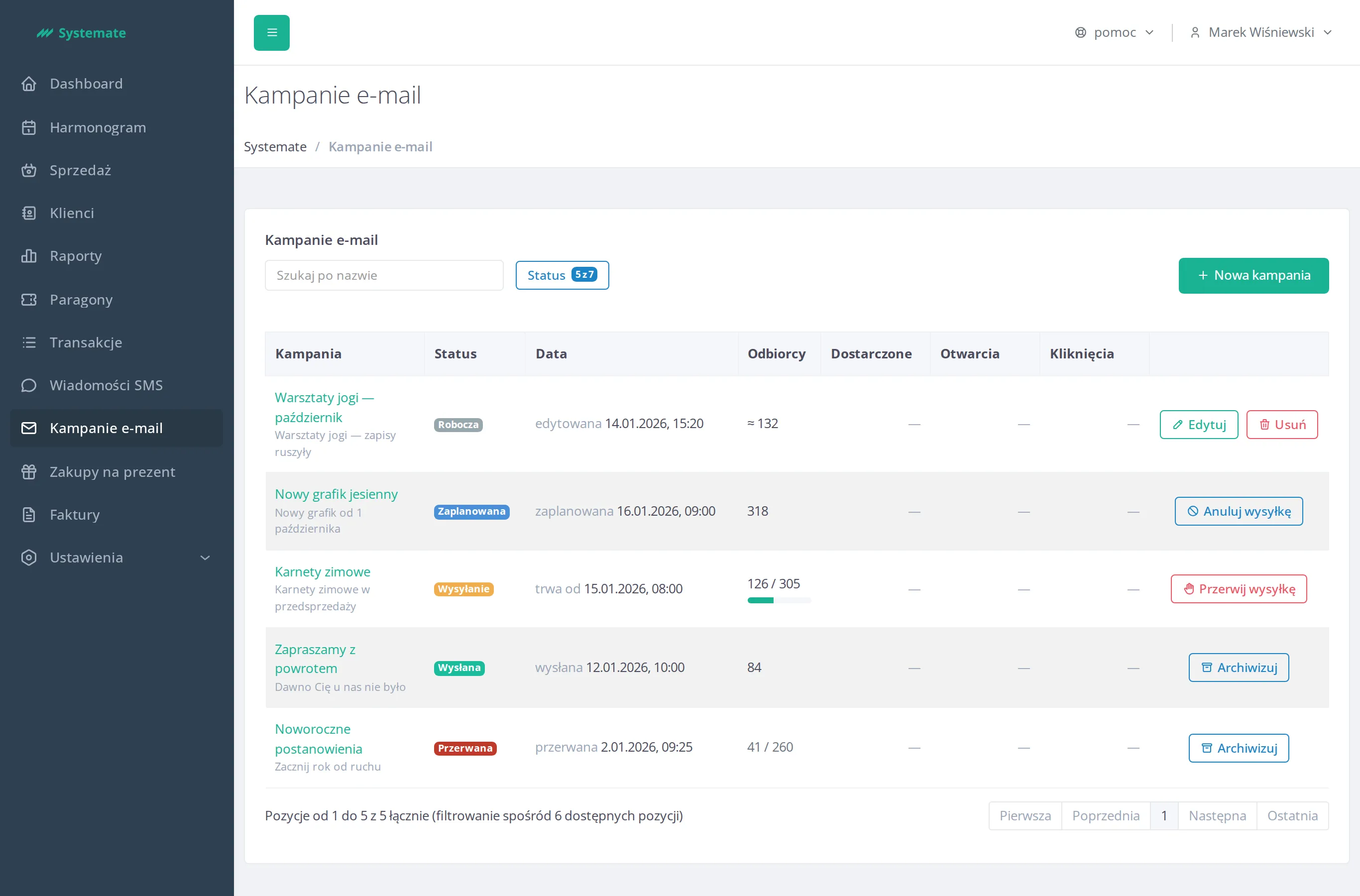
The Recipients column shows different numbers depending on the status:
- Draft — an approximate recipient count (with a ≈ sign), because the list is still changing,
- Scheduled and Sent — the recipient count,
- Sending — a “sent / total” counter with a progress bar,
- Stopped — how many messages went out before sending was halted, against the total recipient count; messages queued for delivery just before an instance mode change are counted in too,
- Archived — the figures its send reached: the “sent / total” counter if the send had started, or the recipient count if the campaign was cancelled before it started.
Below the status, the list may carry one more line stating a reason:
- instance mode change — the send was stopped by a switch of the instance mode between production and sandbox; such a campaign is never resumed,
- The deadline has passed—a new deadline is required — a scheduled campaign did not start by its deadline and will not send itself any more.
Campaign statuses
Section titled “Campaign statuses”| Status | What it means |
|---|---|
| Draft | Being prepared, not yet approved for sending |
| Scheduled | Approved, waiting for its deadline |
| Sending | Messages are going out right now |
| Sent | Sending finished |
| Cancelled | A scheduled campaign called off before sending started |
| Stopped | Sending halted in progress — either by someone from the office or by an instance mode change |
| Archived | A finished campaign the office put away; it stays off the list until you tick this status in the filter |
Archive a campaign
Section titled “Archive a campaign”A campaign you are done with can be put away. The row of a Sent, Cancelled, or Stopped campaign carries an Archive button — clicking it archives the campaign right away, without asking for confirmation. The campaign takes the Archived status and leaves the default list view; an archived row carries no action buttons any more.
Draft, Scheduled, and Sending campaigns cannot be archived — they have their own exits: you delete a draft, cancel a scheduled campaign, and stop a sending one.
To see archived campaigns, tick the Archived status in the Status filter. Archiving deletes nothing: the campaign name still links to the details, and the counters, the outcome cards, and the recipient list show the same as they did before archiving.
Check the campaign details
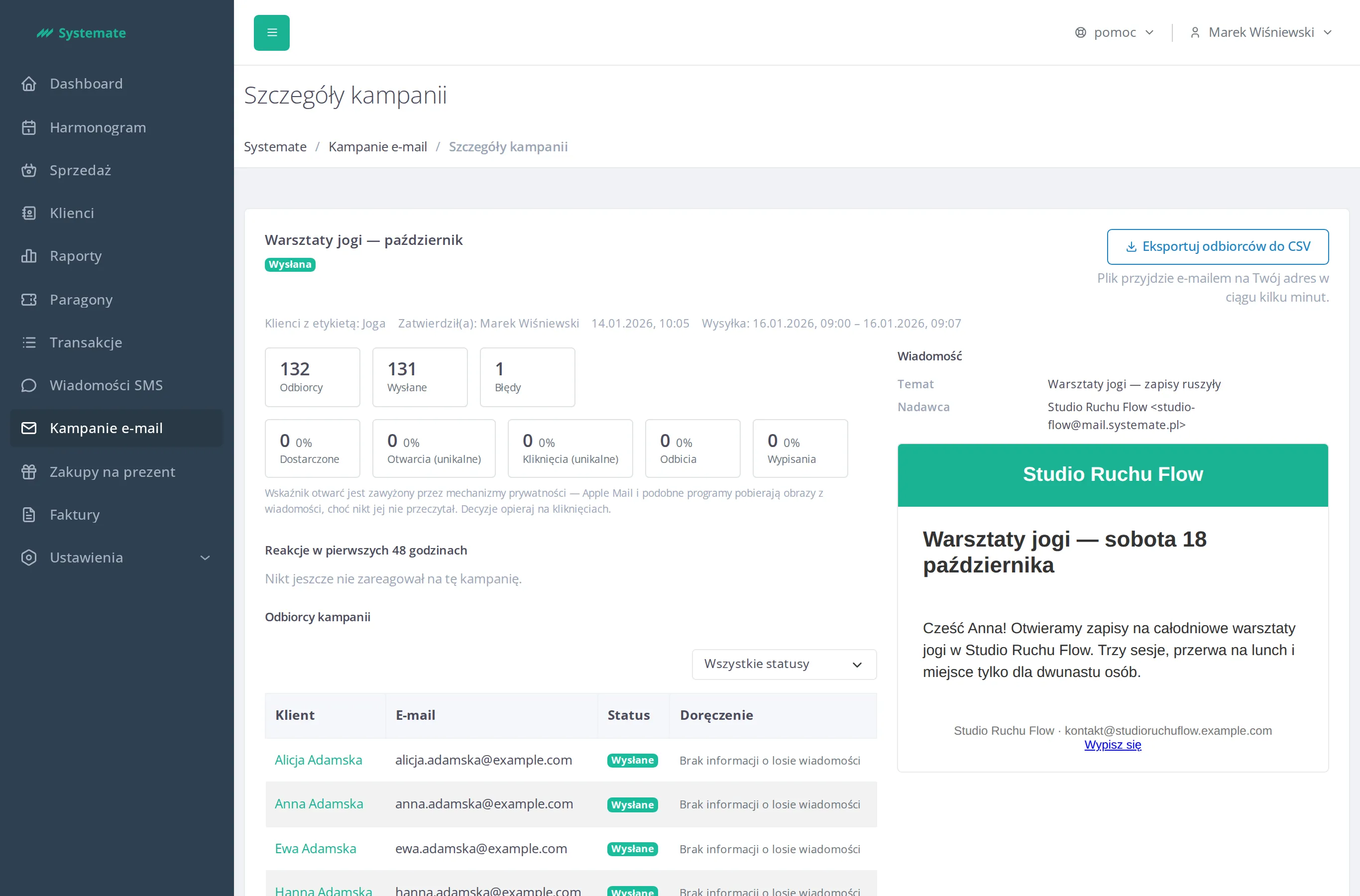
Section titled “Check the campaign details”Click the campaign name to open Campaign details. At the top you will find the status and the audit-log data: the audience, who approved the sending and when, the planned deadline, the sending window (from–to), and — if the send was halted — who stopped it and when.
Once sending has started, the counters appear:
- Recipients — how many people made it onto the fixed list,
- Sent — how many messages went out,
- Failed — how many sends did not succeed,
- Without confirmation — to how many people the message was queued for delivery just before an instance mode change; it most likely arrived, but no confirmation will come,
- Pending — how many messages are still queued,
- Unsent — how many messages were never sent because the send was stopped.
Below the counters sit the outcome cards: Delivered, Opens (unique), Clicks (unique), Bounces, and Unsubscribes. Every card is a button — clicking it narrows the Campaign recipients table to the customers that number stands for, so the figure and the list of names are one click apart.
The Campaign recipients table lists customers with their email address, the send status (Sent, Without confirmation, Pending, Failed, Unsent), and a Delivery column telling you what became of the message:
| Delivery | What it means |
|---|---|
| Delivered | The recipient’s server accepted the message |
| Opened | The customer opened the message |
| Clicked a link | The customer clicked a link in the message |
| Unsubscribed | The customer unsubscribed from marketing messages through this message |
| Reported as spam | The customer marked the message as spam |
| Permanent bounce | The address does not exist — remove it from the customer’s record |
| Temporary bounce | An obstacle on the recipient’s side, e.g. a full mailbox — the next send may get through |
| Bounce: address on the suppression list | The sending engine never even tried, because an earlier bounce or complaint put this address on the suppression list |
| Nothing known about the message | Nothing is known about it yet |
One recipient can carry several marks at once — a message that was delivered, opened, and clicked shows all three. For recipients whose status is Unsent or Skipped the Delivery column stays empty (—), because no send happened for those people at all.
The dropdown above the table narrows it to one choice: either a send status (the Send status group) or one of the six delivery dimensions (the Delivery group: Delivered, Bounced, Reported as spam, Opened, Clicked, Unsubscribes). The choices do not add up — a new one replaces the previous one, and All statuses restores the full list.
The Clicked links table lists the addresses recipients clicked, each with the number of customers who followed it. The Show clients button expands a paged list of those people under the link (name and email address), and Hide clients collapses it; one link can be expanded at a time — opening another closes the previous one. When nobody clicked anything, the table says Nobody clicked any link in this campaign.
In both tables — Campaign recipients and the customer list under a link — the customer’s name is a link to their customer card. It opens in a new browser tab, so the campaign statistics stay open where they were.
The Message section shows the subject, the sender, and the exact content that went out to customers.
Until the campaign has been sent, instead of the counters, the cards, and both tables you will see This campaign has not been sent yet.
A campaign stopped by an instance mode change
Section titled “A campaign stopped by an instance mode change”When platform support switches the instance mode while a campaign is sending, the campaign is stopped for good. The details page then carries an orange message, The send was interrupted by a change in the instance mode., and the audit-data row states Interrupted by a change in instance mode instead of the person who stopped the send.
Recipients whose messages had already been queued for delivery get the Without confirmation status: they most likely received the message, but no delivery confirmation and no information about opens or clicks will ever reach us — the Delivery column reads Nothing known about the message and stays that way. The remaining recipients are Unsent and got no message.
The campaign is never resumed — the send cannot be finished, you can only prepare a new campaign. See Campaign sending rules.
A scheduled campaign past its deadline
Section titled “A scheduled campaign past its deadline”A scheduled campaign that did not start by its deadline will not send itself any more. The list carries the line The deadline has passed—a new deadline is required next to it, and the details page shows The send deadline has passed. with a Return to the draft button. The button takes the campaign back to the creator: set a new deadline there and approve the send again.