Kasia handles the tricky sign-ups
Kasia Nowak knows that most check-ins at Studio Ruchu Flow are one click. This story is about the other ones — an afternoon where every customer at the desk is a small puzzle, and the panel has an answer for each.
1. A pass — but for the wrong classes
Section titled “1. A pass — but for the wrong classes”Tomasz wants to join pilates, waving his pass. Kasia types his name in the attendance panel of the class, clicks him — and instead of a booking she gets the No valid pass window: “The client does not have a valid subscription. You can sell a pass or check other passes in the client’s account.”
Systemate only matches passes that cover this class type — Tomasz’s pass is for gym entries, not pilates. Kasia clicks Show client passes to double check his profile, confirms there is nothing pilates-shaped there, and explains the options: a pilates pass (Sell pass takes her straight into the sale with Tomasz pre-selected) — or another day at the gym.
Details: Sign a customer up for a class.
2. Two valid passes — which one?
Section titled “2. Two valid passes — which one?”Ewa has a monthly pass ending this week and a fresh one she bought in advance. When Kasia signs her up, the Choose pass dialog opens: “The client has several passes allowing to participate in selected classes. Select the pass that should be used.” The table shows each pass’s Status, Name, Valid from, Valid to, and Entries (used / all).
Both are usable, so it’s Kasia’s call — she picks the older pass, the one with Valid to this Sunday, so no entry on it goes to waste, and clicks select in its row.
3. A pass that hasn’t started yet
Section titled “3. A pass that hasn’t started yet”Marta bought her pass with the validity set to “from next visit” — it sits on her account as not activated. When Kasia signs her up, the Choose pass dialog opens even though there’s just this one pass, showing it with the not activated badge and an activate and use button.
One click does both things: the pass is activated — its validity starts with this class — and Marta is booked with it.
4. Arrears at the door
Section titled “4. Arrears at the door”Paweł is on the list already; Kasia clicks ✓ to mark him present. Next to his name she had noticed the red triangle (Unsettled payments), and sure enough the Additional information window opens: The client has outstanding payments, with a Check button.
Check opens Paweł’s profile on the Transactions tab in a new browser tab, where a red banner sums it up — Unsettled payments and the amount. In the transactions table Kasia finds the row with an amount still in the Left column, opens Details, and in the Payments section clicks Add: cash, today’s date, the missing amount, Add. Paweł is settled — the triangle will be gone by his next visit.
5. The lost water bottle
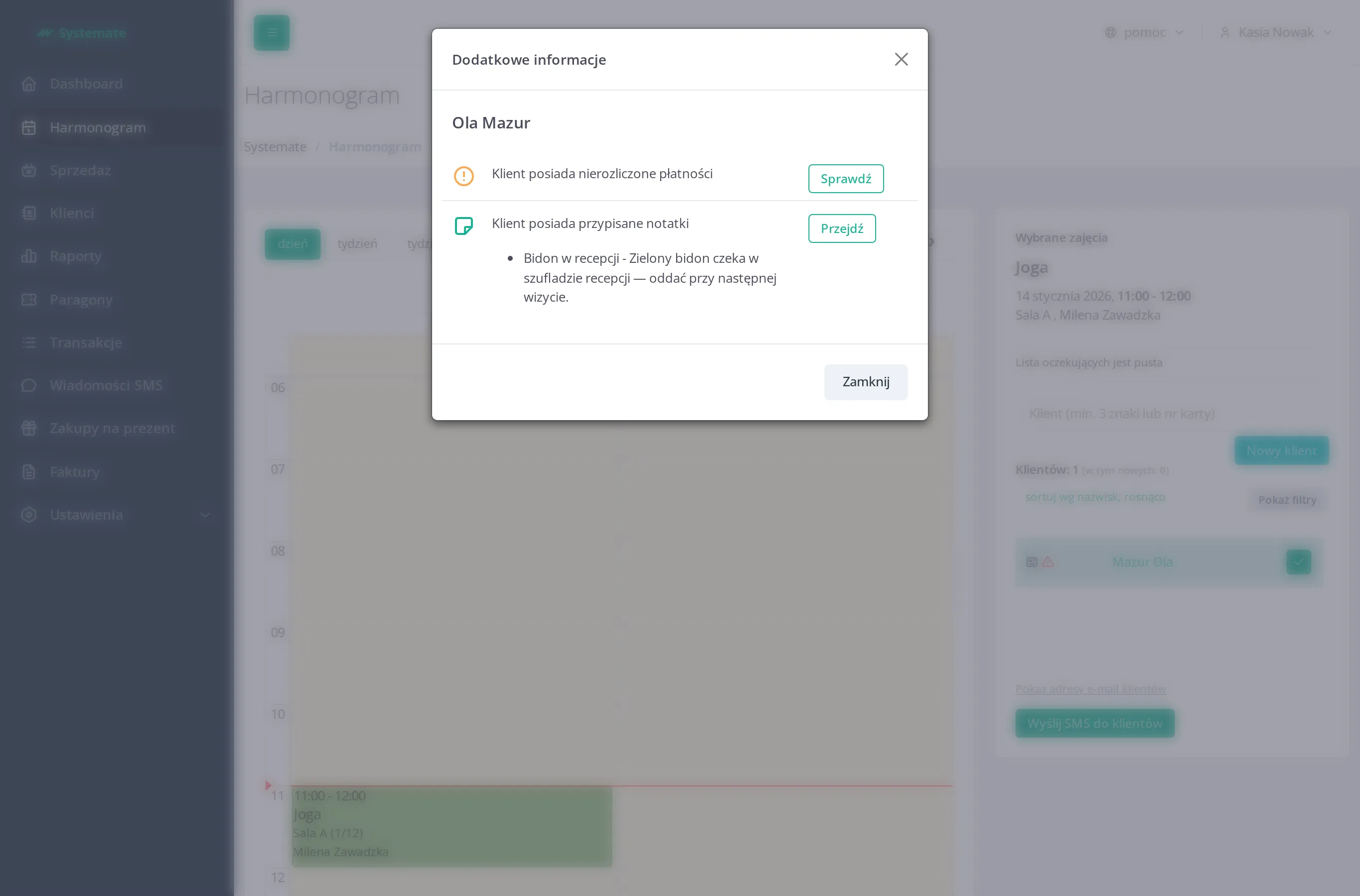
Section titled “5. The lost water bottle”After the evening class, the instructor brings a water bottle to the desk — someone from the 18:00 group left it. Kasia figures out it’s Ola’s, but Ola is long gone. So the message goes where Ola will show up next: her profile.
On Ola’s profile, in the Notes tab, Kasia clicks Add note: Title “Water bottle at the front desk”, Content with where it’s stored, and — the crucial part — she ticks Warn when signing up for classes. Save.
Step by step: Add a note to a customer.
Two days later Ola comes to yoga. Whoever is at the desk clicks ✓ next to her name — and the Additional information window pops up: The client has assigned notes, with the note’s title and content right there. The bottle changes hands, and the note gets archived on Ola’s profile so it never pops again.
6. Before the evening class: a reminder text
Section titled “6. Before the evening class: a reminder text”The 20:00 class had two no-shows last week, so Kasia sends a nudge. In the attendance panel she clicks Send SMS to customers, ticks the recipients, and instead of typing she starts from the Reminder template — it fills the message with the class details: “A friendly reminder that the Joga class takes place today at 20:00. See you there!” — then Next to review the exact text, and Send.
Step by step: Send an SMS to customers.
The result: six oddball situations, zero improvisation — the panel flagged each problem at the exact moment it mattered, and every fix was a couple of clicks from the attendance list.