Join the waiting list
-
Open the class schedule and click the class tile. When the class has no free spots, the details show “No free spaces”.
-
If you are not logged in, click Log in to sign up for waiting list. Otherwise click Subscribe to the waiting list.
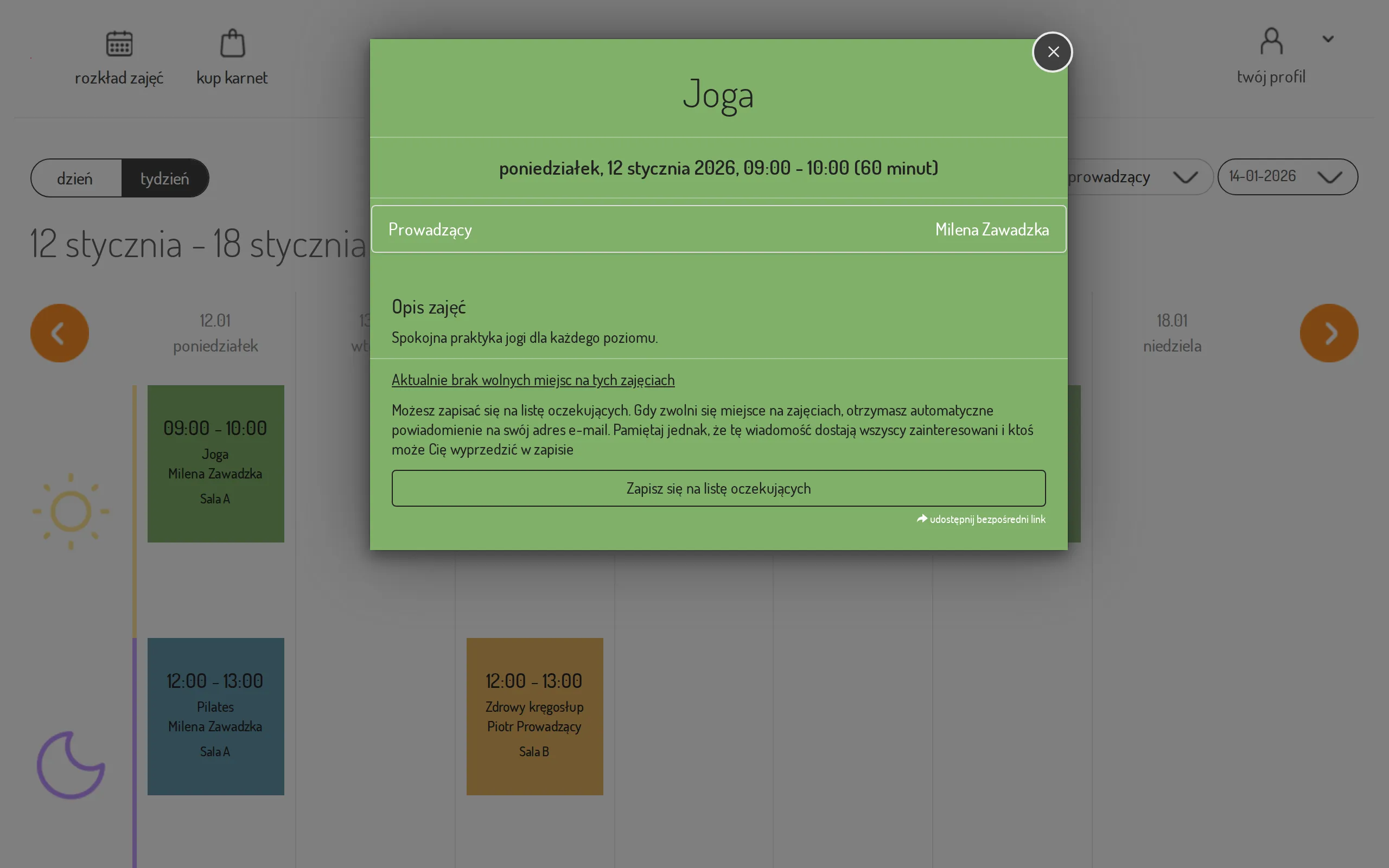
-
You’ll see a confirmation that you are on the waiting list.
-
To leave the waiting list, open the class details again and click Sign out from the waiting list.
What happens when a spot opens up
Section titled “What happens when a spot opens up”What happens next depends on your school’s settings. The text next to the waiting-list button says which of the two applies.
The school signs people up from the list automatically
Section titled “The school signs people up from the list automatically”When somebody cancels, or the school raises the number of places, the system signs up the next people on the list itself — in the order they joined it. There are two conditions:
- you hold a pass valid for that class at the moment the spot frees up (if you do not, you are passed over but keep your place in the queue for the next spot),
- there is still enough time before the class for you to sign out of it.
You are told about the booking by e-mail and text message. The message names the class, its date and time, and the address of the customer panel.
The school sends a free-spot notification
Section titled “The school sends a free-spot notification”When a spot frees up, everyone on the waiting list gets an e-mail at the same time, so it’s first come, first served. As soon as you get it, go back to the class and sign up — the spot isn’t reserved for you.
The notification goes out only while there is more time left before the class than the studio’s cancellation window. After that moment a free spot is no longer offered to the waiting list — whoever took it could no longer sign out of the class.
See also Sign up for a class.