Add an employee and set permissions
-
In the office panel go to Settings → Employees.
-
Click Add.
-
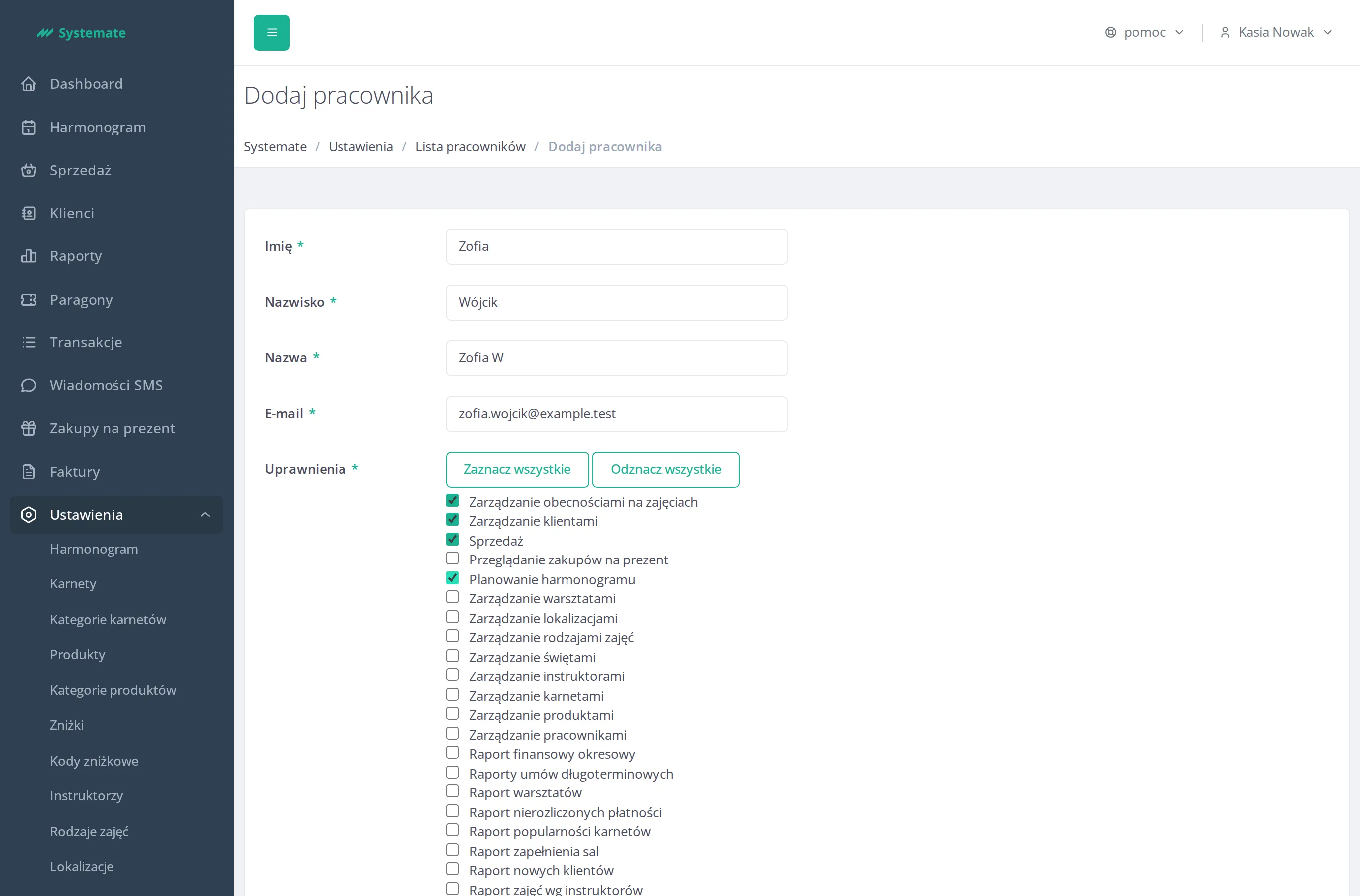
Fill in First name, Last name, Display name and E-mail.
-
Under Permissions, check the boxes for what this employee should be able to do — for example Manage clients, Manage schedule, Manage transactions, or Manage employees. Use Select all / Deselect all to speed this up.
-
Click Save.
An activation link is sent to the new employee’s e-mail so they can set up their account. If they lose it or it expires, open their record and click Send activation link to send a new one.