Edit a class
Open a class for editing
Section titled “Open a class for editing”- In the office panel go to Settings → Schedule.
- Click the class in the calendar — the class form opens with the current data.
Edit a single class
Section titled “Edit a single class”- Change what you need — Date, Hours, Location, Course type, Instructor, Capacity, and so on.
- Click Save.
This is also where you turn Own cancellation window on and off. Turning the switch off puts the class back on the studio’s window — see Add a class to the schedule.
Edit a class that repeats weekly
Section titled “Edit a class that repeats weekly”For a class that belongs to a cycle, Save opens a choice of scope:
- Only this class — changes just this occurrence; the rest of the cycle stays as it was.
- This and next classes — applies the change from this occurrence to the end of the cycle. Offered for changes that can carry forward — hours, location, instructor, and the like — as long as you didn’t touch the cycle’s weekdays, interval, or dates.
- All classes — applies the change to the whole cycle.
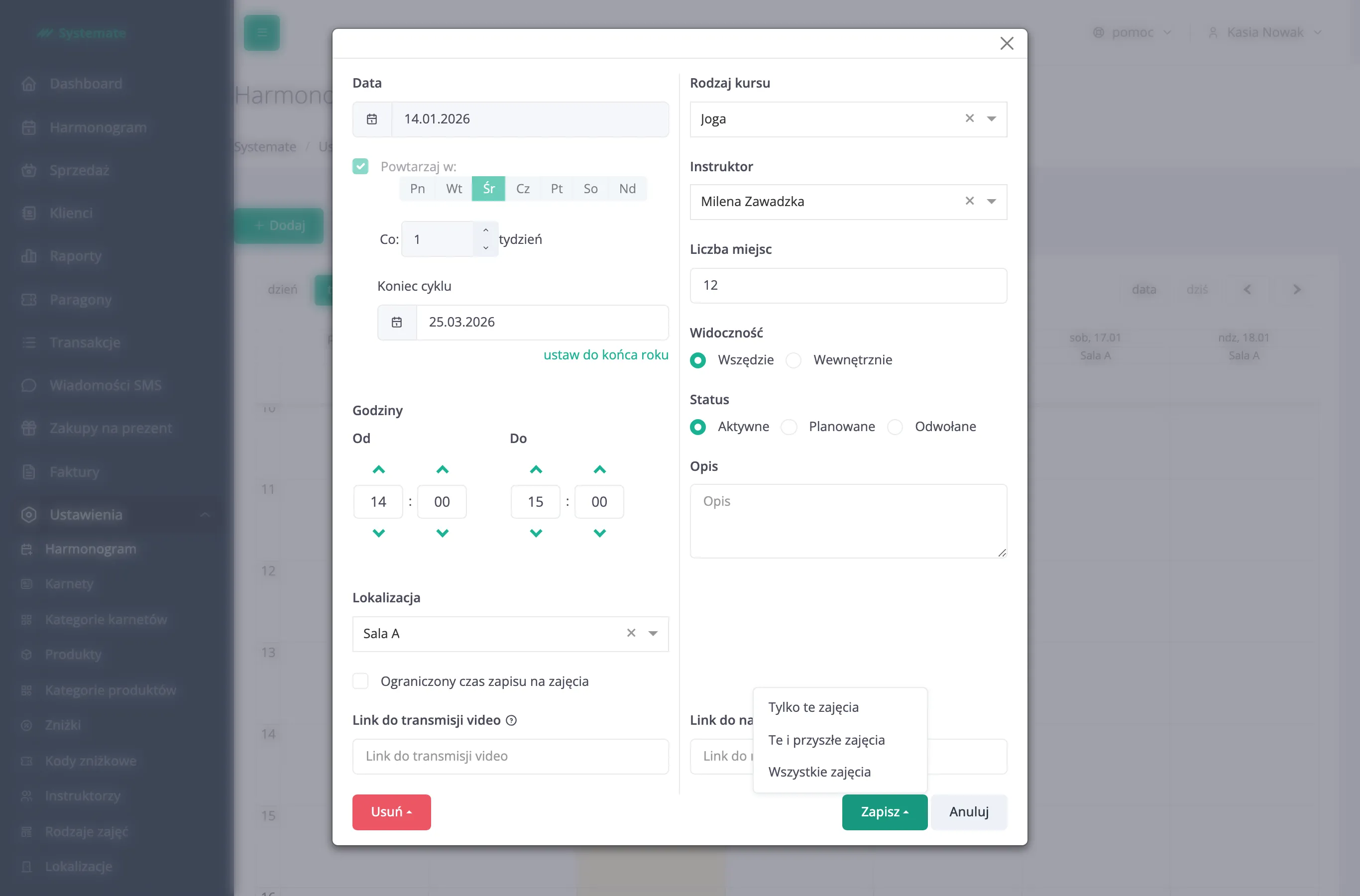
A few rules to know:
- Cycle-wide changes only affect classes that haven’t started yet — past occurrences are never rewritten.
- For a class from a cycle the Date field is locked. To change the hours of a single occurrence, edit Hours and choose Save → Only this class; to move it to a different day, drag it in the calendar.
- Occurrences whose hours, location or own cancellation window you changed individually keep those when you later save the whole cycle.
- To change the cycle’s rhythm — the weekday buttons, Every, or Ends at — save with All classes. Classes are generated or removed to match the new rhythm; extending Ends at is how you prolong a cycle. Once the cycle has started, the weekdays and Every can no longer be changed — only Ends at can.
Cancel a class
Section titled “Cancel a class”Cancel classes… at the bottom of the class form releases the bookings, returns the entries to the passes, and notifies the signed-up customers. The front desk does the same from the attendance list, without the schedule-planning permission — both routes are covered in Cancel a class.
Set up automatic cancellation
Section titled “Set up automatic cancellation”On the class form — the same one for a single class and for a cycle — tick Automatic class cancellation so you don’t have to watch poorly attended slots by hand. You give two numbers:
- minimum number of registered participants — the threshold below which the class does not take place,
- minutes before the classes begin — the moment the decision is made.
Both are required: without either of them automatic cancellation is off.
Under Notify about the cancellation via you choose how the signed-up customers are told. Email is selected by default, SMS is billed separately according to the price list and needs SMS sending configured, and In-app notification is not available yet.
Settings saved on a cycle apply to all of its classes. If you change them on a single occurrence, that occurrence stops following the cycle — a later save of the cycle no longer overwrites it. Classes that belong to a workshop do not have these settings.
Who is notified, when exactly the decision is taken and what cannot be undone: Set up automatic class cancellation.
Delete a class
Section titled “Delete a class”Delete removes the class permanently — it disappears from the schedule and from the customer panel. For a class from a cycle, Delete opens the same scope choice: Only this class or All classes.