Kasia manages the schedule and checks attendance
Kasia Nowak runs the front desk at Studio Ruchu Flow. Her tool is the office panel: this is where she plans the next week’s schedule and, before every class, checks off who showed up.
1. Kasia reviews the week
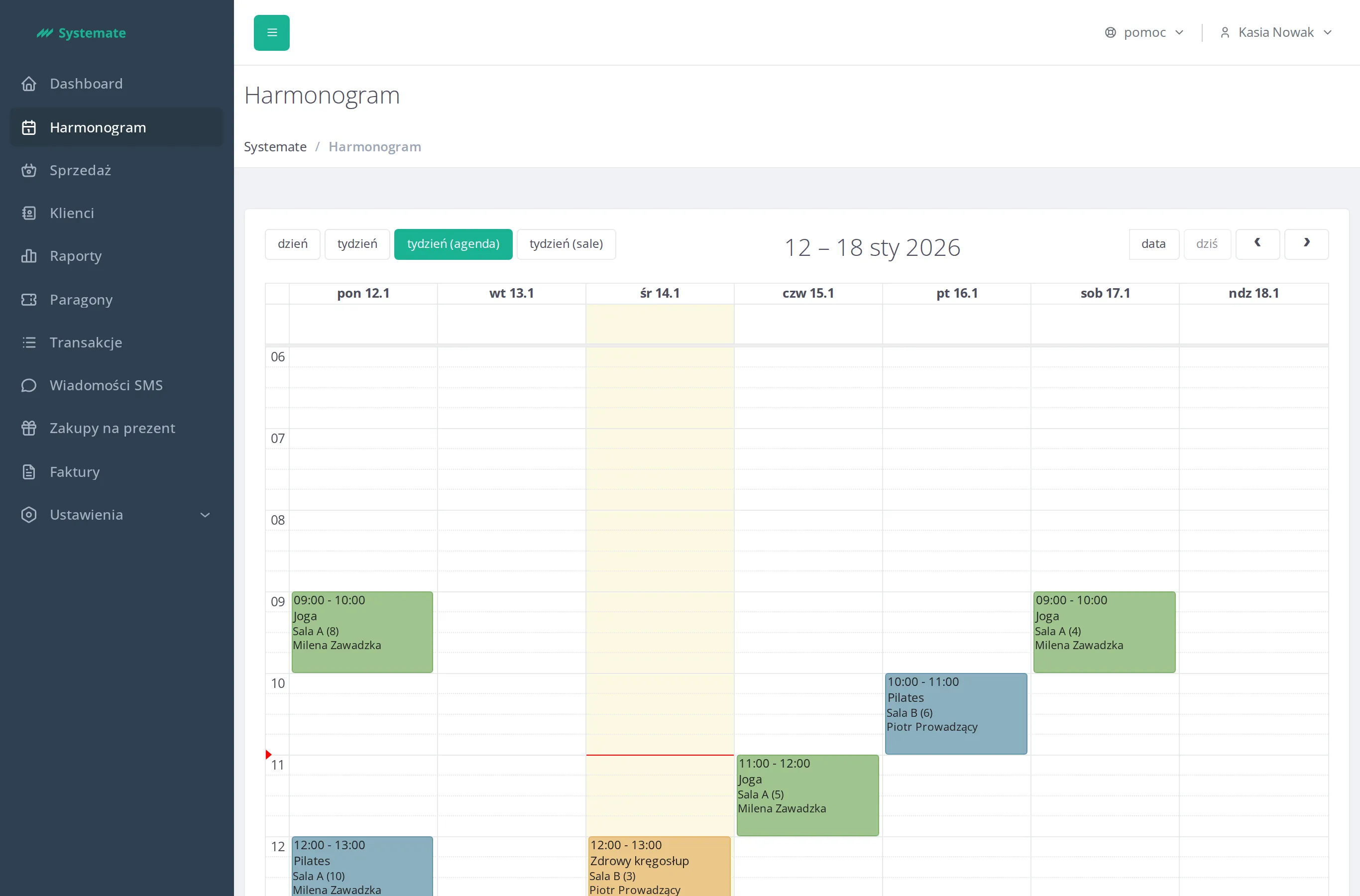
Section titled “1. Kasia reviews the week”In the Schedule view Kasia switches the calendar to the weekly agenda and sees all the studio’s classes: what, when, in which room, who teaches, and how many people signed up.
2. She sets up a weekly cycle
Section titled “2. She sets up a weekly cycle”Customers keep asking for a second Wednesday yoga. Kasia goes to Settings → Schedule, clicks Add, and fills in the form: Wednesday 13:00–14:00, Joga, Sala A, taught by Milena Zawadzka. One Wednesday is not enough, so she checks Repeat — the We button is already selected for her — and sets Ends at to the end of the season. One Save, and every Wednesday until then has its yoga class: a single cycle definition generated them all, and each one is still a regular class she can adjust on its own.
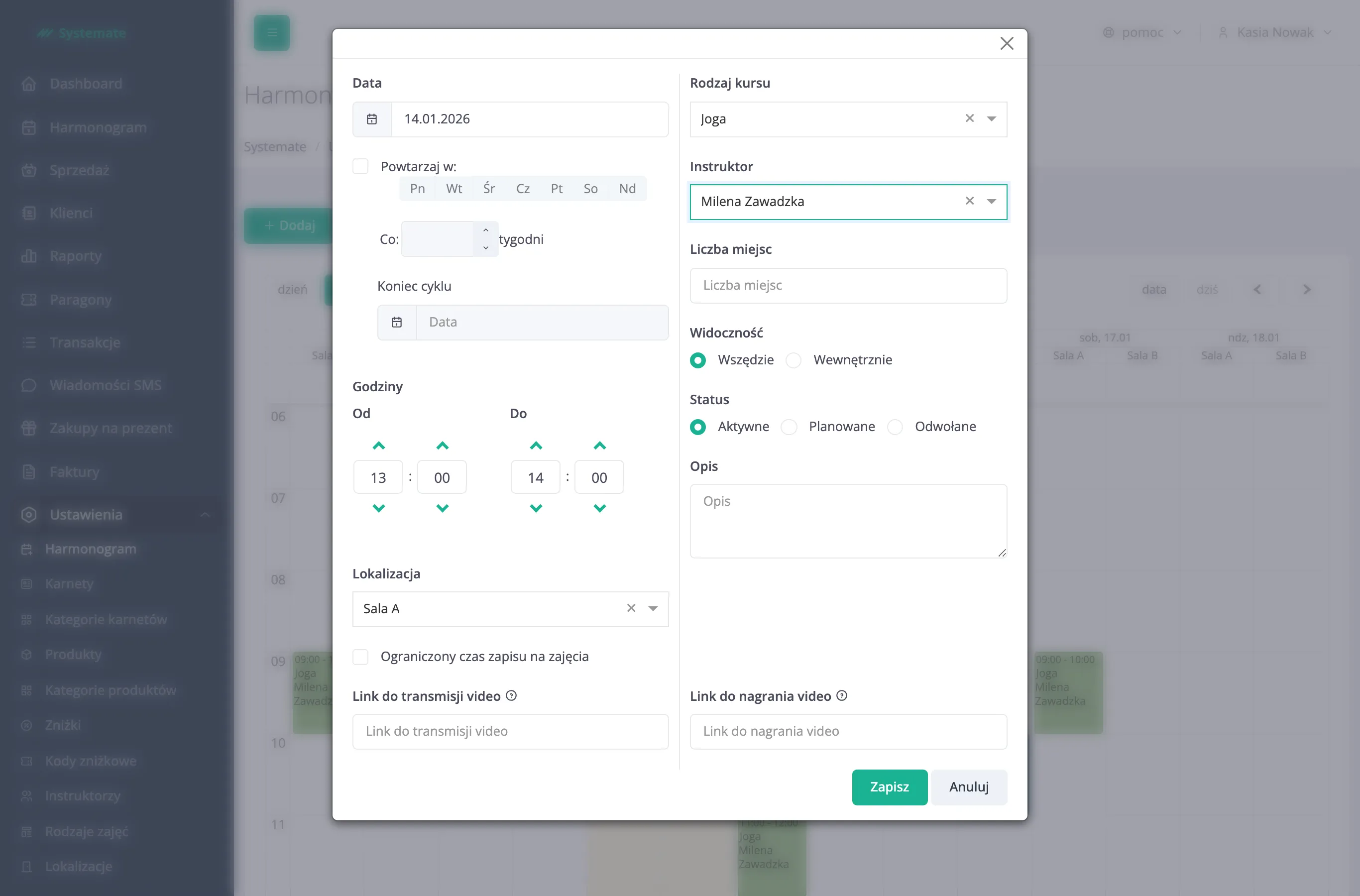
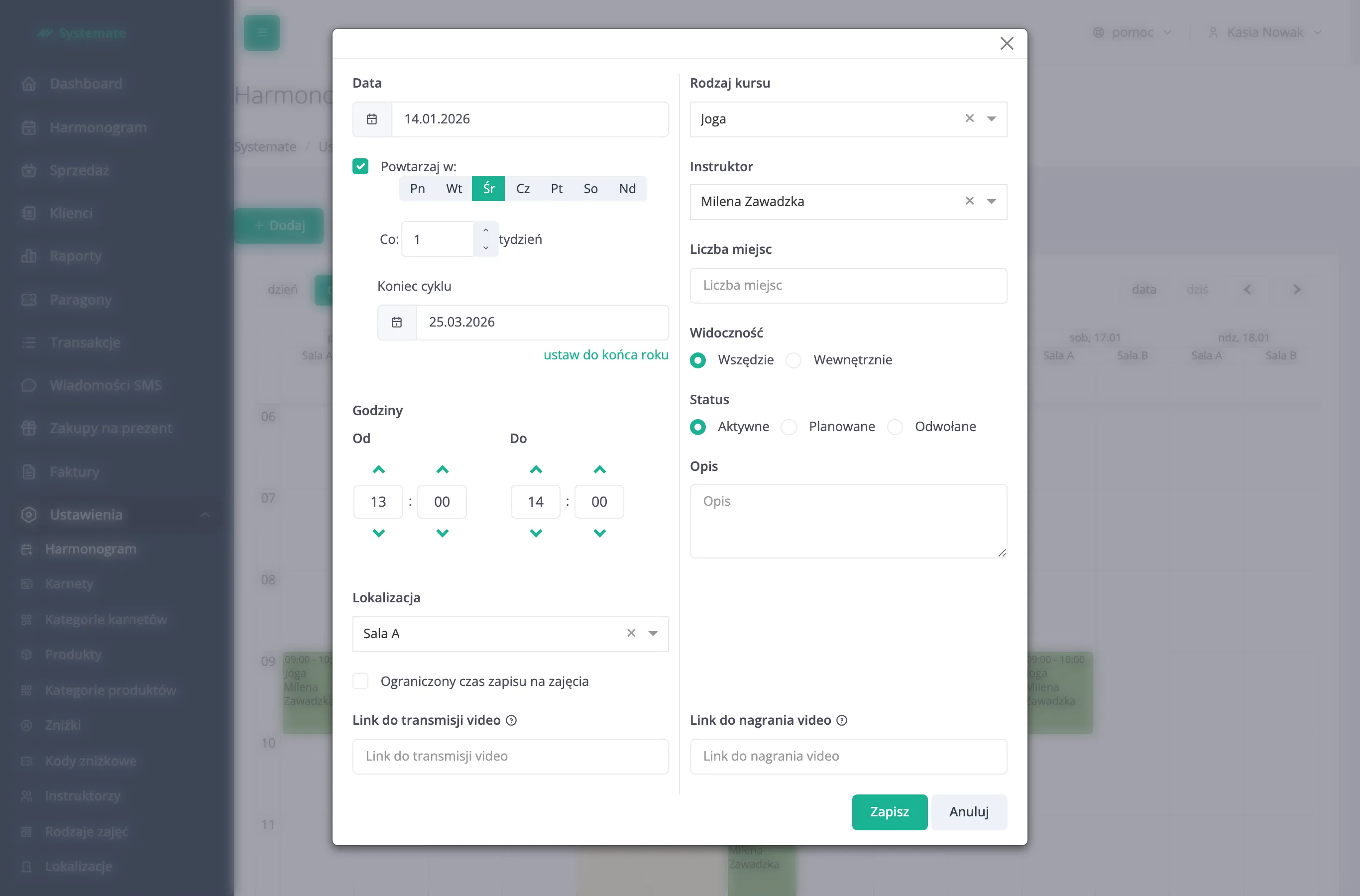
Step by step: Add a class to the schedule.
3. Reality intervenes: one Wednesday moves
Section titled “3. Reality intervenes: one Wednesday moves”Two weeks later Milena asks to move a single yoga class — just that one Wednesday — an hour later. Kasia clicks that Wednesday’s tile in Settings → Schedule, changes the Hours to 14:00–15:00, and picks Save → Only this class. That occurrence moves; every other Wednesday stays at 13:00.
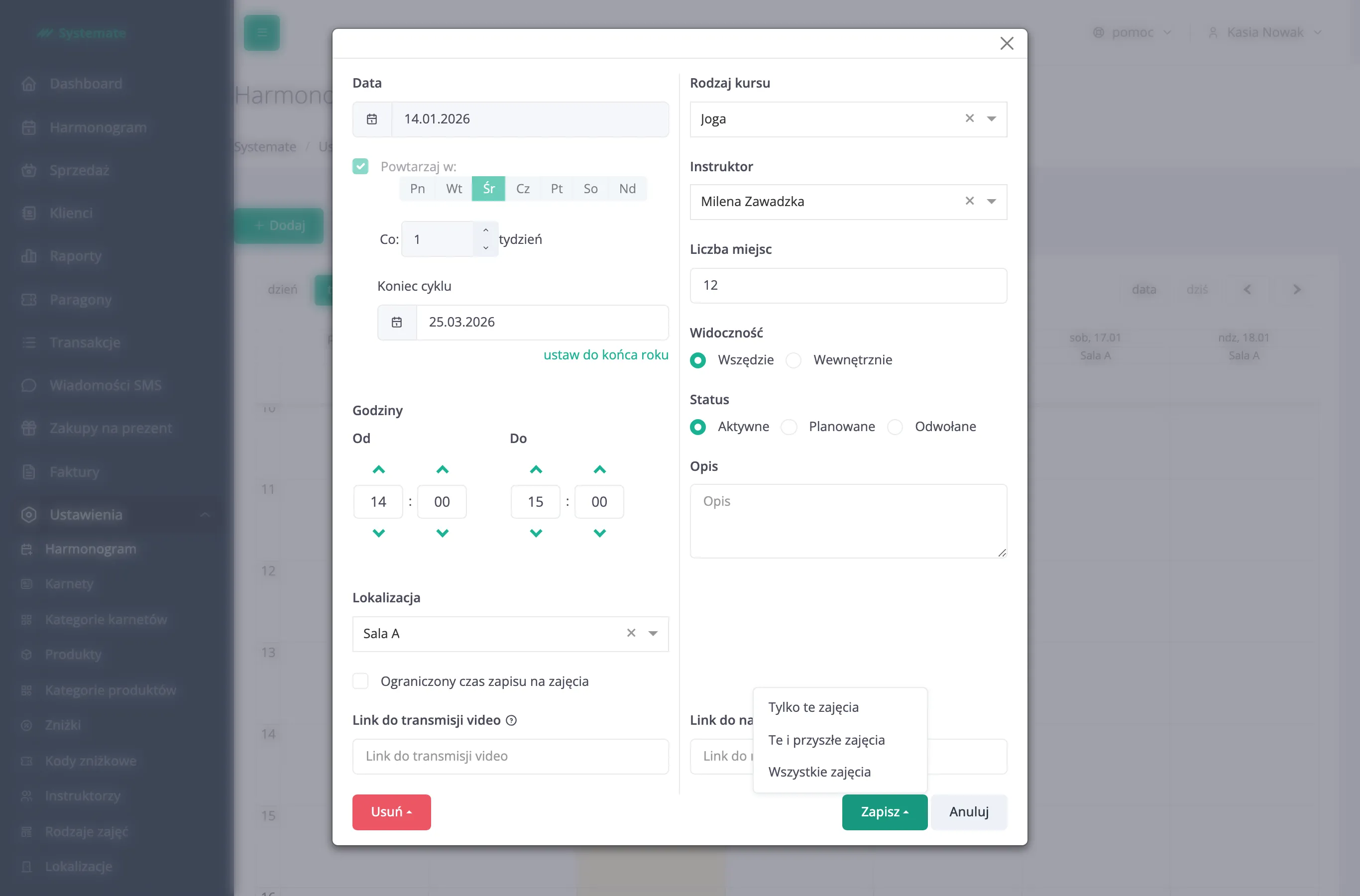
Step by step: Edit a class.
4. Milena is sick: Kasia cancels a class
Section titled “4. Milena is sick: Kasia cancels a class”The next week Milena calls in with a fever and there is no one to cover Wednesday’s yoga. Kasia is at the counter, so she cancels the class right where she works: she opens Schedule, clicks the class, and hits Cancel the class next to its name. The panel asks her to confirm — it states how many customers lose their booking, warns that their entries go back to their passes, and asks how to tell them. Email is already ticked; Kasia adds SMS, because the class is tomorrow.
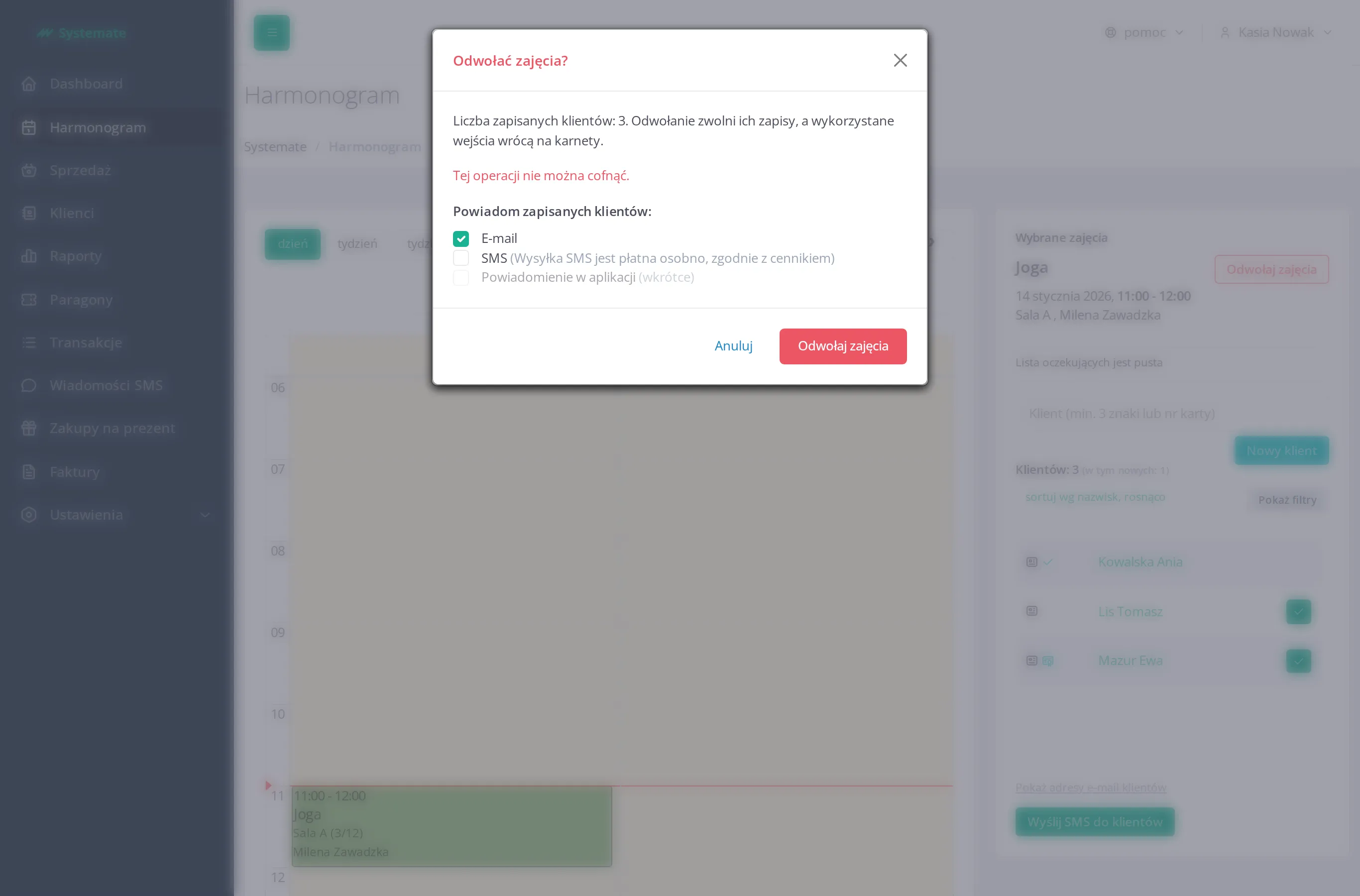
Kasia confirms, and the system does the rest: the signed-up customers get the message, the bookings disappear, the entries return to the passes, and the waiting list is cleared. Milena and the front desk are told as well — that is one thing less for Kasia to remember. Customers who open the schedule now see the greyed-out tile marked cancelled — nobody signs up for it by mistake, and the rest of the cycle is untouched.
Had Kasia been in Settings → Schedule at the time, she would have cancelled the same class with Cancel classes… on the class form — to the same effect.
Step by step: Cancel a class.
5. A class that cancels itself
Section titled “5. A class that cancels itself”The Friday 7:00 yoga rarely fills up, and Milena coming in for two people makes no sense. Kasia opens the cycle, ticks Automatic class cancellation, enters a minimum of 4 people and 180 minutes before the start, and leaves e-mail selected. From then on she does not have to watch it: three hours before every Friday yoga the system counts the bookings and either does nothing, or cancels the class, releases the bookings, returns the entries to the passes and writes to the signed-up customers, to Milena and to the front-desk address.
The next Friday at 4:00 in the morning two people are signed up — the system cancels the class. Kasia learns about it from the mail waiting in the front-desk inbox; the customers got their e-mail overnight and have their entries back on their passes.
Step by step: Set up automatic class cancellation.
6. Before class: the attendance list
Section titled “6. Before class: the attendance list”Yoga starts at 11:00. Kasia clicks the class in the schedule and sees the list of signed-up customers on the right. Ania Kowalska is already confirmed, Tomasz and Ewa have just walked in — Kasia checks them off with one click. It’s Ewa’s first visit — the system marks it.
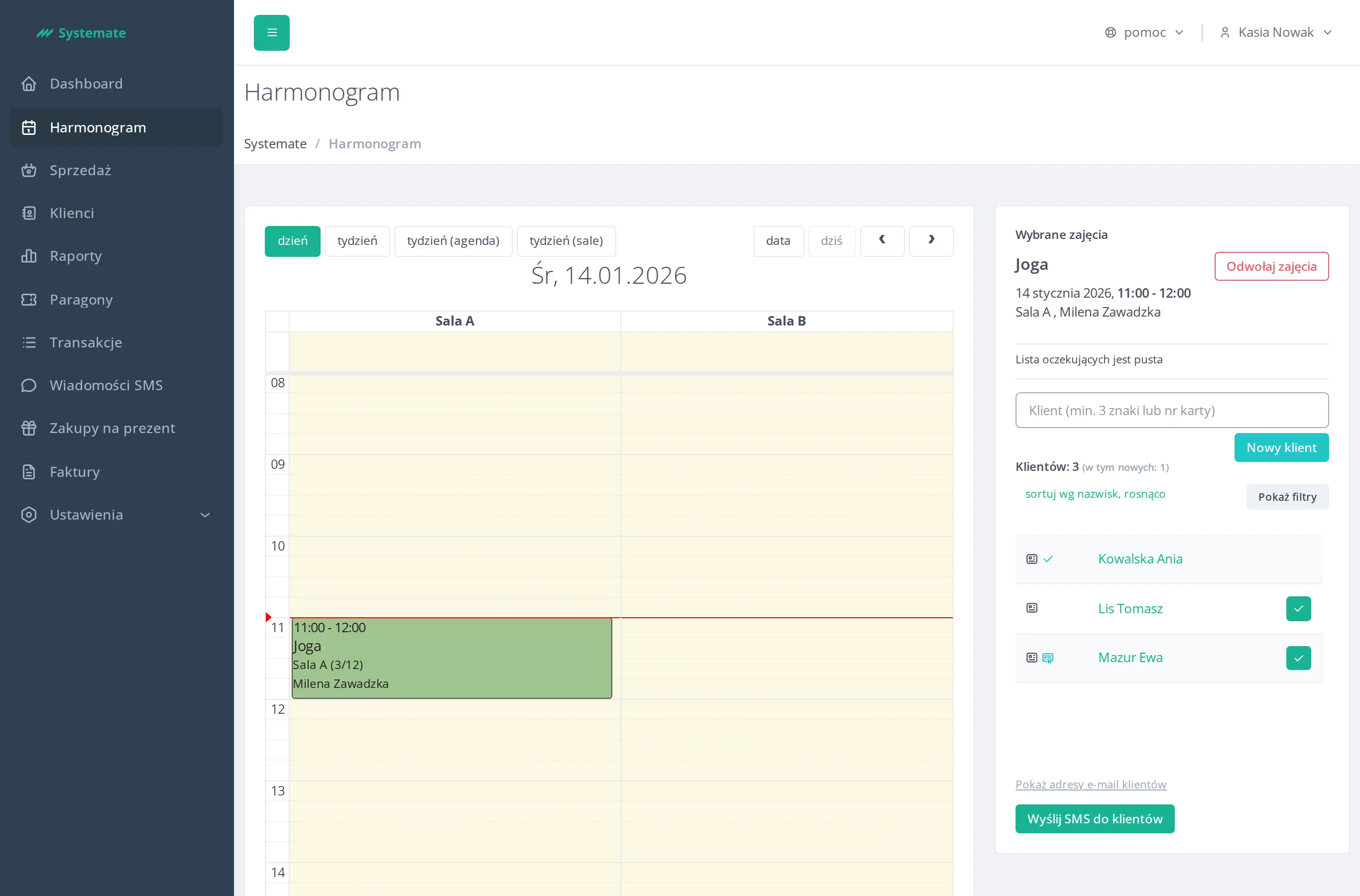
Details: Check the attendance list.
The result: the Wednesday cycle runs on its own, the exceptions are handled — one class moved, one cancelled with customers notified — and attendance is recorded, so the owner sees the real turnout in the reports.