Set up a workshop
-
In the office panel go to Settings → Workshops.
-
Click Add.
-
Enter the workshop Name and, optionally, a Workshop description url — a link to a page describing the event.
-
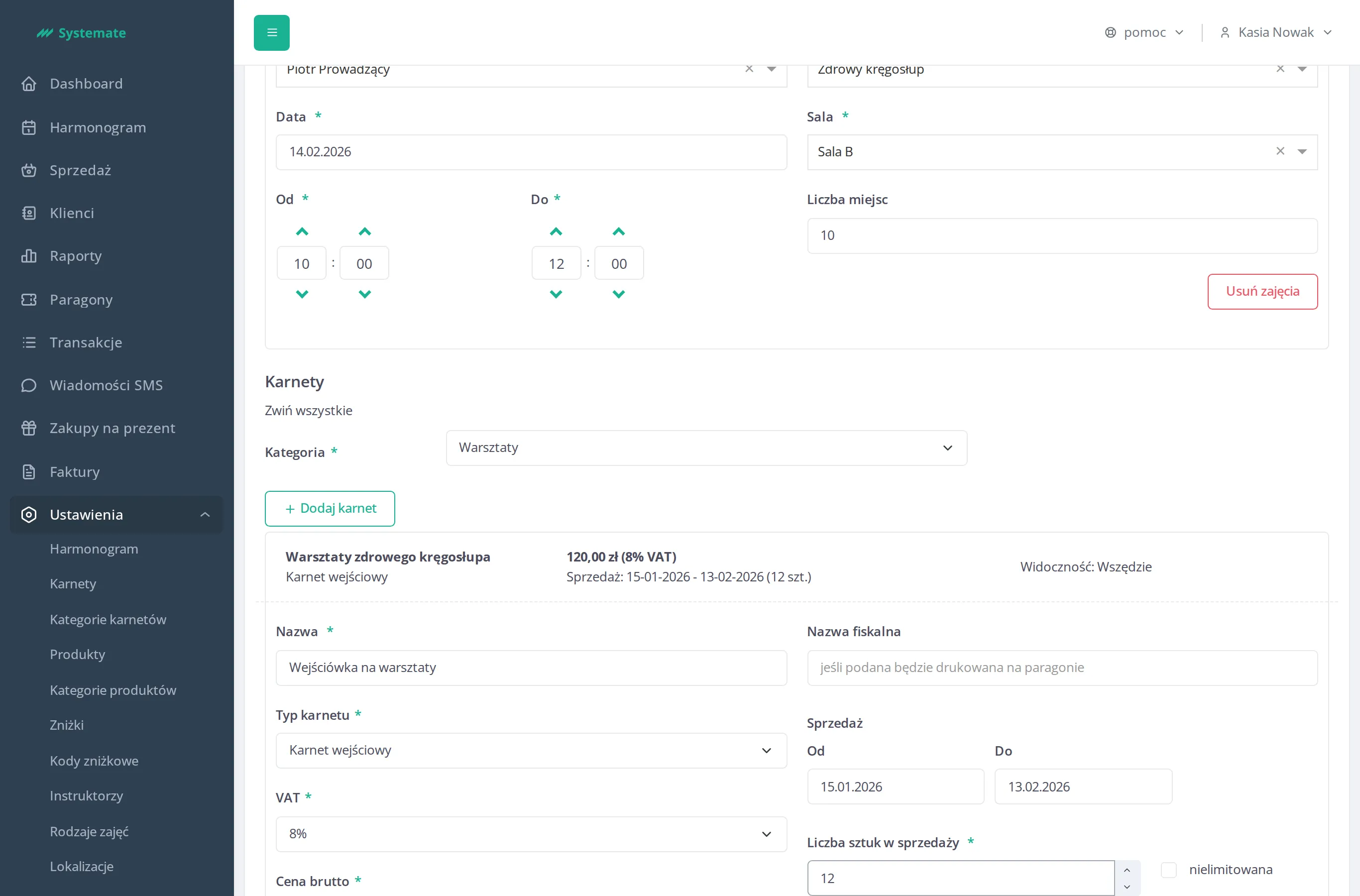
Add the workshop schedule in the Classes section — click Add classes and, for each class, set:
- Course type, Instructor, and Location,
- Date and the hours (From / To),
- Capacity — the maximum number of participants.
At least one class is required.
-
Define the tickets in the Passes section:
- pick the Category the workshop passes belong to,
- click Add pass and fill in each pass: Name, Type, Tax, Price gross, and optionally Fiscal name (if provided — printed on the receipt),
- limit the sale under Sale with the From / To dates (the period the pass can be bought) and Max available count (or check unlimited),
- set Visibility: Everywhere or office panel only.
-
Click Save.
Edit a workshop
Section titled “Edit a workshop”- In Settings → Workshops click Edit next to the workshop (double-clicking the row works too).
- Change what you need and click Save. You can freely edit the workshop Name and Workshop description url, add classes (Add classes) and tickets (Add pass), and — for every class — change its Instructor and Capacity.
Some fields lock once the workshop is in use:
- A class with participants on its attendance list shows a warning (“There are clients registered for the classes, the edition of the classes is limited…”). Its Course type, Location, Date, and hours can no longer be changed, and Remove classes is disabled — only Instructor and Capacity stay editable. To fully edit such a class, first remove the participants from its attendance list — see Check the attendance list. Note that a ticket valid for all workshop classes signs the buyer up for every class, so classes lock as soon as such tickets start selling.
- A saved ticket keeps its Type, Visits count, and seller — they can’t be changed after the first save. Everything else stays editable: the ticket Name, Fiscal name, Tax, Price gross, the Sale period and Max available count, and Visibility. You can also remove a ticket (Remove pass) to stop selling it.
- New dates and hours are validated like at creation: a class can’t start in the past and can’t conflict with another class in the same location.