Issue an invoice
Where invoice requests come from
Section titled “Where invoice requests come from”An invoice request is created when:
- a front-desk sale is completed with Purchase as: company and the buyer’s invoice data — see Sell a pass at the front desk,
- a customer buys online in the customer panel and selects their invoice data,
- staff click Create in the Invoice column of a transaction (see Review transactions) or of a receipt (see Handle fiscal receipts).
Handle the invoice requests queue
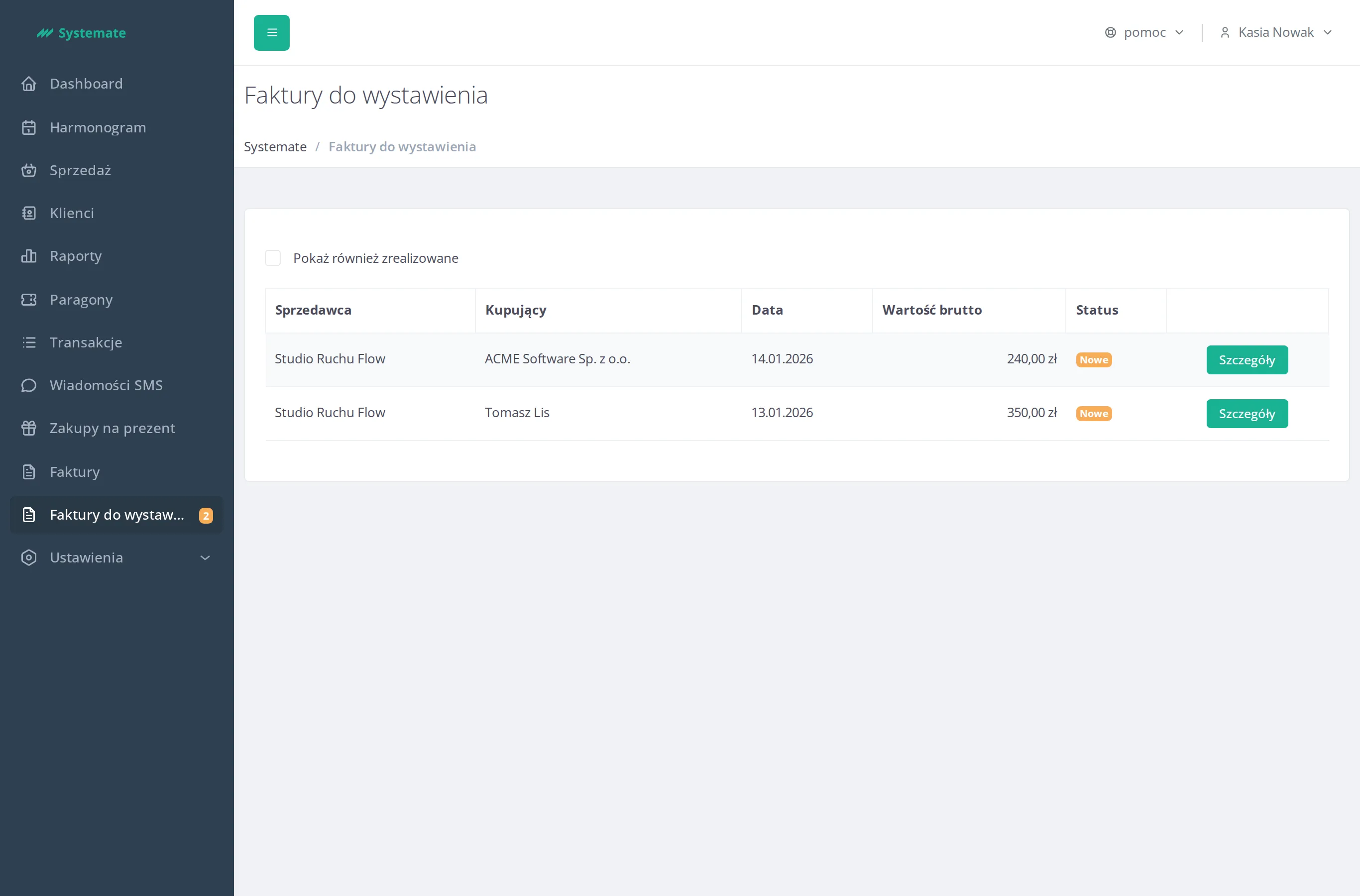
Section titled “Handle the invoice requests queue”The Invoice requests menu item shows a badge with the number of requests waiting to be handled.
-
In the office panel open Invoice requests. By default you see only the unhandled requests — tick Show already processed to see all of them.
-
Each row shows the Seller, Buyer, Requested at date, Amount gross (total), and Status: New, Processing, Invoice created (automatically), or Invoice created (manually).
-
Open a request with the Details button (or double-click the row) to see the buyer’s Name, Tax number, and Address, the invoiced items, and a Show client profile link.
-
Requests are normally invoiced automatically. If you issue the invoice outside Systemate, click Mark as processed in the request details so it leaves the queue.
Browse issued invoices
Section titled “Browse issued invoices”- In the office panel open Invoices.
- The Recently issued invoices tab lists invoices recently issued by you.
- Switch to All invoices to search the full history: pick a Dates range, or type at least 3 characters in the Search: box. Each row shows the Buyer, where the invoice was issued (Systemate or the name of the external provider), the Invoice number, Issue date, and Employee.
- The KSeF column shows whether the invoice was delivered to the national e-invoicing system: “-” (not sent to KSeF), “oczekuje” (waiting), “wysłana” (submitted), “w systemie” (accepted), “błąd” (failed). It fills in only when sending to KSeF is enabled — see Send invoices to KSeF.
- Click Download on a row to get the invoice PDF. If generation failed, the row shows an error badge and a Regenerate button.
- To get many invoices at once, click Send invoices from this period to my email and pick a format — you will receive a ZIP archive with the invoices from the selected period.