Cancel a class
Cancelling keeps the class on the schedule but marks it as not taking place: the bookings are released, the used entries go back to the passes, and the signed-up customers get a message. There are two routes to it — pick the one your permissions and your current screen allow.
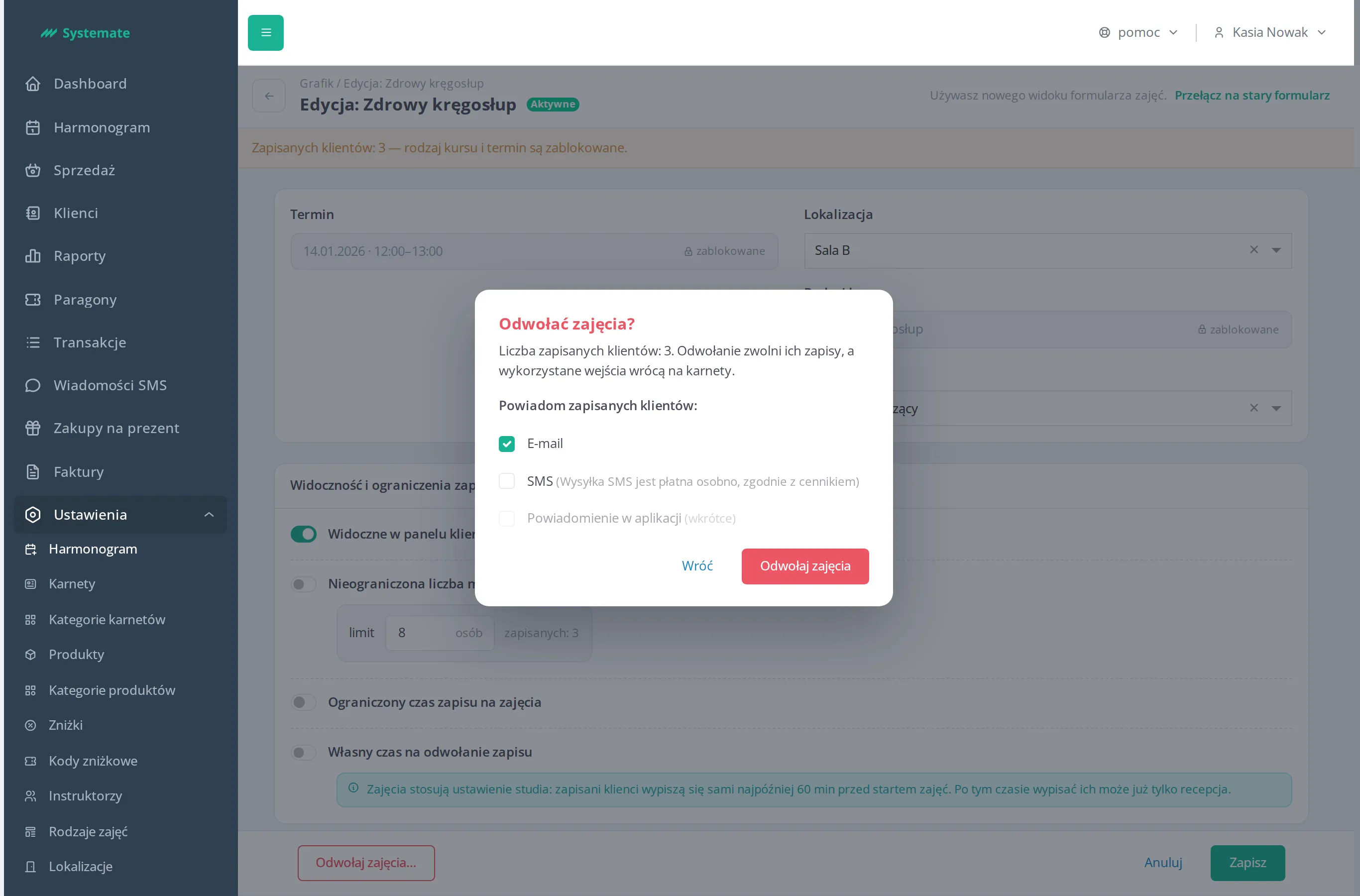
Route one: from the class form
Section titled “Route one: from the class form”For whoever plans the schedule. Requires the Manage schedule permission.
- Go to Settings → Schedule.
- Click the class in the calendar — the class form opens.
- At the bottom of the form click Cancel classes….
A class with nobody signed up is cancelled straight away — with no confirmation dialog. If anyone is signed up, the confirmation with the notification channels shows up.
Route two: from the attendance list
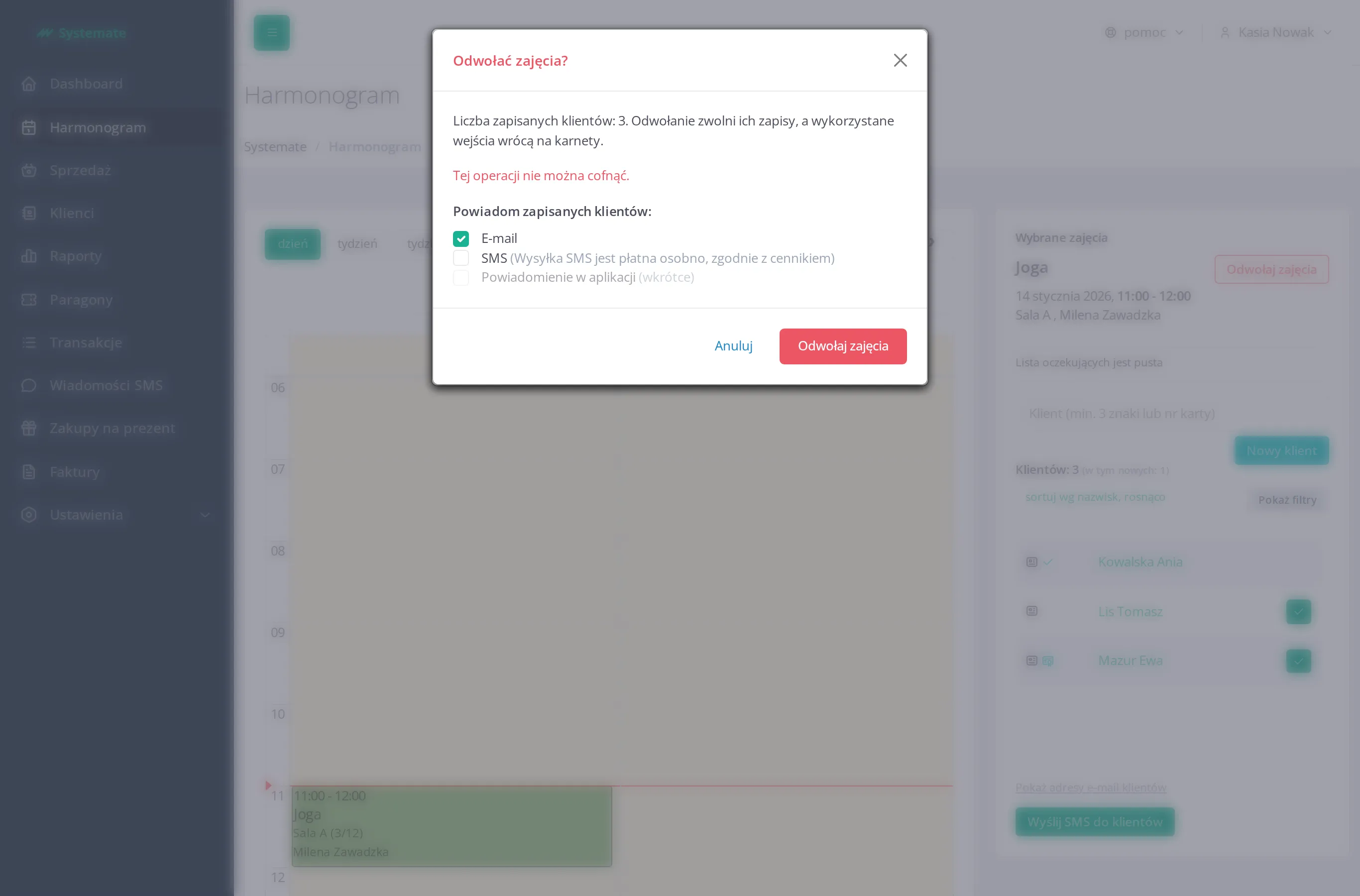
Section titled “Route two: from the attendance list”For the front desk. The Moderate presences permission is enough — Manage schedule is not needed.
- Open Schedule in the office panel.
- Click the class in the calendar — the Selected classes panel with the signed-up customers opens on the right.
- Click Cancel the class next to the class name, on the right.
On this route the confirmation always shows up, even when nobody is signed up.
The confirmation: who gets told
Section titled “The confirmation: who gets told”The confirmation states how many customers lose their booking, warns that their used entries go back to their passes, and asks how to tell them:
- Email — selected by default,
- SMS — available once the studio has SMS sending configured; it is billed separately, according to the price list.
- In-app notification — available once the studio has push notifications in the mobile app enabled; it is not selected by default. When the studio does not have them, you still see the channel but cannot tick it — the reason stands next to it.
An in-app notification only reaches customers who have the app installed and have agreed to notifications. A class that has already started gets no in-app notification — the e-mail and the SMS go out as usual.
In a studio running in sandbox mode you can tick the SMS channel, but no message goes out — the cancellation e-mails do.
You no longer have to send a message by hand before cancelling — the notifications go out on their own once you confirm.
If you clear every available channel, the panel warns that none of the signed-up customers will be notified. You can still cancel — that is a silent cancellation, useful when the customers already know from elsewhere.
The instructor who runs the class and the front desk are always told, whichever channels you picked for the customers: the instructor by email, plus SMS when they have a phone number on file; the front desk by email, at the studio’s contact address.
What the system does once you confirm
Section titled “What the system does once you confirm”- Releases every booking and returns the used entries to the passes — even when the deadline for signing out on their own has already passed.
- Clears the waiting list. Nobody on that list is notified — they had nothing to lose.
- Sends the notifications through the channels you picked.
Nothing has to be removed by hand.
What cannot be cancelled
Section titled “What cannot be cancelled”- A class that has already finished — the button disappears once its end time has passed, in both places.
- A whole cycle at once — a cancellation always covers the single occurrence you have open. You cancel occurrence by occurrence, so that one decision never fans notifications out across every date of the cycle.
- A class that is already cancelled — the button disappears and the form turns read-only.
What it looks like afterwards
Section titled “What it looks like afterwards”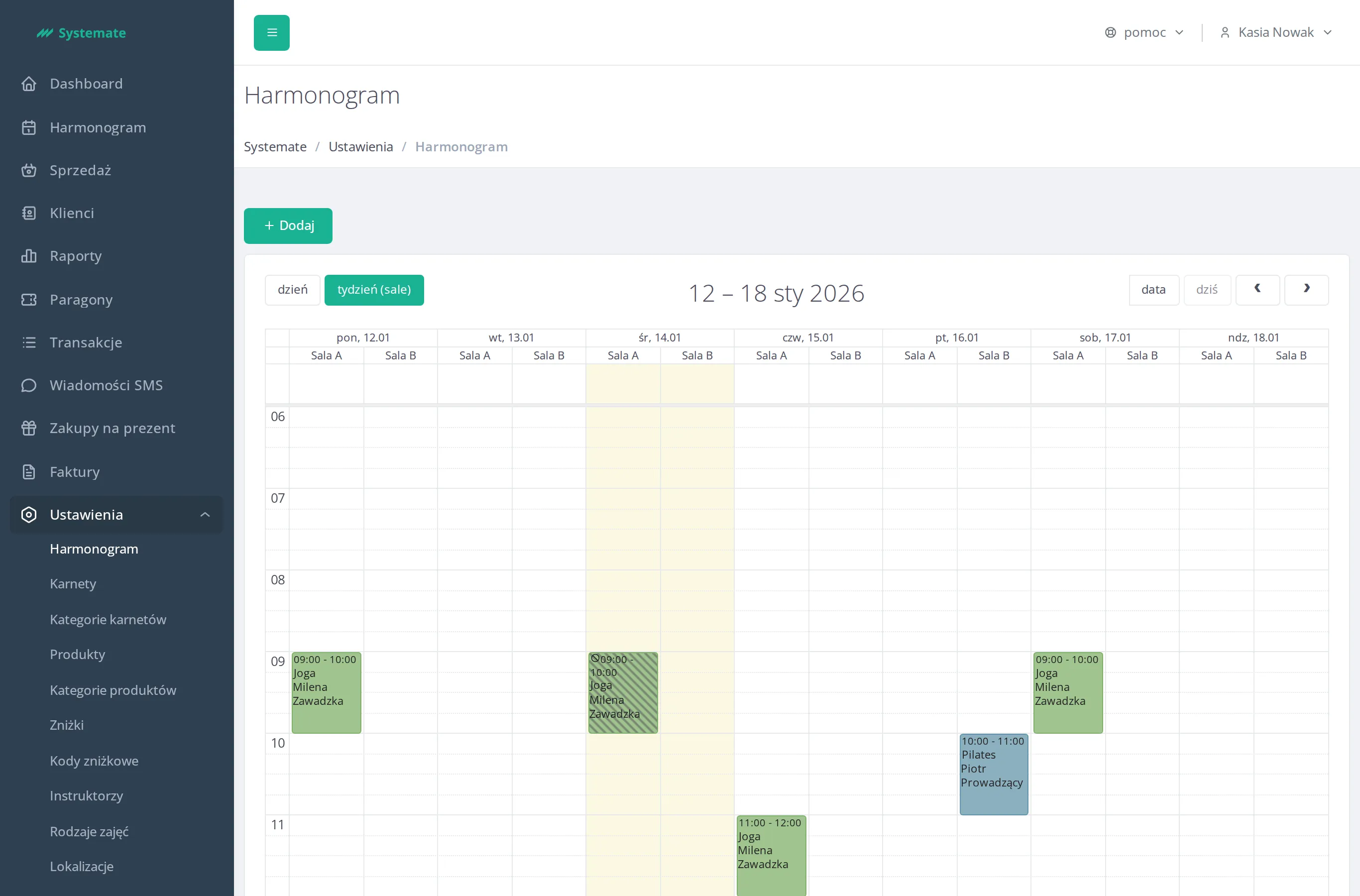
A cancelled class stays visible: in the office calendar its tile is marked with a cancellation icon, and on the attendance list a Canceled label appears next to the class name. Its slot no longer blocks other classes, so you can schedule a replacement at the same time.
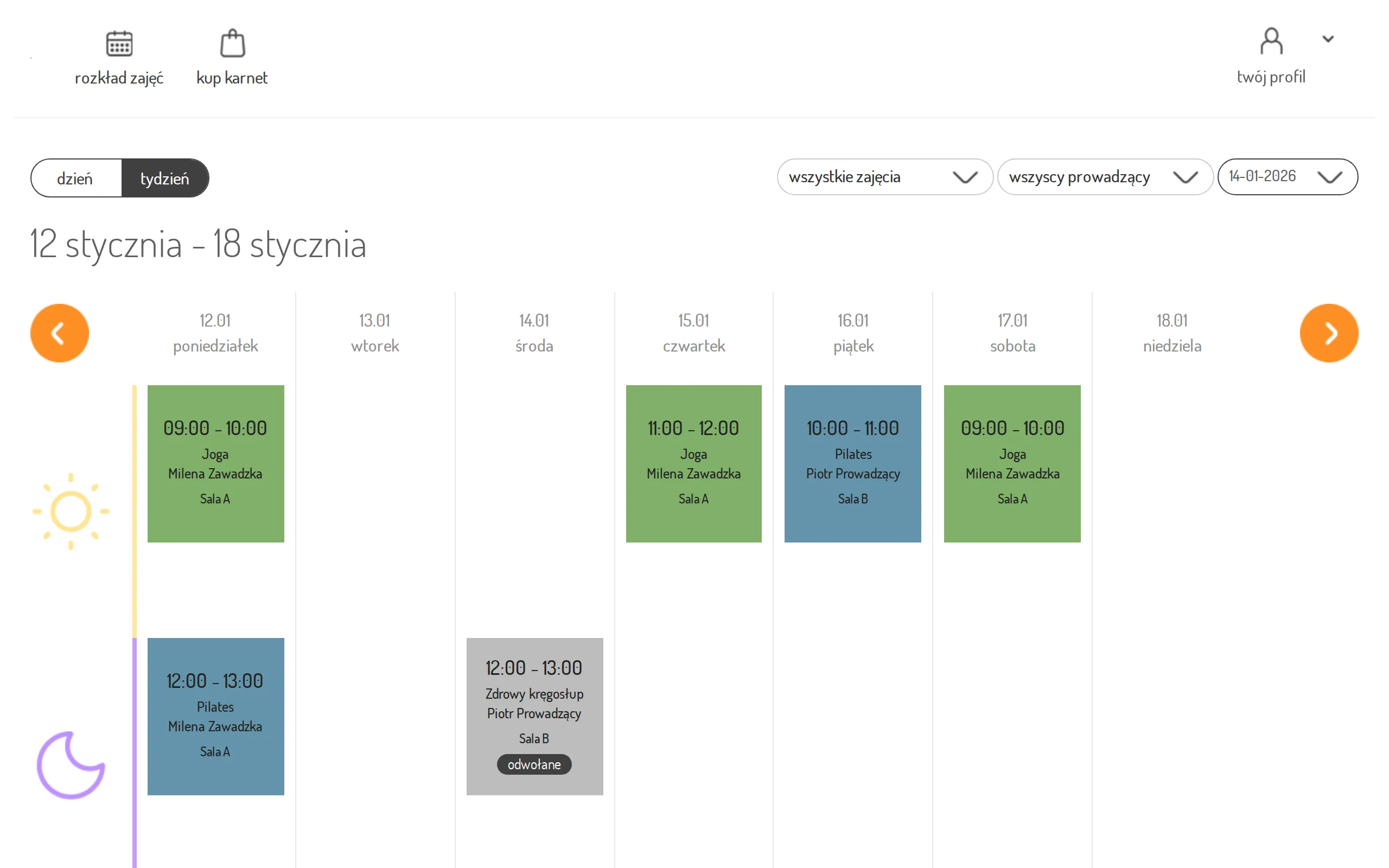
The customer gets a message with the class name and the date and time it was meant to take place, and their tile in the customer panel turns grey with a cancelled label and no sign-up option.
Instead of cancelling by hand
Section titled “Instead of cancelling by hand”A class too few people sign up for can be cancelled by the system itself: it counts the bookings a set time before the start and then does exactly what you do in the confirmation dialog. See Set up automatic class cancellation.