Marek connects Stripe
Marek Wiśniewski wants Studio Ruchu Flow’s customers to buy passes online and pay for subscriptions. That needs a Stripe account connected to Systemate — the money then goes straight to the studio’s account.
1. Choosing the path
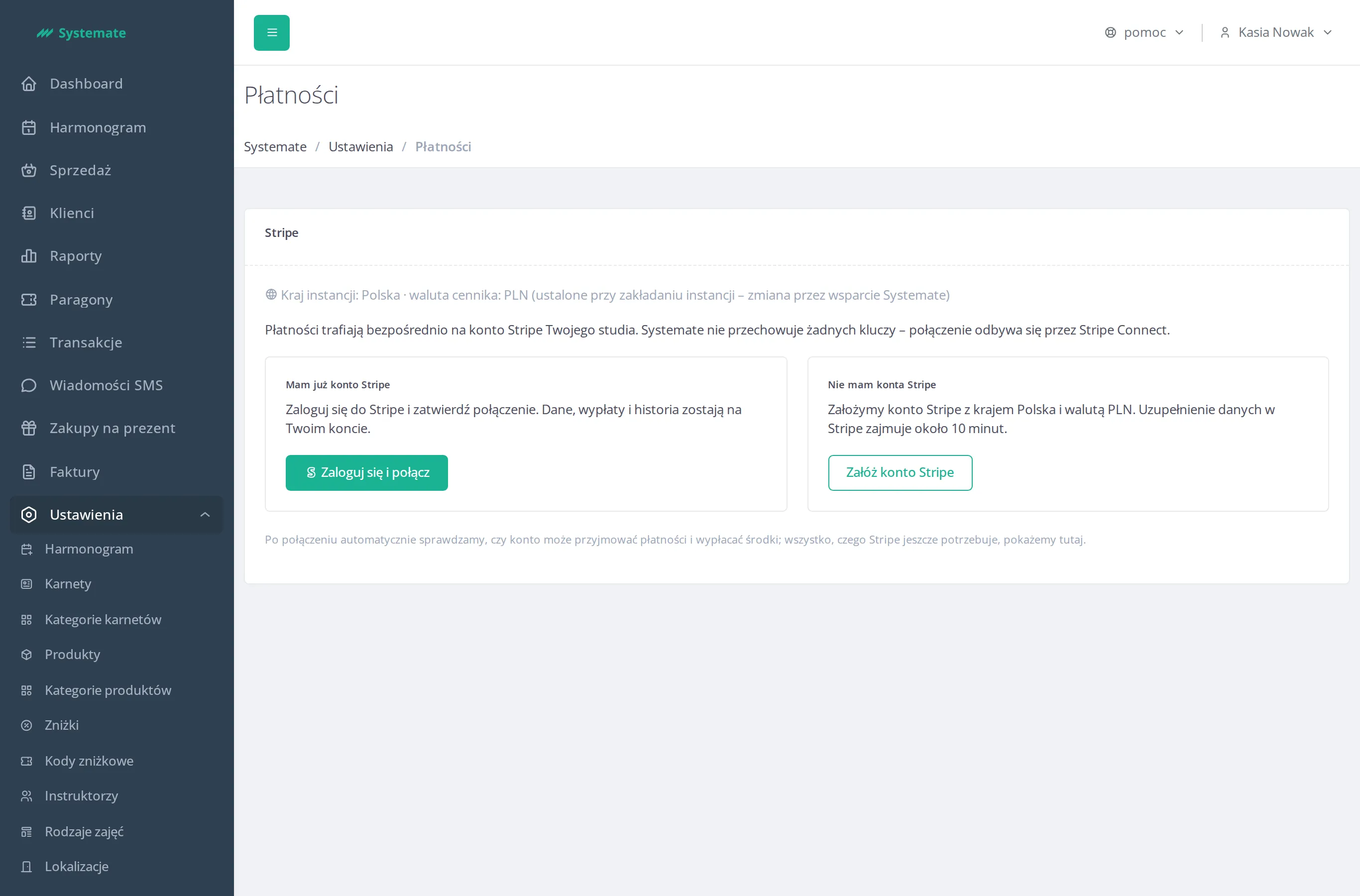
Section titled “1. Choosing the path”Marek opens Settings → Payments. The page shows the instance’s country and currency and two paths: I already have a Stripe account and I don’t have a Stripe account. The studio has long taken payments through Stripe in its clothing shop, so Marek picks the first one and clicks Log in and connect.
2. Returning from Stripe
Section titled “2. Returning from Stripe”In Stripe Marek logs in and approves the connection, then returns to the panel. Had he cancelled the connection, or had the account been connected to another instance, the page would show a message with the reason — this time everything worked.
3. The account card and the checklist
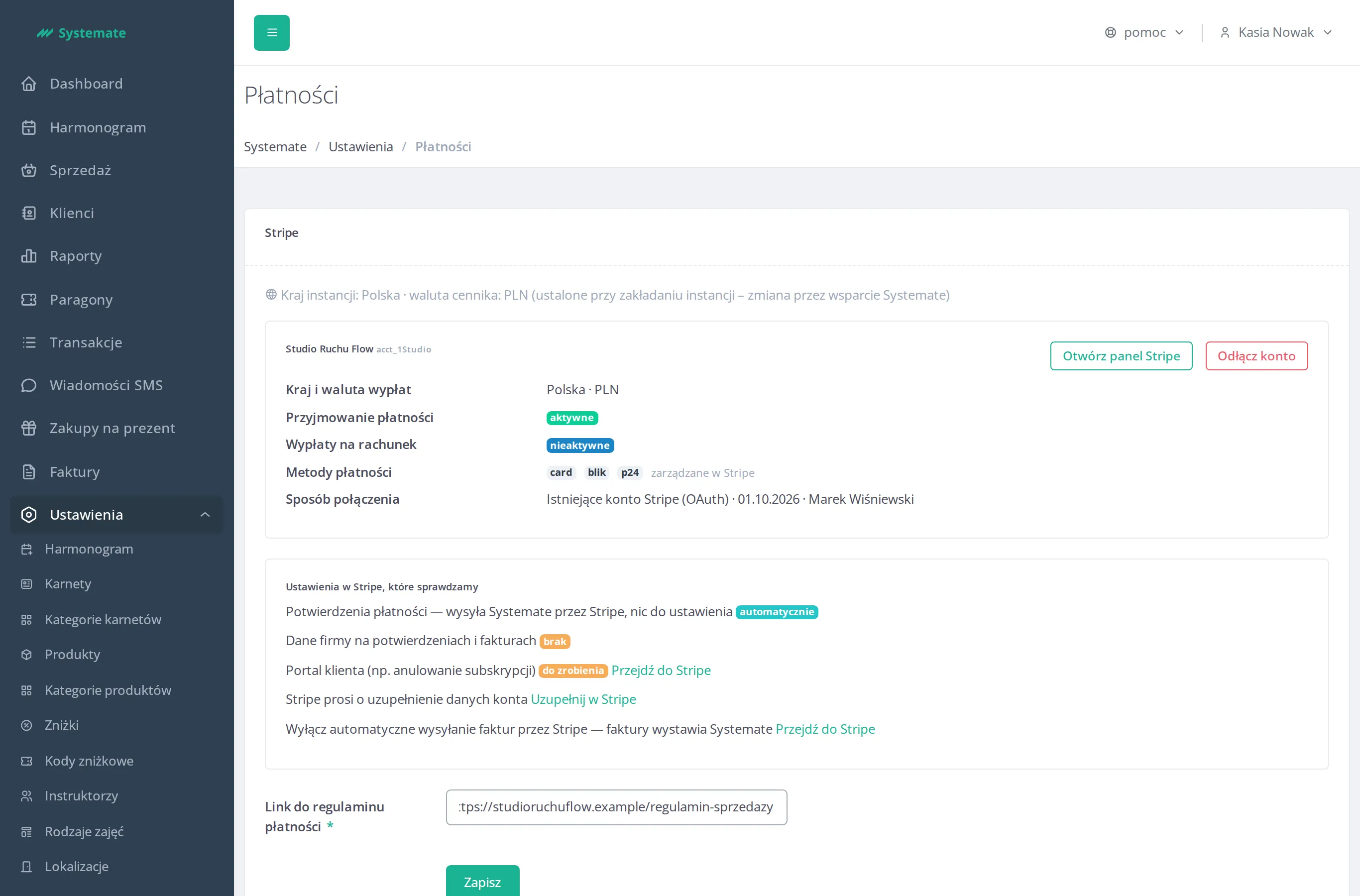
Section titled “3. The account card and the checklist”The page now shows the account card: the business name, the payout country and currency, charges, payouts, payment methods and a note that this is an existing Stripe account connected by Marek. Below it, the Stripe settings we’re reviewing list tells him the business details are missing, the customer portal awaits setup and Stripe asks for account details. Marek follows the links to Stripe and finishes each of them, then enters the payment regulations link and saves.
Details: Configure online payments.
4. Disconnecting, should it ever be needed
Section titled “4. Disconnecting, should it ever be needed”Marek also checks what happens if he ever changes accounts: Disconnect account first asks for confirmation, and while pass subscriptions are active it refuses and explains why. The Stripe account always stays with the studio.
Result: Studio Ruchu Flow takes online payments into its own Stripe account, and Marek sees in one place whether the account works and what Stripe still needs from him.