Send an SMS to customers
Read and reply to incoming messages
Section titled “Read and reply to incoming messages”The SMS messages menu item shows a badge with the number of unread incoming messages.
- In the office panel open SMS messages.
- The Received messages tab lists incoming SMS with the Sender, Message, and Received date. Unread messages are highlighted; click Mark as read to clear one without opening it. When the sender’s number matches a customer, their name links to the customer profile.
- Click a message to open the Conversation — the full exchange with that phone number.
- Type your answer in the Write a reply… box and click Send. The counter below the box shows the message length in characters and SMS segments.
Send a new message
Section titled “Send a new message”- In SMS messages switch to the New message tab.
- Under Recipients, search for customers and add them to the list — the table shows each recipient’s Phone and Marketing consent.
- Write the message, choose how it is sent — Two-way number (customers can reply) or Sender name — and click Next.
- Review the preview of the exact text that will be sent, then click Send.
You can review deliveries later in the Sent messages tab, and — if your account has access — usage and costs in the Statistics tab.
Text the participants of a class
Section titled “Text the participants of a class”-
Open the Schedule and click the class — see Check the attendance list.
-
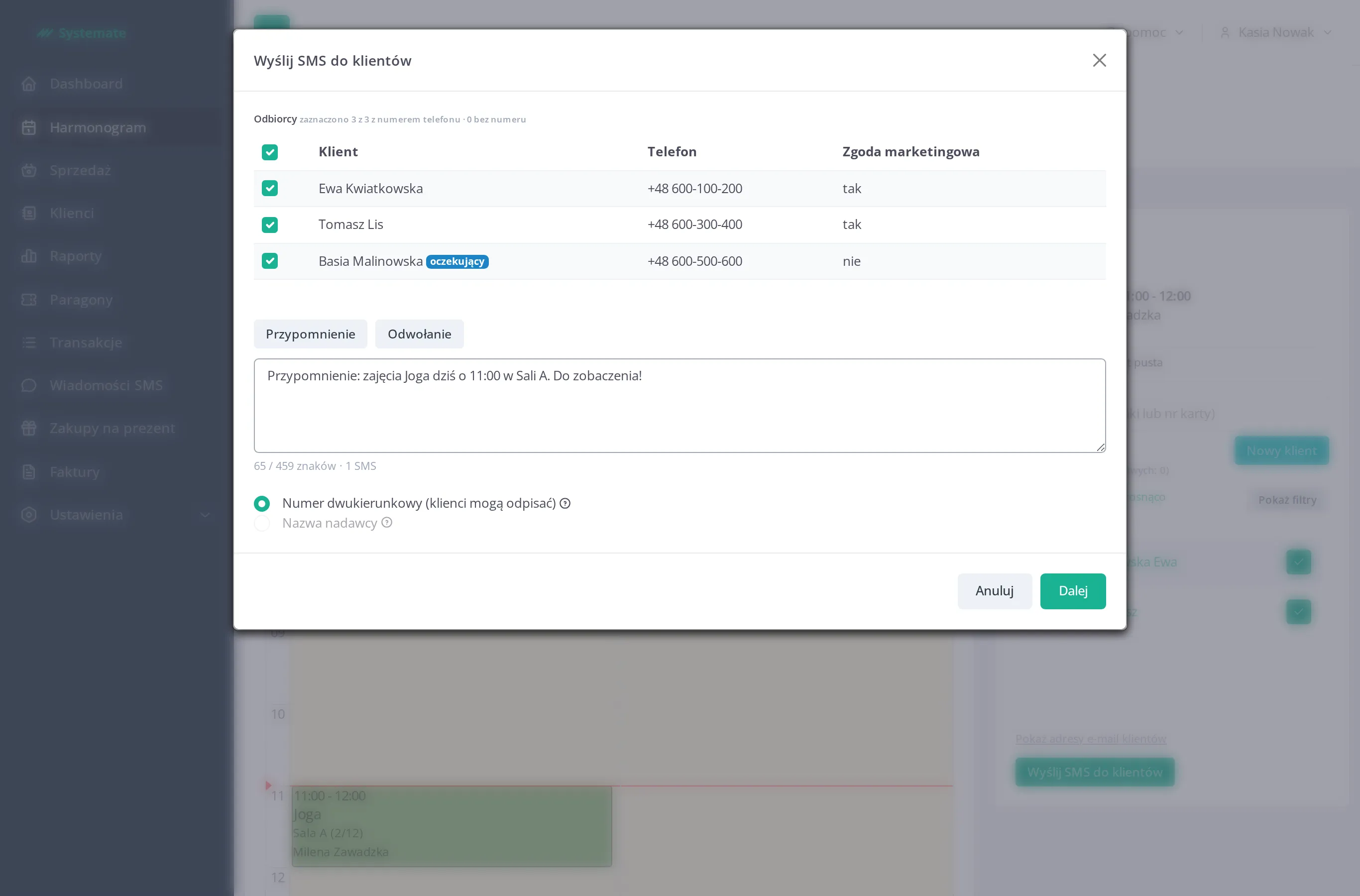
In the attendance panel click Send SMS to customers.
-
In the modal, tick the Recipients you want to text. Customers from the waiting list are marked with a waiting list badge. Recipients without a phone number cannot be selected.
-
Write the message, choose the sending mode, and click Next.
-
Check the preview and confirm with Send.