Add a note to a customer
-
In the office panel go to Clients and open the customer’s profile.
-
Switch to the Notes tab and click Add note.
-
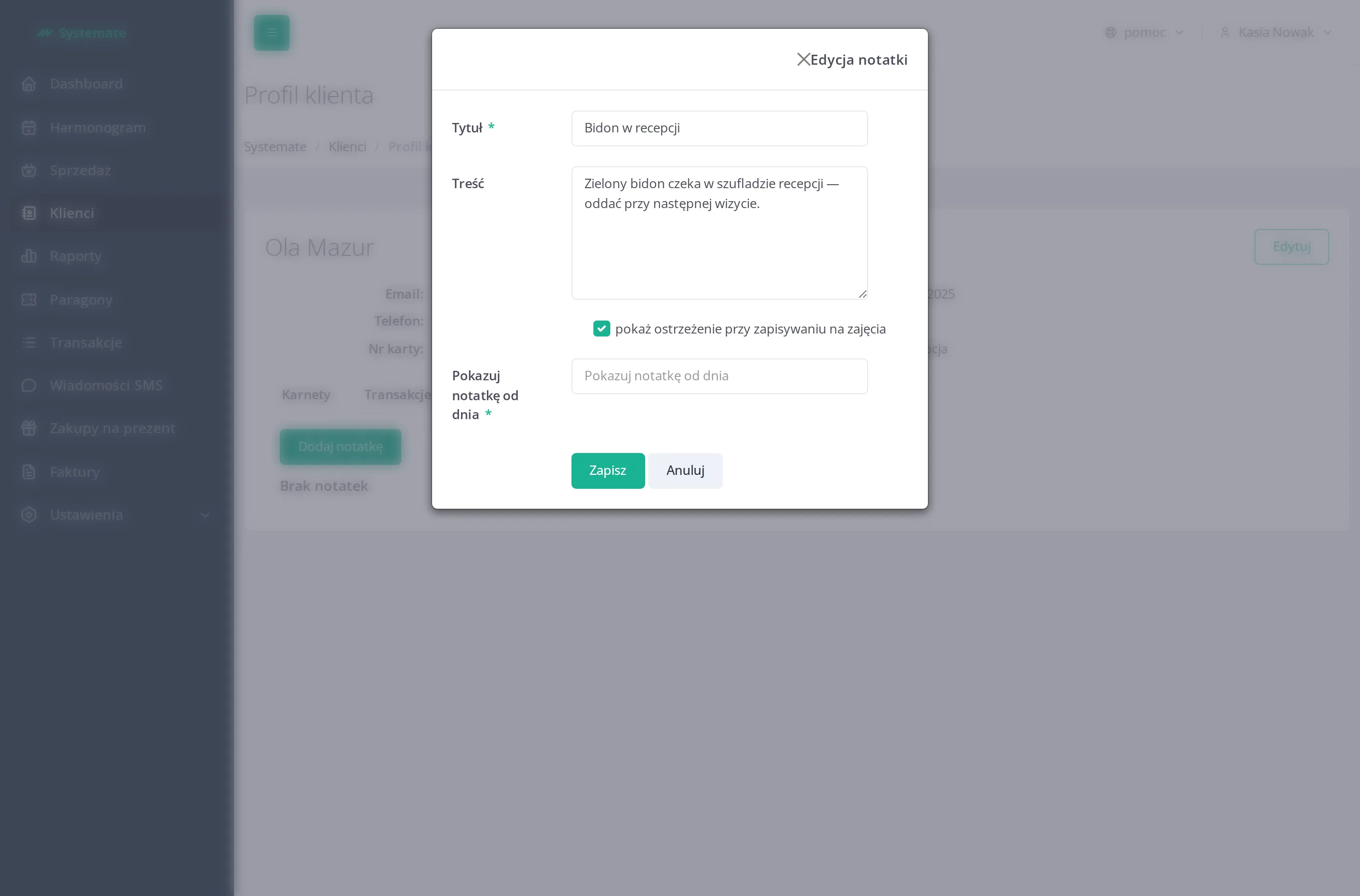
Fill in the note:
- Title (required),
- Content (optional),
- Warn when signing up for classes — tick this to have the note pop up in the Additional information window whenever the customer is signed up for a class or their presence is confirmed,
- Display from date (optional) — until that date the note waits under Future notes and doesn’t warn anyone yet.
-
Click Save.
Where the note shows up
Section titled “Where the note shows up”- On the customer’s profile, in the Notes tab — under Active notes, with the author and date (Note created by: / Last modified by:).
- If Warn when signing up for classes is ticked, the note also appears at the front desk: the Additional information window that opens when the customer is signed up for a class or checked in shows The client has assigned notes with the note’s title and content, and a Go to note button leading back to the profile. See Check the attendance list.
Managing notes
Section titled “Managing notes”Each note on the list has actions:
- Edit — change the title, content, warning flag, or display date.
- Archive — the note stops warning and moves to Archived notes (unfold them with Show archived). Use this when the matter is settled but worth keeping on record.
- Delete — removes the note for good, after a Note removal confirmation.