Sign a customer up for a class
-
In the office panel open the Schedule and click the class you want to book the customer into — this opens the attendance panel for that class. New to this panel? See Check the attendance list first.
-
In the search field above the customer list, type the customer’s name (at least 3 characters) or their loyalty card number.
-
Click the matching customer in the results — Systemate picks a pass for them automatically:
- With one valid pass, the customer is booked right away and a confirmation message appears.
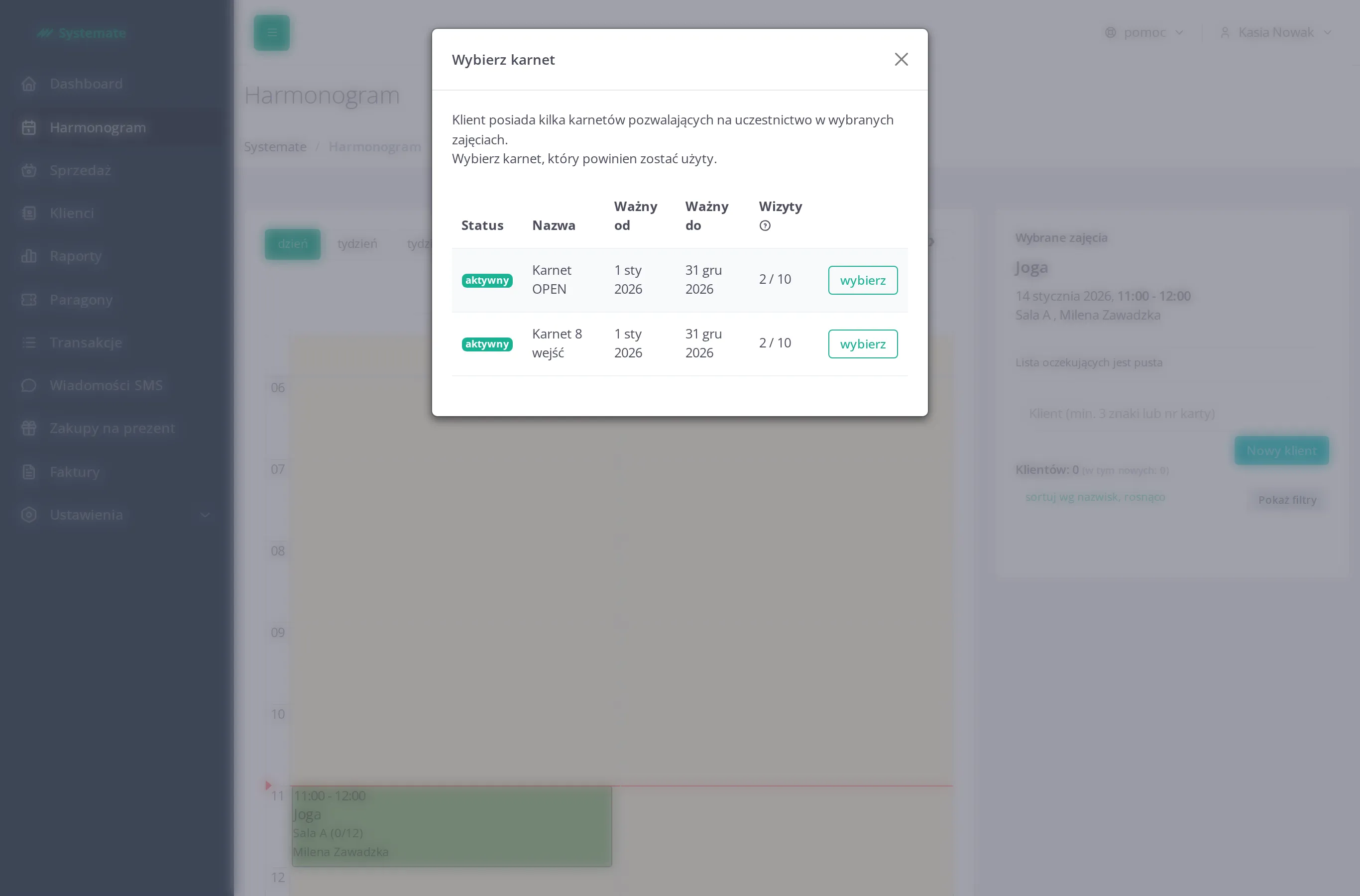
- With several valid passes, the Choose pass dialog opens — pick the pass to use, or click activate and use for one that isn’t active yet.
- With no valid pass, a No valid pass message appears — from there you can Sell pass or Show client passes.
-
After booking, Systemate may show an Additional information window with anything worth knowing before the class: an outstanding or overpaid balance, notes on the customer’s account, or a pass that’s about to run out.
What each pass situation looks like
Section titled “What each pass situation looks like”Systemate only considers passes that cover this class type and this date, so what happens next depends on what the customer owns:
One valid, active pass
Section titled “One valid, active pass”The customer is added immediately. A green confirmation appears with the details of the pass that was used: its name, the entries left after this booking, and its valid-to date.
If the class takes place today, the customer is at the same time marked as present — no separate ✓ click needed. For a future class they are just signed up.
Several valid passes — or one that isn’t active yet
Section titled “Several valid passes — or one that isn’t active yet”The Choose pass dialog opens: “The client has several passes allowing to participate in selected classes. Select the pass that should be used.” The table shows each pass’s Status (active or not activated), Name, Valid from, Valid to, and Entries (used / all).
- For an active pass, click select to use it.
- For a not activated pass — one sold with validity starting “from next visit” — click activate and use. The pass is activated with this class’s date as the start of its validity, and the booking uses it right away.
The same dialog also opens when the customer’s only matching pass is a not-activated one, so you can consciously start its validity.
No valid pass
Section titled “No valid pass”The No valid pass window opens: “The client does not have a valid subscription. You can sell a pass or check other passes in the client’s account.” This is also what you’ll see when the customer does have a pass, but for a different class type. From here:
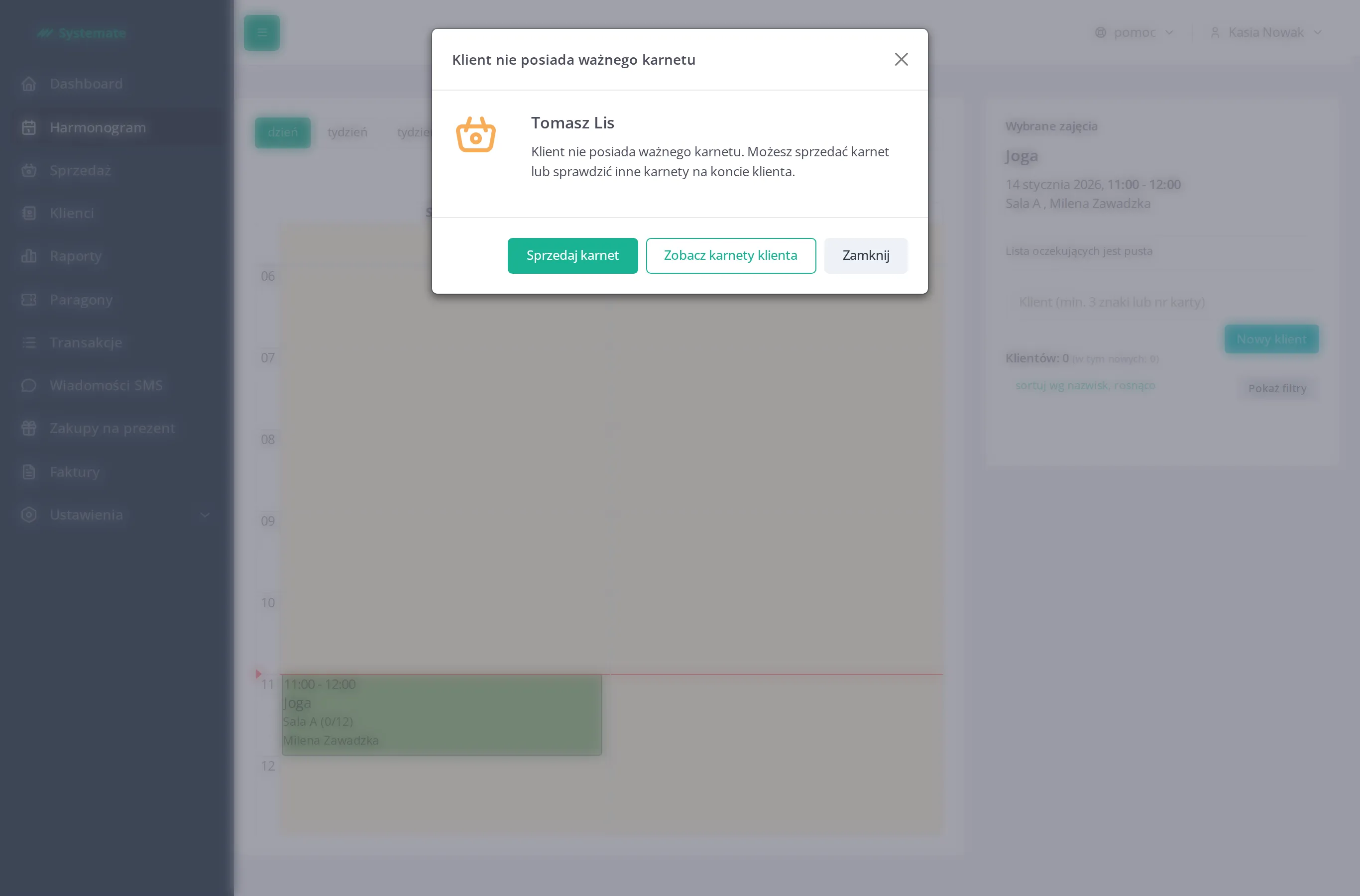
- Sell pass — opens the sale view in a window with this customer already selected; complete the sale as described in Sell a pass at the front desk. When you finish, Systemate asks whether to add the customer to this class — confirm with yes and the booking uses the fresh pass.
- Show client passes — opens the customer’s profile in a new tab so you can check what they actually own.
- Close — back out without booking.
The warnings after booking
Section titled “The warnings after booking”The Additional information window appears only when there is something to flag: The client has outstanding payments, The client has an overpayment on the account, The client has assigned notes (with the note contents), The pass validity expires soon for the last entry or last day of the pass, or extra information configured for the pass type. The full list is described in Check the attendance list.