Sell a pass on a contract
Prepare a contract pass type
Section titled “Prepare a contract pass type”- In the office panel go to Settings → Passes and create or edit a pass type — see Create a pass type.
- Set Sale as contract to yes.
- Enter Contract periods — the number of installments (it must be greater than 2).
- Review the Contract terms summary the form displays — Passes count that client will receive, Installments count, Single installment price, and Total price — then click Save.
Sell the contract at the front desk
Section titled “Sell the contract at the front desk”- Go to Sale and pick the contract pass in the search box (Search for article or pass…). The contract form opens instead of the regular pass form.
- Fill in the Details:
- Client — search for the customer (required),
- Contract start date — once set, the installment Schedule appears, with the dates and amount of every installment and the Last pass valid to date,
- Number (optional) — your own contract number.
- Click Add. The order line shows the contract summary — Contract length, Price for one period, Contract value — and is marked First installment payment: this transaction charges only the first installment.
- Complete the payment as in a regular sale — see Sell a pass at the front desk.
Manage the contract on the customer profile
Section titled “Manage the contract on the customer profile”-
Go to Clients, open the customer, and switch to the Contracts tab. The list shows each contract’s Number, Status, Name, Start date, End date, Periods, Left periods, and Amount. The New contract button starts another contract sale for this customer.
-
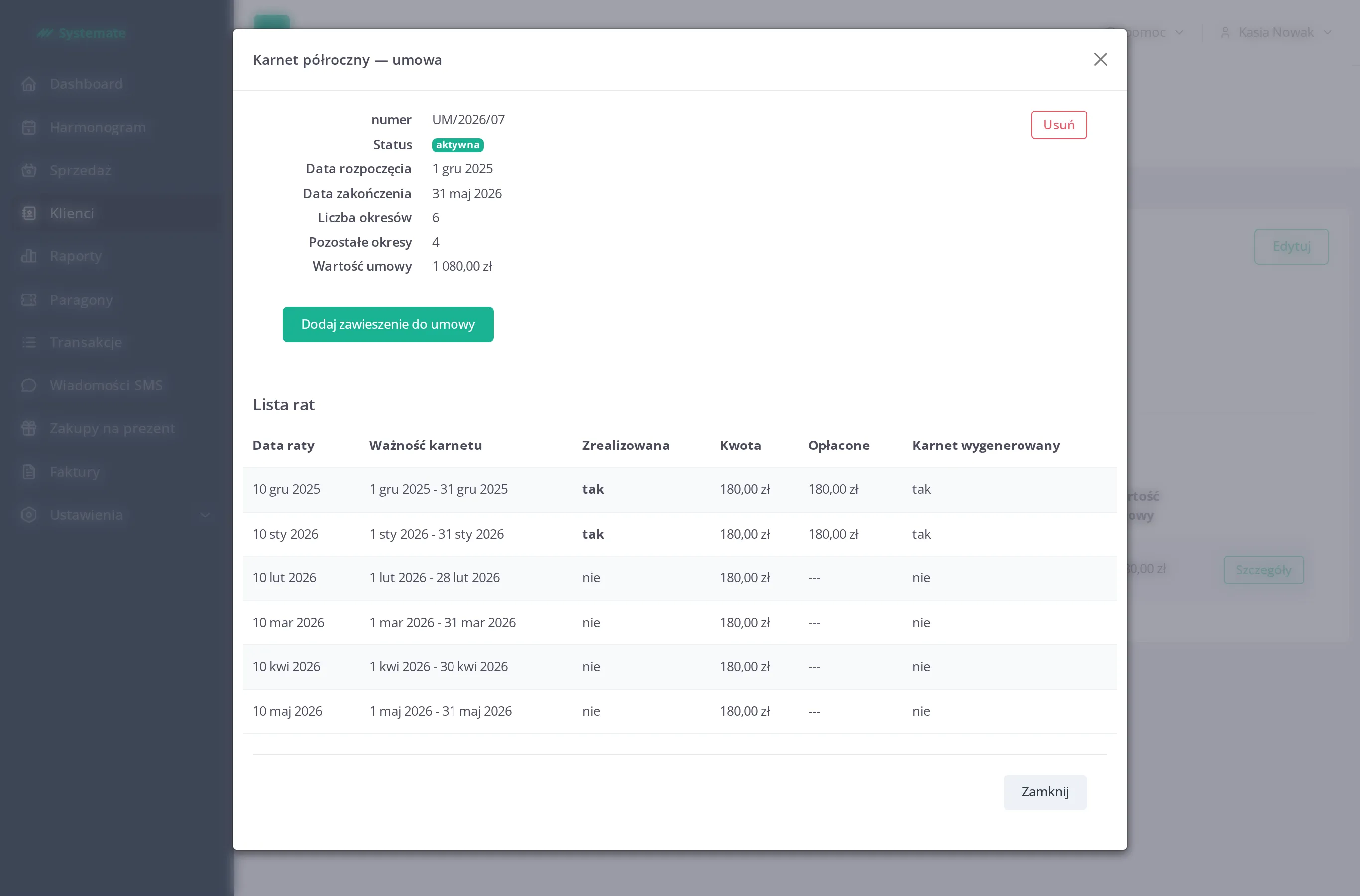
Open the contract’s details to see the Installment list — for every installment its Maturity date, the pass validity dates, whether it is Finished, the Amount, the amount Paid, and whether the pass was generated (Pass generated).
Suspend installments
Section titled “Suspend installments”-
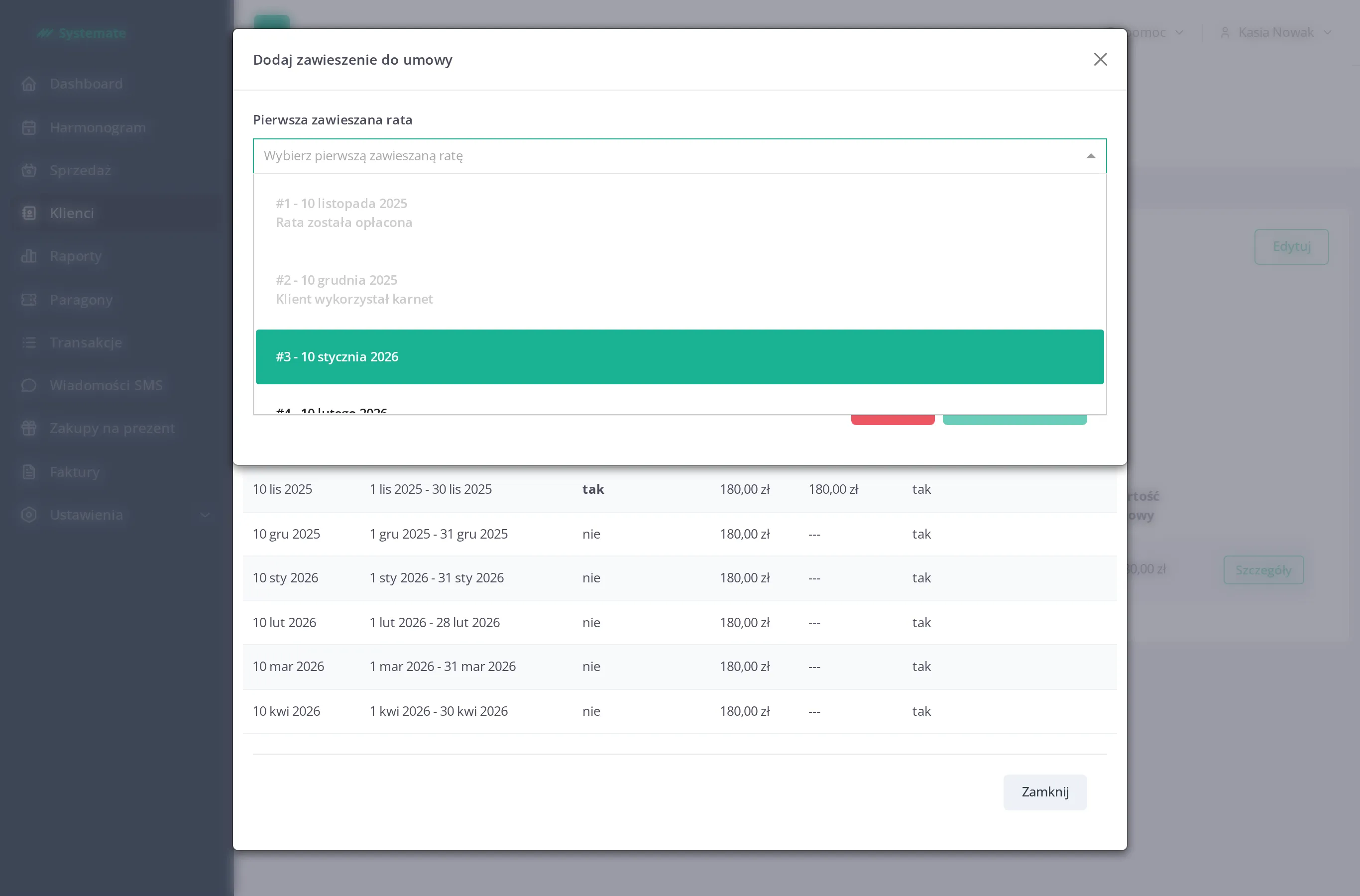
In the contract details click Add suspension for contract.
-
Select the First suspended installment and the Last installment of the suspension. Installments that are already paid or whose pass has been used cannot be suspended.
-
Under Fine choose Don’t add fine, or Suspension fine and select the fine item to charge.
-
Click Add suspension.