Check a customer's payments
-
In the office panel go to Clients, find the customer with the Search: box (min. 3 characters, or scan their card number), and click Details to open the profile.
-
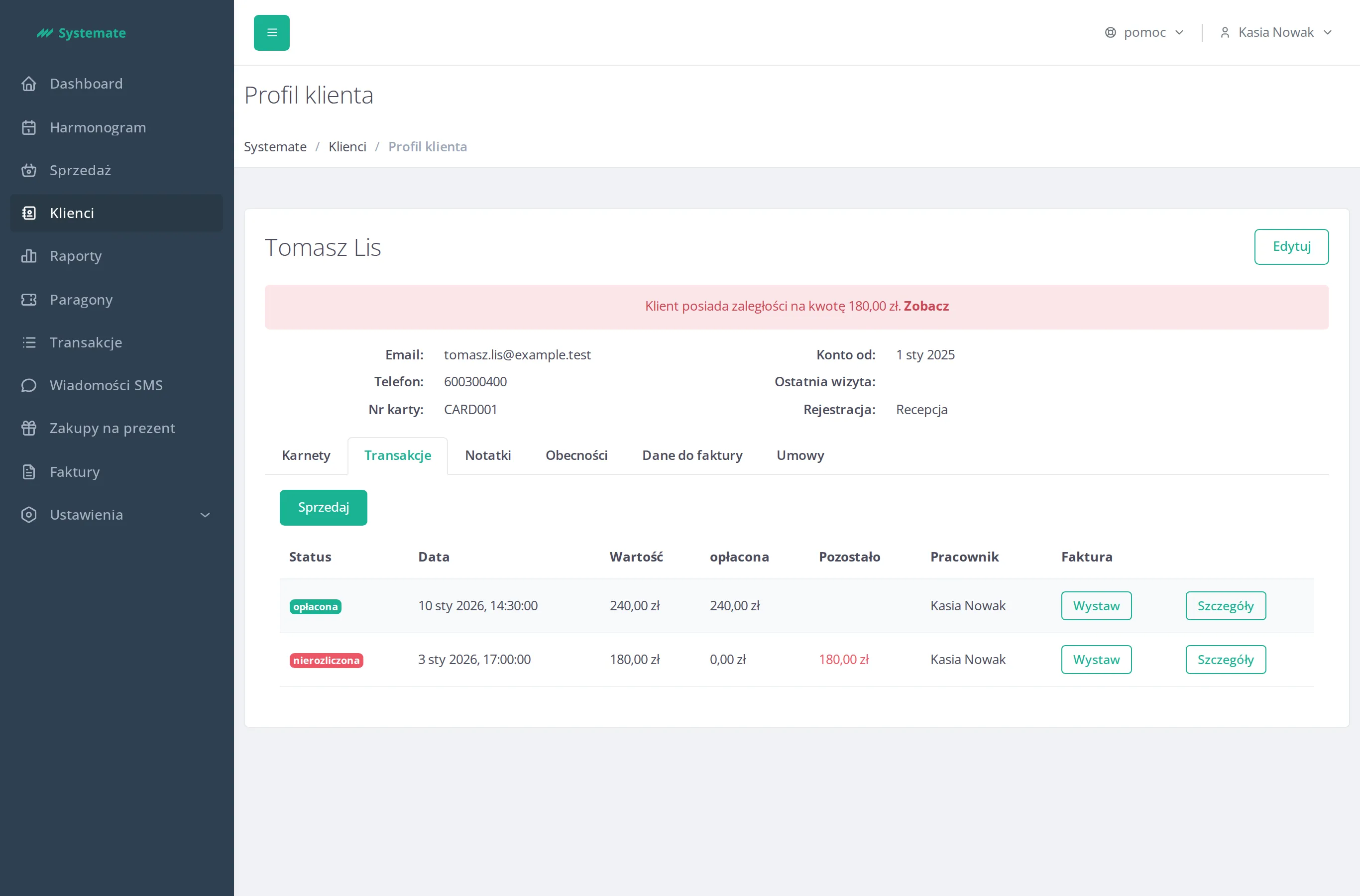
Look at the top of the profile: if the customer owes money, a red Unsettled payments alert shows the amount; if they paid too much, a green Overpayment alert appears. Click Show transactions in the alert to jump straight to the purchase history.
-
Switch to the Transactions tab. Each row shows the Status (paid, not paid, or future for a transaction dated in the future), the Date, Value gross (total), the amount paid so far, what’s Left to pay, the Employee who sold, and the Invoice column (Create / Download / a pending badge).
-
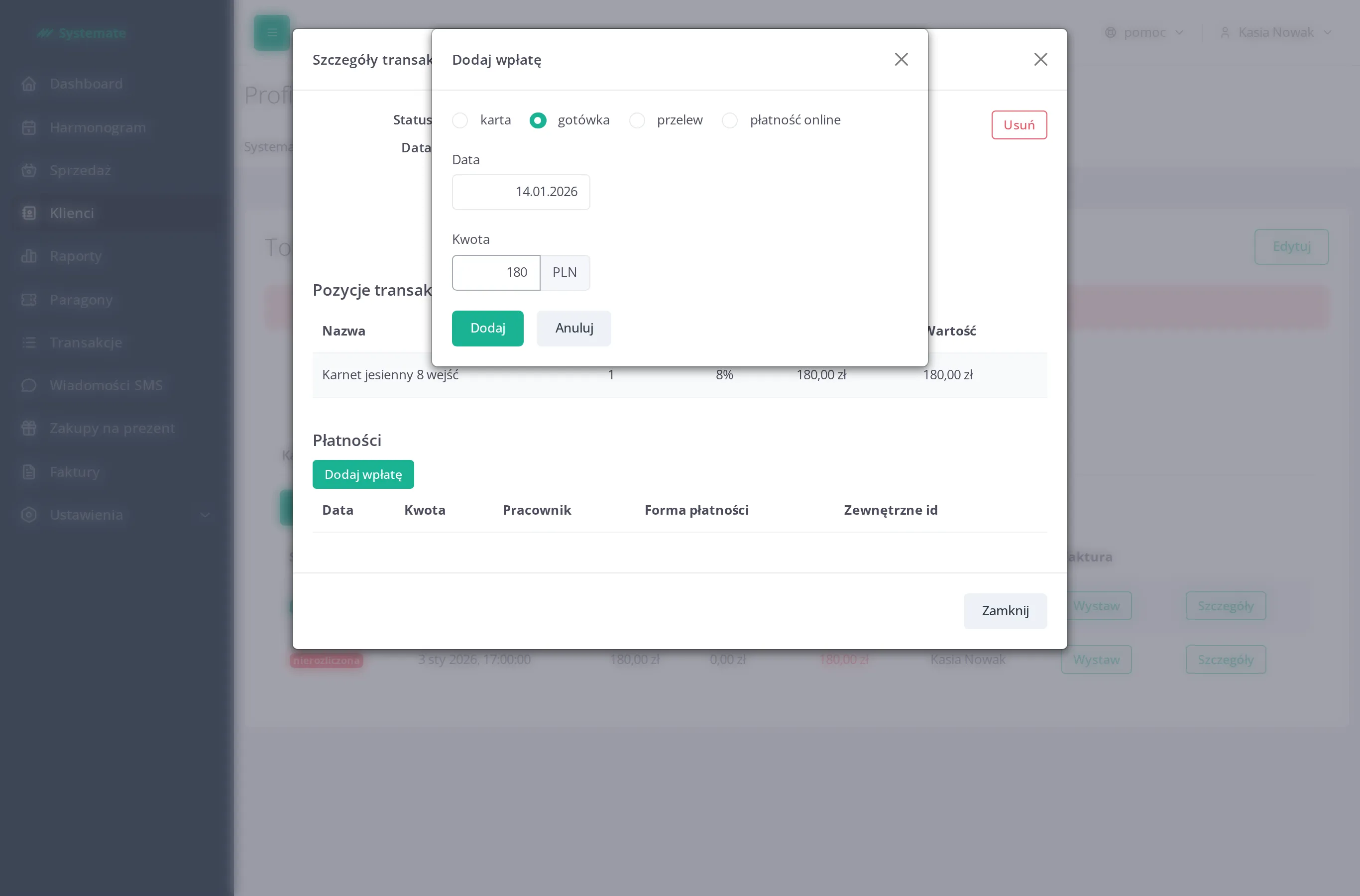
Click Details on a row to open Transaction details — it lists the purchased items (name, quantity, price, discounts), the Receipt status, and the Payments received so far with their Date, Amount, Employee, and Payment type.
-
To settle an outstanding amount at the desk, click Add above the Payments table, pick the payment type — card, cash, bank transfer, or online payment — enter the Date and Amount, and confirm with Add. For an online payment you can also record the operator’s External Id.
-
To start a new sale for this customer, click Sell at the top of the tab — the sale view opens with the client already assigned.