Sandbox mode for a new studio
A freshly created studio starts in sandbox mode. The whole system is yours to use — with one limitation: no SMS reaches your customers. That lets you enter data, build the schedule, and click through the panel without the risk of texting a real person along the way.
How you know the studio is in sandbox mode
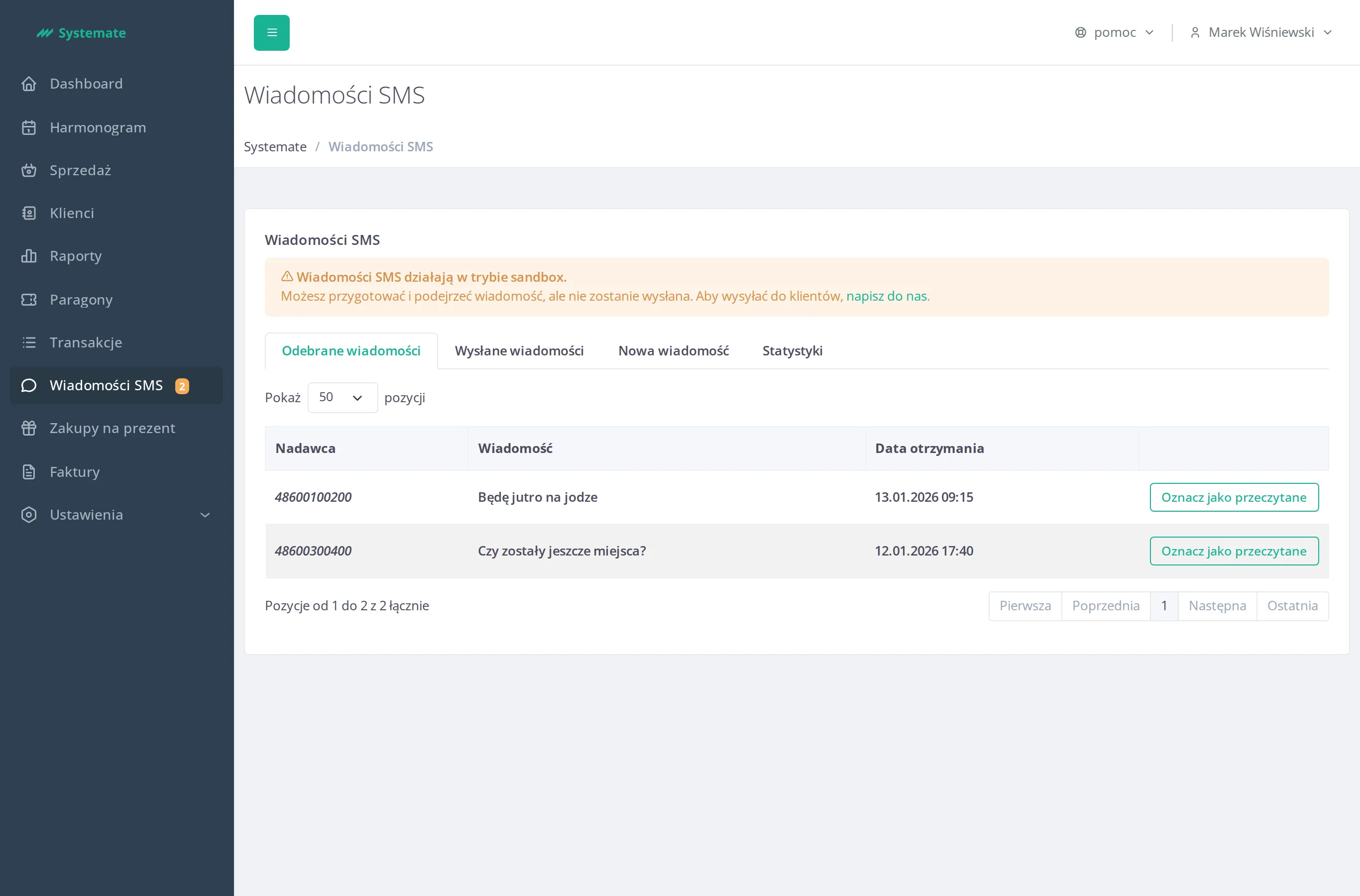
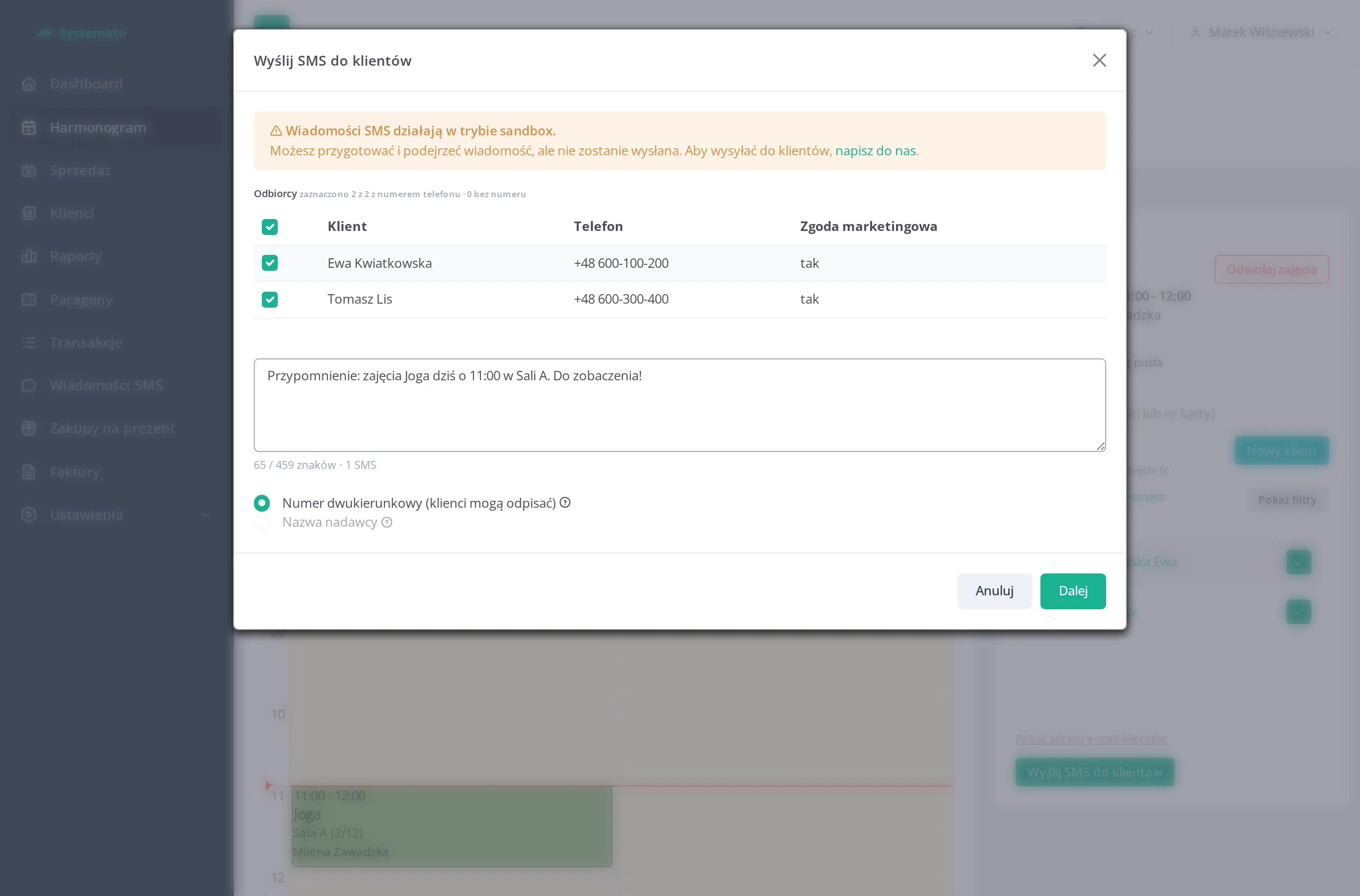
Section titled “How you know the studio is in sandbox mode”The office panel shows the sandbox notice where it matters for your work — on the SMS messages screen, in the dialog for texting the participants of a class, and in the message you get after trying to send. Each of them carries a contact us link that opens a message to platform support.
What works as usual
Section titled “What works as usual”In sandbox mode everything works except SMS sending:
- the schedule, classes, cycles, and attendance lists,
- customers, passes, contracts, and waiting lists,
- sales, online payments, invoices, and reports,
- the customer panel: creating accounts, booking and cancelling reservations,
- e-mails to customers — booking confirmations, cancelled-class notices, and the rest of the system mail go out as usual.
Data you enter in sandbox mode stays. Leaving the mode deletes nothing and requires no migration of settings — the studio carries on with what you already have.
No SMS reaches customers
Section titled “No SMS reaches customers”The SMS screens are all there — you can browse them and compose a message — but no SMS leaves the system.
- Manual sending (new message, SMS to the participants of a class, reply in a conversation) ends with The SMS was not sent — the studio is running in sandbox mode. The message lands neither in the sent history nor in the cost report.
- Automatic SMS — the cancelled-class notices for customers and for the instructor, and the message to a customer moved up from the waiting list — are skipped. The e-mails for the same events go out as usual.
- SMS-related settings can be saved: the SMS channel in automatic class cancellation and in a manual cancellation is selectable and remembered. It takes effect once the studio leaves sandbox mode and has SMS sending configured.
In the Send SMS to customers dialog the sandbox notice sits above the recipient list, and the confirmation button reads Submit (sandbox mode) — you click it to see how sending goes, but the message does not leave.
How to turn sandbox mode off
Section titled “How to turn sandbox mode off”Sandbox mode is turned off by the Systemate team — there is no button for it in the panel.
- Click Contact us in any sandbox notice. A new message opens in your mail program, with the address and the subject already filled in.
- If you would rather write it yourself, mail [email protected] with the subject Wyłączenie trybu sandbox – your studio name.
- We reply and turn the mode off on our side. The notices in the panel disappear by themselves, without logging out.