Customize the gift voucher template
When a customer buys a pass as a gift, they receive a PDF voucher generated from the template you configure here — see Buy a pass as a gift. The recipient then redeems the voucher code — see Redeem a gift voucher.
The template is your own PDF design (for example prepared by a graphic designer), on which the system prints two pieces of text: the voucher code and the name of the gifted pass. You decide where.
-
In the office panel go to Settings → Voucher Template.
-
Choose a PDF file (max 5 MB) with your voucher design — the editor opens with the PDF as the background.
-
Step 1: draw the rectangle where the voucher code will be printed.
-
Step 2: draw the rectangle where the pass name will be printed.
-
Save the template.
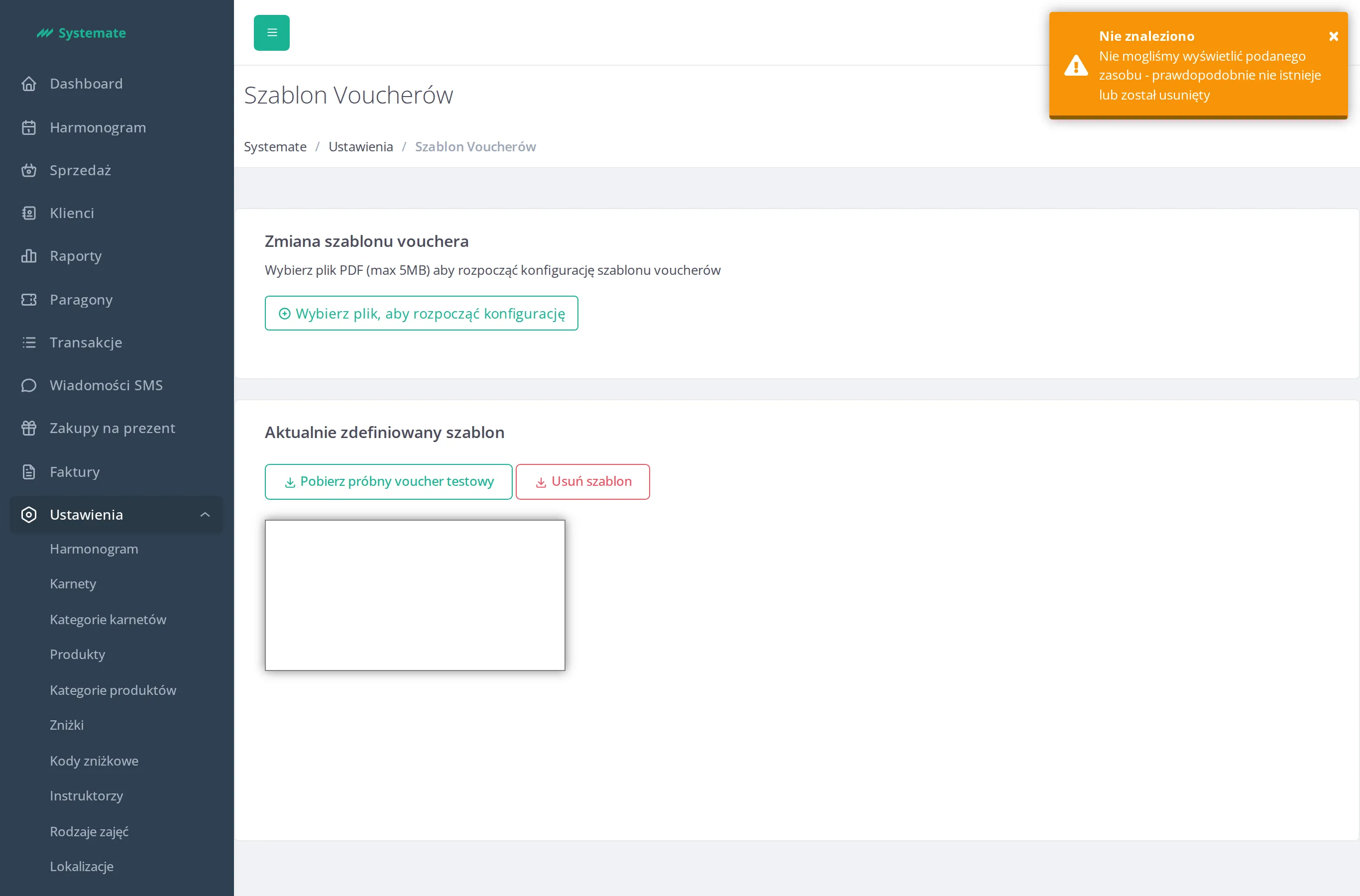
Once a template is configured, the page shows it with two actions:
- download a test voucher — a sample PDF so you can check the code and pass name land where you wanted,
- delete the template.