Review transactions
-
In the office panel open Transactions.
-
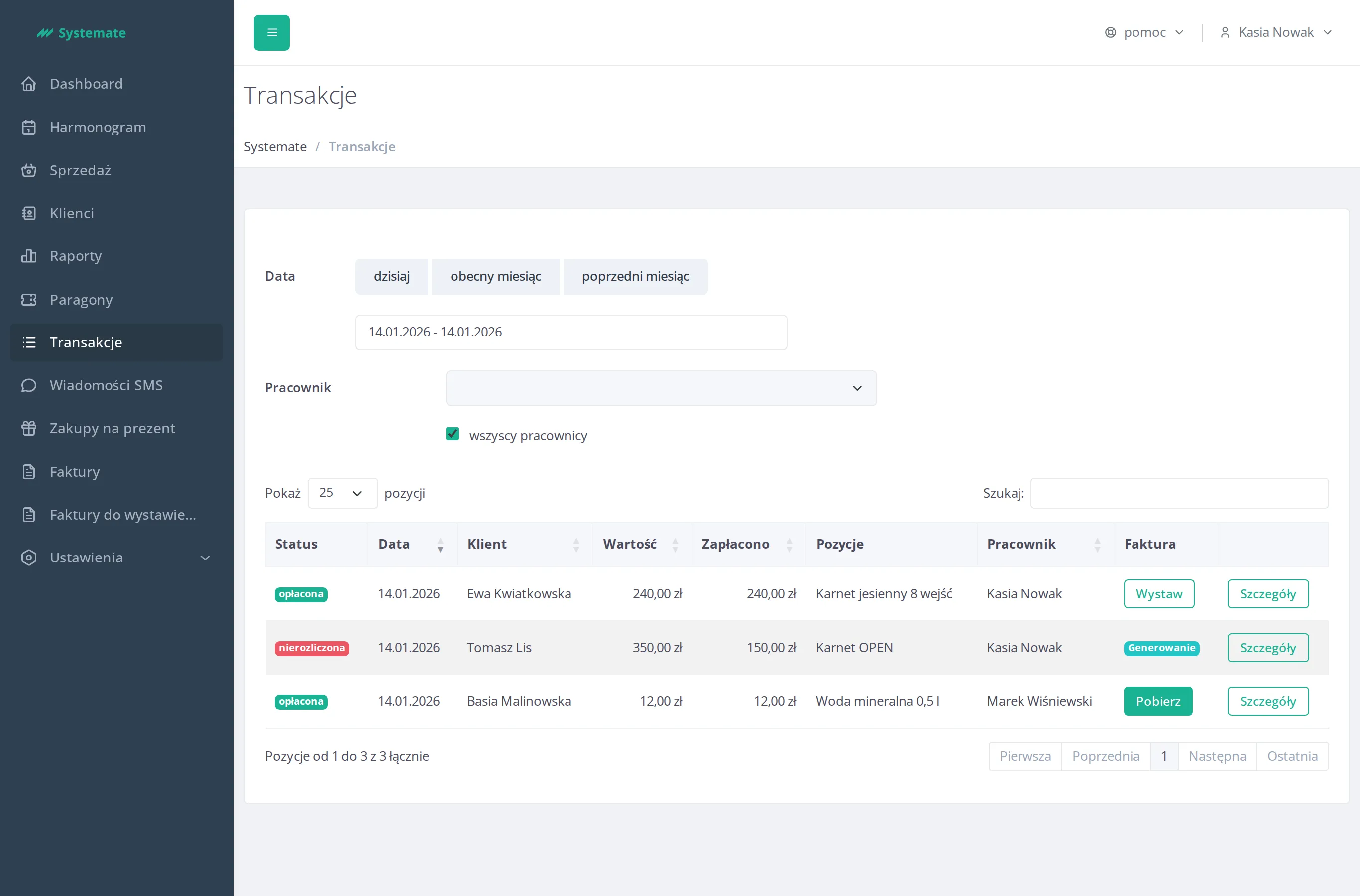
Pick the period: use the today, Current month, or Previous month buttons, or select any date range in the date field below them.
-
If your account can see other people’s sales, narrow the list with the Employee dropdown or tick all employees to see everything.
-
Each row shows the transaction: Status, Date, Client, Value gross, Paid, Items, Employee, and Invoice. The Status badge is paid, not paid, or future (for a transaction dated in the future). Use the Search: box above the table to filter the list, and click a column header to sort.
-
In the Invoice column you can:
- click Create to request an invoice for the transaction,
- click Download once the invoice is generated,
- see a pending badge while the invoice is being generated.
-
Click Details on a row to open Transaction details — it lists the Payments received for the transaction, and for a partially paid sale you can record another payment with Add.