Handle fiscal receipts
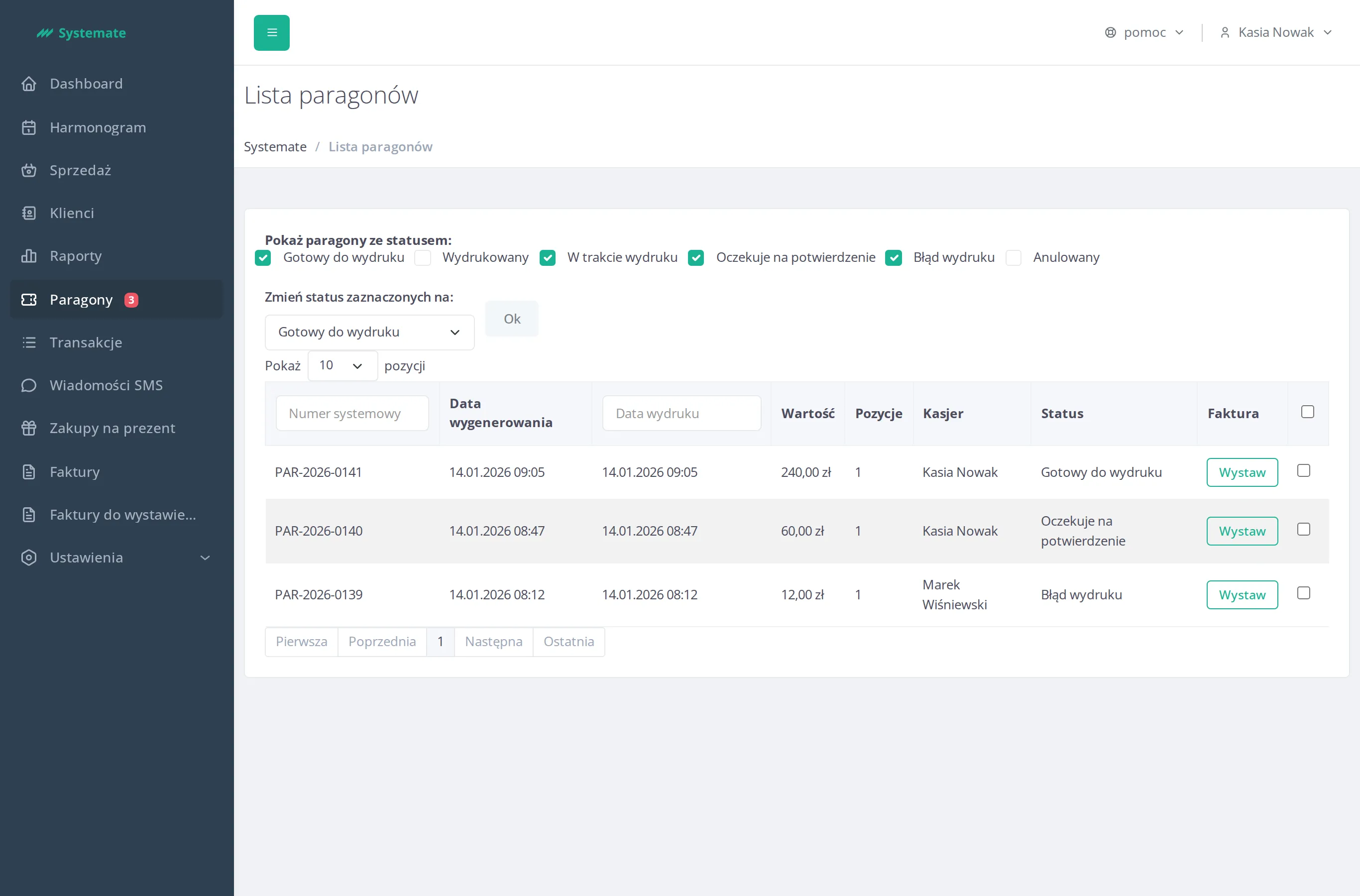
When a sale is completed with the print receipt option, the receipt goes into the printing queue. The Receipts menu item shows a badge with the number of receipts waiting in the queue — it turns red when any receipt ended in an error.
-
In the office panel open Receipts.
-
Use the Show only receipts with status: checkboxes to filter the queue. A receipt can be:
- Ready to print — waiting for the fiscal printer,
- Printing — locked for printing right now,
- Printed — done,
- Hold — put aside, not sent to the printer,
- Error — printing failed,
- Cancelled — withdrawn from the queue.
-
You can also narrow the list by typing a System number or picking a Print date in the column headers.
-
To fix stuck receipts, tick the checkbox at the end of each row (or the one in the header to select all), pick the new status under Change status of selected:, and confirm with Ok — for example, move an Error receipt back to Ready to print after fixing the printer, or set it to Cancelled.
-
In the invoice column you can click Create to request an invoice for a receipt, or Download it once it has been generated.