Disconnect the fiscal printer program
Disconnect the Systemate Paragony program from the panel when you’re replacing the computer at the front desk or want to uninstall the program from the computer. Employees with Fiscal Printer Management permissions can disconnect the program.
Where to find “Disconnect the program…”
Section titled “Where to find “Disconnect the program…””Open Settings → Fiscal Printer. At the bottom of the Program and printer box, you’ll see the text Are you replacing the computer at the front desk or uninstalling the program? Disconnect it from the panel. and a button labeled Disconnect the program…. Click it to open the disconnect window.
What the window says
Section titled “What the window says”The window lists the computer and its operating system, for example, RECEPCJA (macOS), and explains the consequences:
- the program on this computer will immediately stop printing receipts from this panel,
- receipts will be held until you reactivate the program—on this or another computer,
- VAT rate and payment method assignments will remain.
Click Disconnect the program to disconnect the program. If you change your mind, click Cancel.
Computer running macOS
Section titled “Computer running macOS”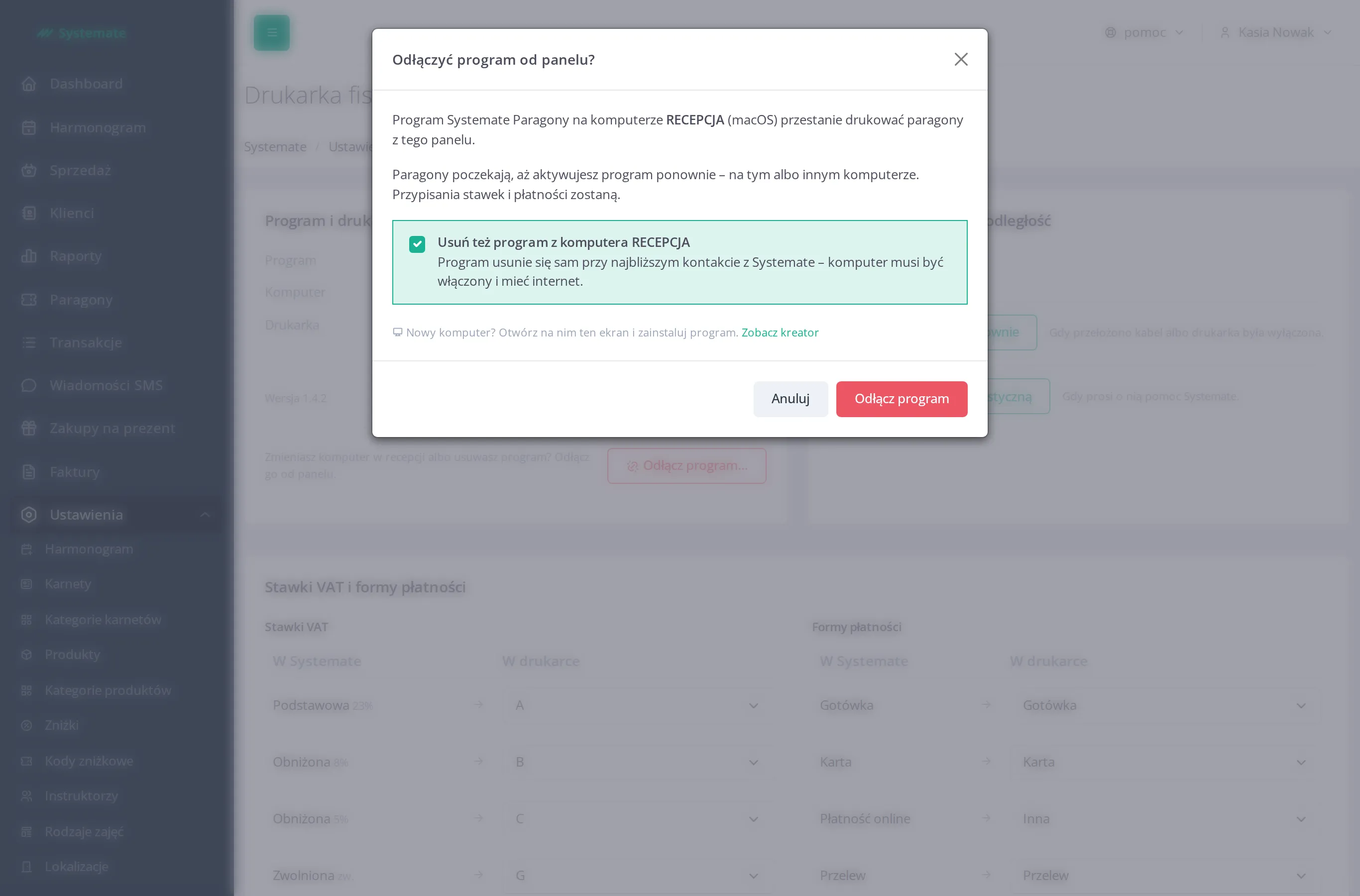
The Also uninstall the program from the computer … option is selected. The program will remove itself the next time it connects to Systemate. If the computer is turned off, the program will uninstall itself when the computer is turned on and has internet access. If you want to keep the program on your computer, uncheck the option before clicking Disconnect the program. How to uninstall the program by hand is described on the page Uninstall Systemate Paragony.
Computer running Windows
Section titled “Computer running Windows”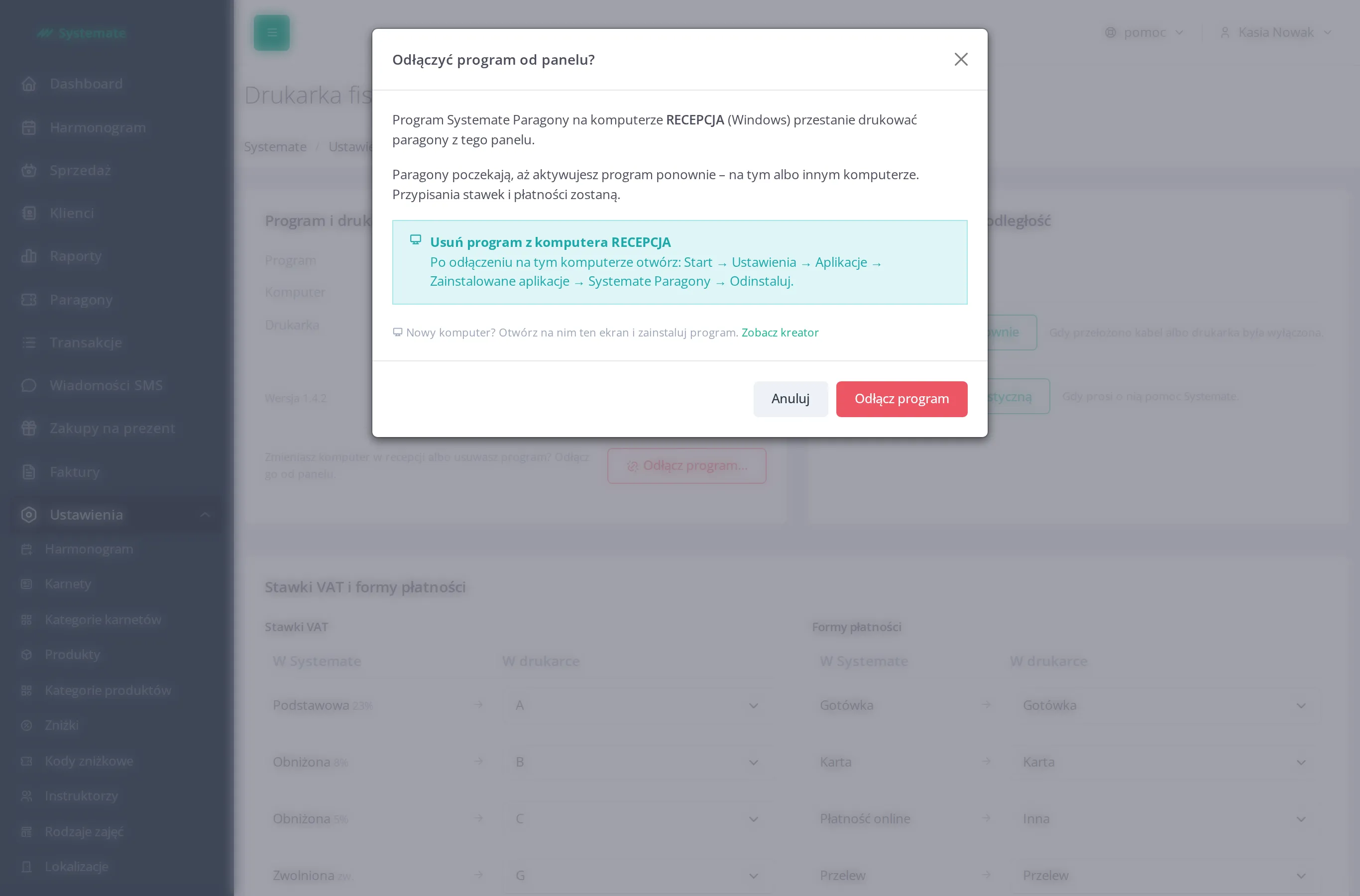
On a Windows computer, you must uninstall the program manually. After disconnecting, open the following on that computer: Start → Settings → Apps → Installed apps → Systemate Paragony → Uninstall. The windows that follow are described on the page Uninstall Systemate Paragony.
What next
Section titled “What next”After disconnecting, the fiscal printer screen displays the program connection wizard. On the new computer, open this screen, install the program, and activate it—see Connect a fiscal printer.
You can also open the wizard from the disconnection window by clicking See the wizard—the program will remain connected.
The printer application that printed receipts before Systemate Paragony will not restart on its own.