Check receipt printing
This page is for the person at the computer running the Systemate Paragony program. You don’t need any permissions in the panel to use it. Use this page when:
- the program icon next to the clock isn’t green,
- receipts stay in the Ready to print status,
- Systemate support asks you for a test print or a diagnostic package.
When receipts aren’t printing, sales are saved as usual, and the receipts will print once the program is working again.
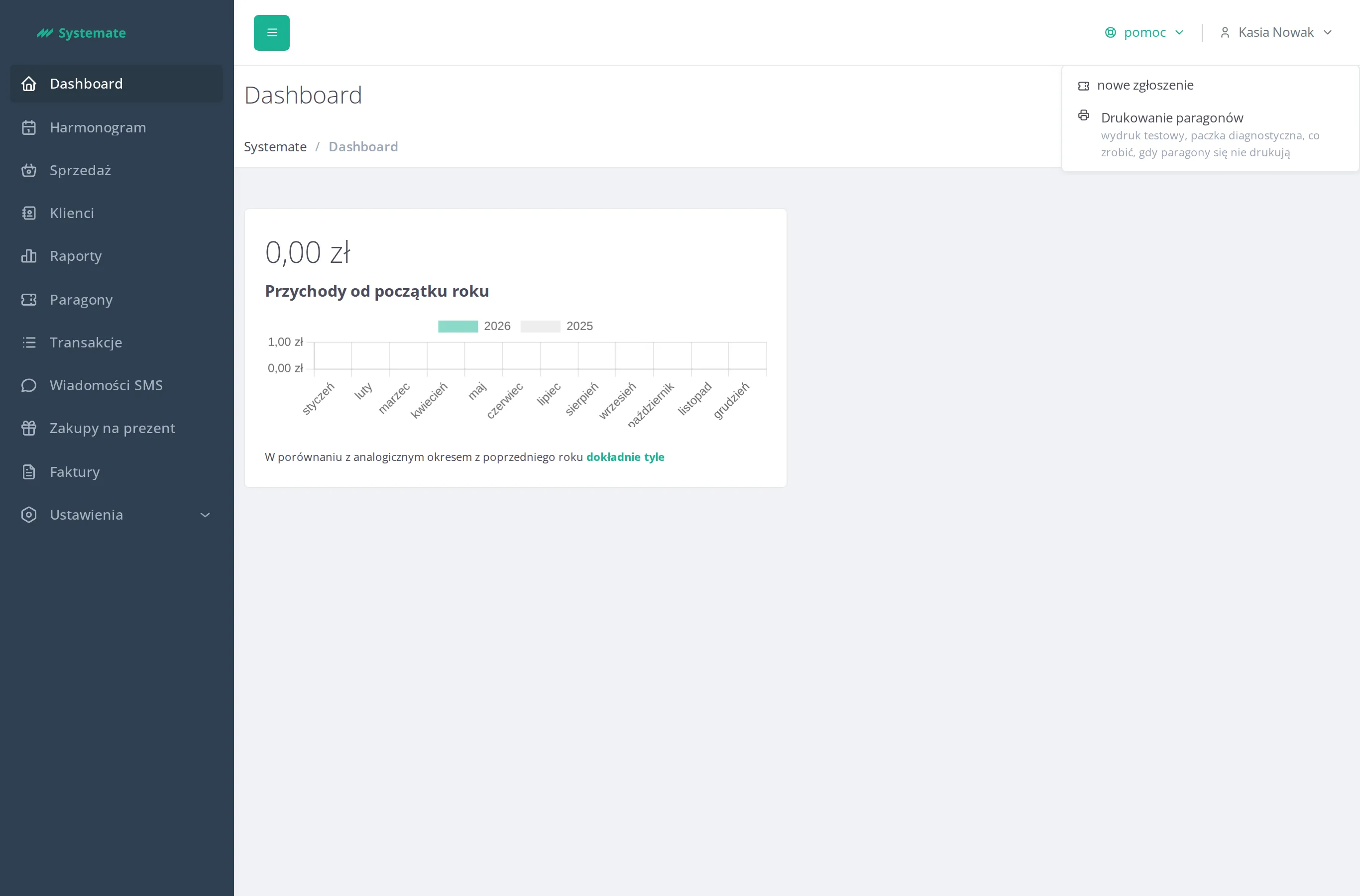
You can open this page from the office panel: the pomoc (help) menu → Printing receipts.
The icon and its colors
Section titled “The icon and its colors”On a Mac, the icon is at the top of the screen, on the menu bar, next to the clock. On Windows, it’s on the taskbar, next to the clock—sometimes among the hidden icons under the arrow. For more, see Find the Systemate Paragony icon.
The icon has four looks:
| Look | What it means |
|---|---|
| green with a check mark | everything works, you don’t need to do anything—also while the program restores the connection to the printer by itself |
| orange with a warning sign | the printer needs one action from you |
| red with a cross | receipts aren’t printing |
| grey with a key | the program isn’t activated—see Activate Systemate Paragony with a Code |
When you hover over the icon, the label Systemate Paragony says after a colon what to do:
- naciśnij OK na drukarce (press OK on the printer),
- wyjdź z menu drukarki (exit the printer menu),
- wyłącz i włącz drukarkę (turn the printer off and on),
- uruchom komputer ponownie (restart the computer),
- brak połączenia z Systemate (no connection to Systemate),
- sprawdź kabel (check the cable),
- wpisz kod aktywacyjny (enter the activation code).
When everything works, the label is just Systemate Paragony.
Open the status page
Section titled “Open the status page”Click the icon—the program’s status page opens in your browser. On Windows, you can also right-click the icon and choose Pokaż stan drukowania (Show printing status); the other three entries of that menu are inactive. On a Mac, the icon has no menu.
The status page and its texts are the same on a Mac and on Windows, and they are in Polish only. The page works only on this computer—at the bottom it says Ta strona działa tylko na tym komputerze. (This page works only on this computer.)
The page header shows the computer name, the program version (Komputer … · wersja …—computer … · version …) and, when the program knows it, the printer number (drukarka: numer unikatowy …— printer: unique number …). Read them out when Systemate support asks for them.
The buttons are only on a page opened by clicking the icon. A page opened any other way shows instead Żeby użyć przycisków, kliknij ikonę programu przy zegarze. (To use the buttons, click the program icon next to the clock.)
The three controls
Section titled “The three controls”The page shows three controls: Program Systemate Paragony (the Systemate Paragony program), Połączenie z Systemate (connection to Systemate) and Drukarka (printer). The color of a control means:
- green—works,
- grey—the program is connecting to the printer or the state isn’t known; you don’t need to do anything,
- orange—one action for you,
- red—receipts aren’t printing.
When a control is red or orange, Paragony się nie drukują (receipts aren’t printing) appears above the controls. At such a control the page gives one action to take.
Program Systemate Paragony
Section titled “Program Systemate Paragony”| State | Color | What to do |
|---|---|---|
| Działa (works) | green | nothing |
| Zatrzymał się (stopped) | red | Uruchom komputer ponownie. (Restart the computer.) Nie pomogło? Zgłoś problem w panelu Systemate, w menu „pomoc”. (Didn’t help? Report a problem in the Systemate panel, in the “pomoc” menu.) |
When the program has stopped, the page also says above the controls Ta strona działa, ale część programu, która drukuje w tle, się zatrzymała. (This page works, but the part of the program that prints in the background has stopped.)
Połączenie z Systemate
Section titled “Połączenie z Systemate”| State | Color | What to do |
|---|---|---|
| Działa (works) | green | nothing |
| Brak połączenia od … (no connection since … — a time, or a date and a time) | red | Sprawdź internet na tym komputerze. (Check the internet on this computer.) Otwórz dowolną stronę, np. google.pl. Gdy się otworzy, kliknij „Połącz ponownie”. (Open any website, e.g. google.pl. When it opens, click “Połącz ponownie”.) |
| Nie wiadomo (unknown) | grey | nothing |
After you click Połącz ponownie (reconnect), the page answers Połączono z Systemate o … (connected to Systemate at …) or Nie udało się połączyć z Systemate. (could not connect to Systemate). If there is no connection, check the internet again and try once more.
Drukarka
Section titled “Drukarka”| State | Color | What to do |
|---|---|---|
| Gotowa (ready) | green | nothing |
| Czeka na przycisk OK (waiting for the OK button) | orange | Naciśnij OK na drukarce. (Press OK on the printer.) First read the message on the printer display—if it tells you to replace the paper, do that before pressing OK. Then wait a moment. |
| W menu (in the menu) | orange | Wyjdź z menu drukarki. (Exit the printer menu.) On the printer, go back to the main screen—the one with the clock and the total. |
| Nie odpowiada (not responding) | orange | Wyłącz i włącz drukarkę. (Turn the printer off and on.) Turn the printer off with the power button. Turn it on again once the display goes dark. Wait—the message disappears by itself. Didn’t help? Check that the USB cable is plugged into the printer and into the computer. |
| Nie widzę drukarki (I can’t see the printer) | red | Sprawdź kabel. (Check the cable.) Is the printer on? Is the USB cable plugged into the printer and into the computer? Then wait a moment. |
| Łączenie z drukarką… (connecting to the printer…) | grey | nothing—the program connects to the printer by itself |
| Nie wiadomo (unknown) | grey | nothing |
Wydruk testowy (test print)
Section titled “Wydruk testowy (test print)”Make a test print after you did what a control asked, or when Systemate support asks you to. A test print isn’t a receipt.
Click Wydruk testowy. The program carries out one command at a time—meanwhile the page shows Program wykonuje polecenie „Wydruk testowy”… (the program is carrying out the command) and the buttons are inactive. Then it shows an answer, which disappears after ten minutes:
| Answer | What to do |
|---|---|
| Wydruk testowy wysłany do drukarki o … (test print sent to the printer at …) | check that the printout came out of the printer |
| Wydruk testowy się nie udał: (test print failed:) and the reason—drukarka nie odpowiedziała na czas (the printer didn’t answer in time), drukarka zgłosiła błąd (the printer reported an error), drukarka jest w menu (the printer is in its menu), drukarka czeka na przycisk OK (the printer is waiting for the OK button), drukarka nie odpowiada (the printer isn’t responding) or nie widzę drukarki (I can’t see the printer) | do what the Drukarka control asks, wait a moment and try again |
| Program nie odpowiedział. Spróbuj ponownie za chwilę. (The program didn’t answer. Try again in a moment.) | wait a moment and click again |
The Wydruk testowy button is inactive when the program can’t see the printer, when the program has stopped (then the page says under the buttons Przyciski zadziałają, gdy program znów ruszy.—the buttons will work once the program runs again), or while the program carries out another command.
Paczka diagnostyczna (diagnostic package)
Section titled “Paczka diagnostyczna (diagnostic package)”Make a diagnostic package only when Systemate support asks for one—the page reminds you with Paczkę diagnostyczną zrób, gdy prosi o nią pomoc Systemate. (Make a diagnostic package when Systemate support asks for it.)
Click Paczka diagnostyczna. When it works, the page shows Zapisano paczkę diagnostyczną: Pulpit › … (diagnostic package saved: Desktop › …) with the file name. You’ll find the file on the desktop—on a Mac, too, the page calls it Pulpit (Desktop). The page then says what happens to the package:
- Program wysłał ją do Systemate. (The program sent it to Systemate.)—Systemate support already has it,
- Program wyśle ją sam do Systemate, gdy wróci połączenie. (The program will send it to Systemate by itself once the connection is back.)—you don’t need to do anything.
When something fails:
| Answer | What to do |
|---|---|
| Nie udało się zapisać paczki diagnostycznej. (The diagnostic package could not be saved.) | try again in a moment and tell Systemate support |
| Nie udało się zapisać paczki diagnostycznej na Pulpicie. (The diagnostic package could not be saved on the Desktop.) | tell Systemate support |
| Systemate jej nie przyjęło. (Systemate didn’t accept it.) | tell Systemate support |
| Program nie odpowiedział. Spróbuj ponownie za chwilę. (The program didn’t answer. Try again in a moment.) | wait a moment and click again |
When receipts aren’t printing
Section titled “When receipts aren’t printing”- First the program by itself. The program restores the connection to the printer and searches for it again by itself. Give it a moment—while the Drukarka control shows Łączenie z drukarką… (connecting to the printer…), there’s nothing to click.
- Then you. Click the icon, do the one thing a red or orange control asks, wait a moment and check with Wydruk testowy. If the computer is off, has no icon or nothing opens: wake the computer, then restart it—the program starts by itself.
- Last, report a problem. In the office panel, choose the pomoc (help) menu → New issue (see Contact support). Give the computer name, the program version and the printer’s unique number from the status page header. Make a diagnostic package when Systemate support asks for one.
The receipts that waited print by themselves once the program is working again—you don’t need to change anything on the list.
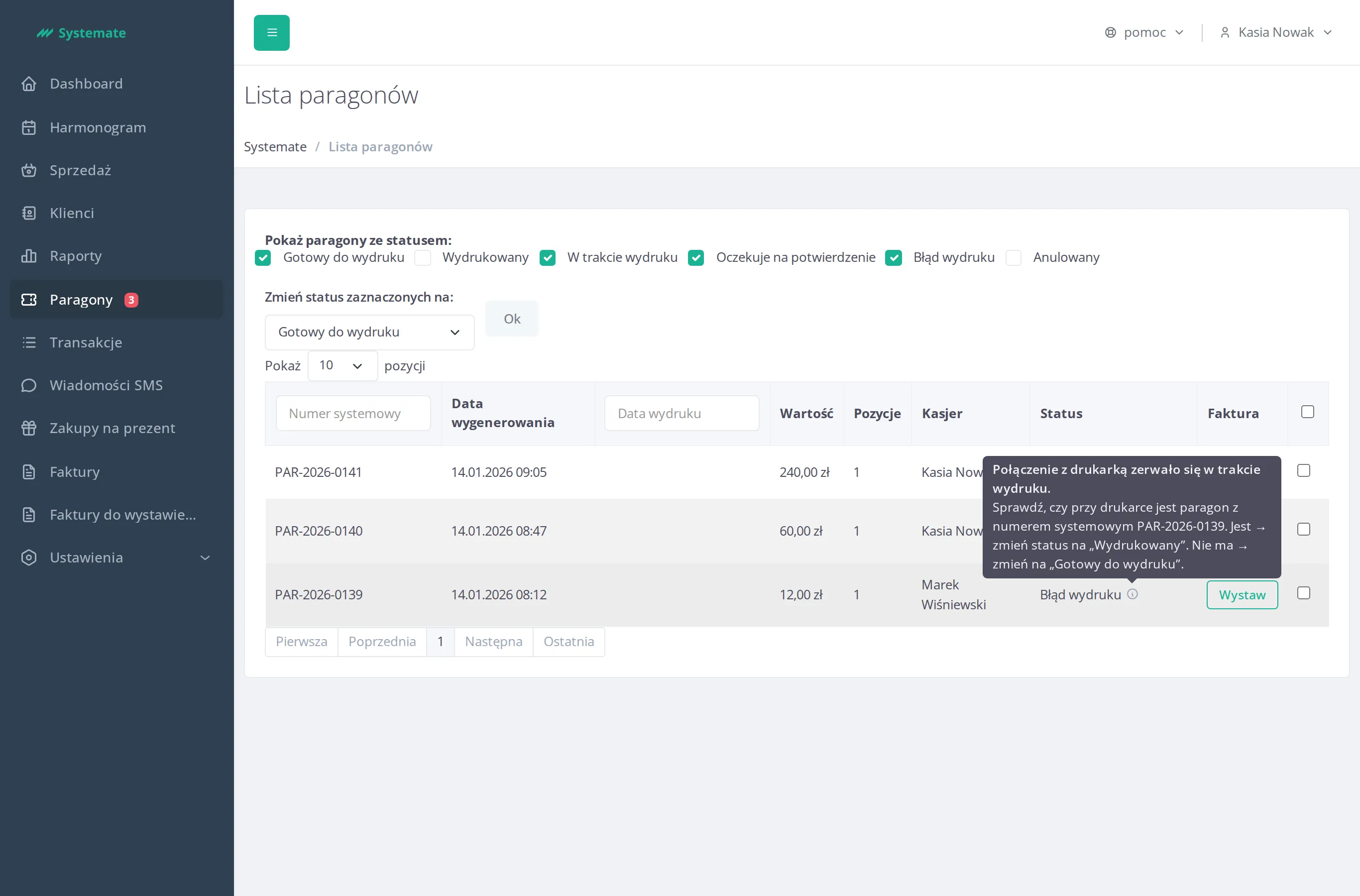
A receipt in the Error status
Section titled “A receipt in the Error status”The program never prints a receipt a second time by itself—you decide. Check whether a receipt with this system number—the number in the System number column of the receipts list—is at the printer:
- it is—change the status to Printed,
- it isn’t—change the status to Ready to print.
You change the status as always, with Change status of selected:. The grey information icon at the status gives the cause of the error.
For more about the list, see Handle fiscal receipts.