Test the printer remotely
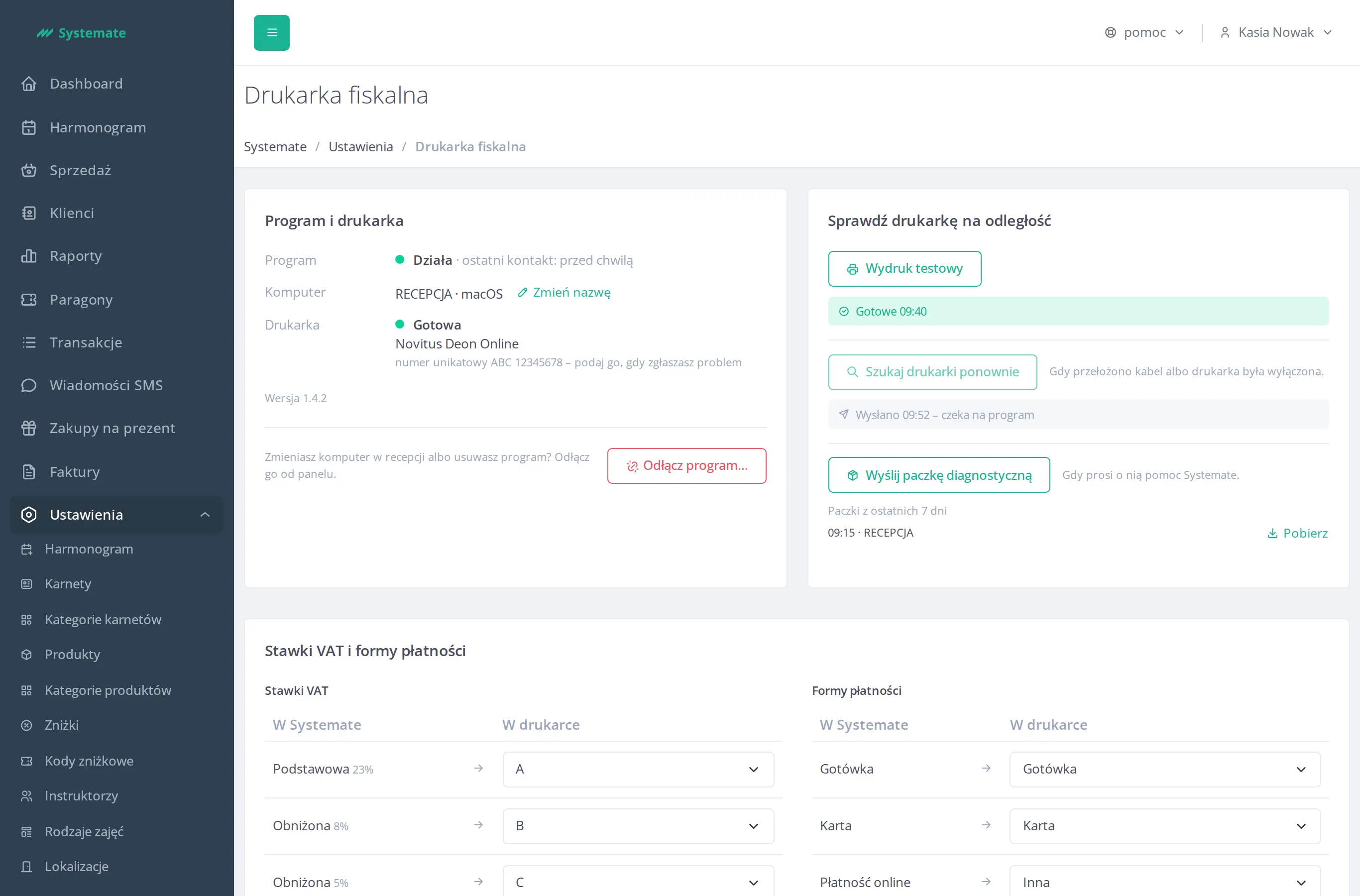
On the fiscal printer screen, next to the Program and printer box, there is the box Test the printer remotely. Its buttons send a command to the Systemate Paragony program on the computer at the front desk — you don’t have to be sitting at it.
You can find the box under Settings → Fiscal Printer once the printer is connected. It is visible to employees with Fiscal Printer Management.
The three buttons
Section titled “The three buttons”- Test printout — the printer prints a short printout that is not a receipt. Use it when you want to check whether the printer prints.
- Search for a printer again — the program searches for the printer once more. Use it when the cable was plugged into another port or the printer was turned off.
- Send the diagnostic package — the program sends Systemate a package with information about how it works. Use it when Systemate support requests it.
What the line under a button says
Section titled “What the line under a button says”After you click a button, a line with the result of the command and the time it was ordered appears under it:
- Sent 09:52 – waiting for the program — the command is waiting for the program to pick it up.
- In progress (ordered 09:52) — the program is carrying out the command.
- Done 09:40 — the command succeeded. For the diagnostic package the line reads Done 09:40 – the package has arrived at Systemate.
- Failed (09:40): … — the command failed; the reason follows the colon.
The line changes by itself when the program carries out the command — you don’t need to refresh the page.
When the buttons are unavailable
Section titled “When the buttons are unavailable”When the program isn’t responding, the buttons are inactive and the box shows Unavailable because the program isn’t responding. What to do then is described on the page Follow the command on the printer screen.
Download a diagnostic package
Section titled “Download a diagnostic package”Under Send the diagnostic package you see the list Packages from the last 7 days — each with the time it was sent and the name of the computer. Click Download next to a package to save it on your computer. Packages are kept for 7 days, then they disappear from the list.