Book a private lesson for a customer
You manage private lesson reservations on the Private lessons screen in the office panel menu. The screen has two views, which you switch with the Week and List buttons next to Book now. It always opens in the Week view, on the current week.
The Week view
Section titled “The Week view”The Week view is a grid of seven days, Monday to Sunday, on a time axis. Each day has a column of the same width, headed with the weekday, the date and the number of reservations (for example “pon. 12.10” and “2 rez.”). Today’s column is highlighted, and a red line marks the current time. The grid shows what is booked — it does not show the instructors’ availability.
Each reservation is a block in the column of its day, from its start to its end, in the colour of its instructor. Reservations at the same time stand side by side and share the width of the column, so a block shows as much as fits in it:
- a block alone at its time — the start, the customer, the instructor, the lesson type and the room,
- two blocks side by side — the start, the customer’s surname and the instructor,
- three or more — the customer’s initials. Point at such a block (or tap it on a touch screen) to see the list of the reservations at that time: with their times, customer, instructor, lesson type and room. Click a row of the list to open the reservation.
A block with a dashed outline and a ? next to the customer is a reservation waiting for acceptance. A grey block is a customer’s no-show. Reservations that have already ended are faded. The grid leaves cancelled reservations out — tick Show canceled to see them crossed out.
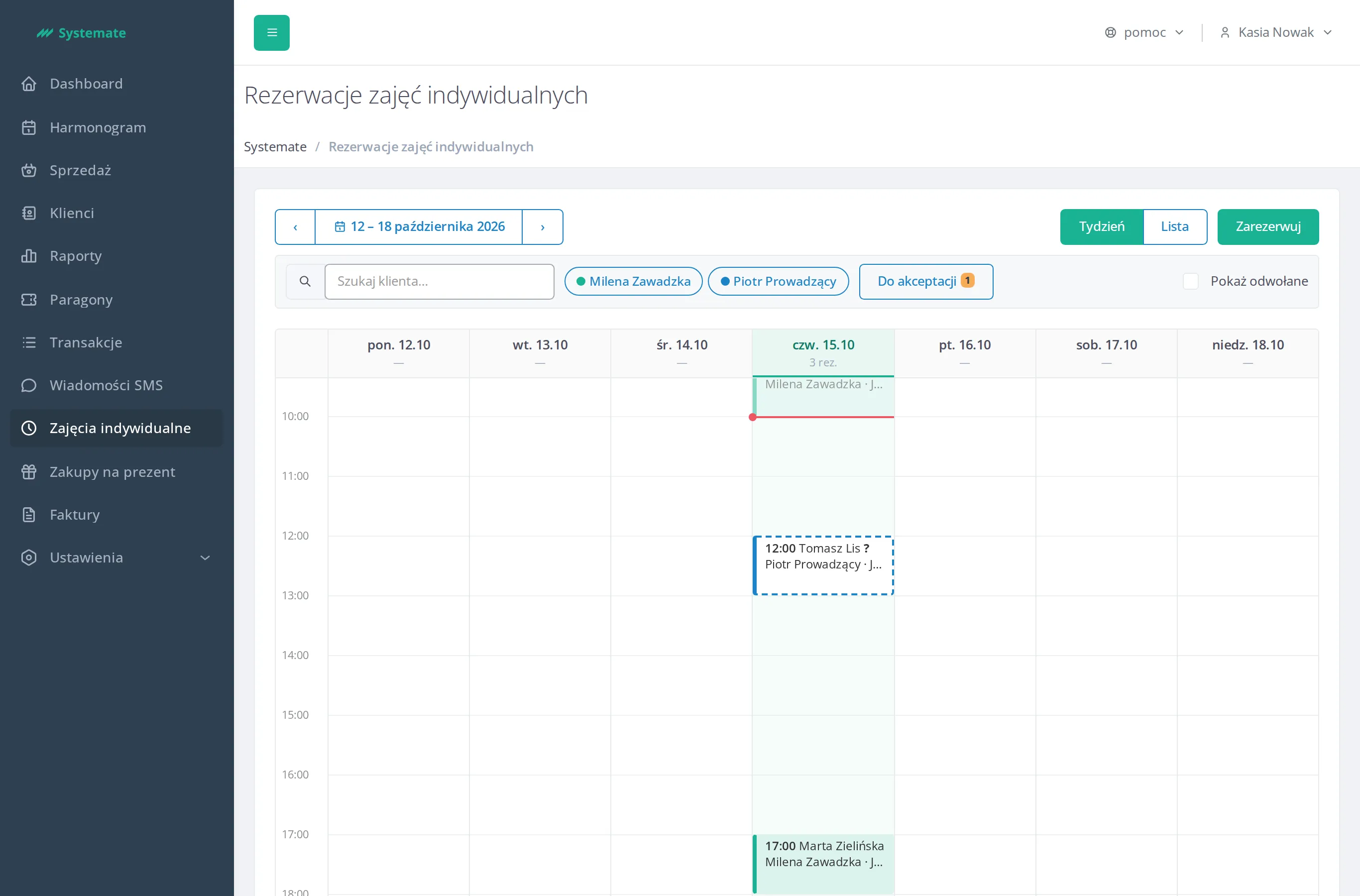
You change the week with the ‹ and › arrows next to the date range (for example “12 – 18 października 2026”). Click the range to pick a date from a calendar — the screen shows the week it lies in. While you look at a week other than the current one, the Back to today link takes you back to the current week. Click a block to see the reservation’s details (with the weekday, date and time), the actions its status allows, and its History — who created, accepted, rescheduled or cancelled it, and when.
The List view
Section titled “The List view”The List view shows the same week, Monday to Sunday. Each day has a header with the date and the number of reservations (or “No reservation”), followed by the reservation rows: the time, the instructor with a dot in their colour, the customer with their phone, the lesson type with its length, the room, the price, the status and the actions. Rows carry the marks unconfirmed (the customer has not confirmed the reservation yet), outside availability (the slot is outside the instructor’s availability) and room conflict (the room was booked although it was taken at that time). Cancelled reservations are greyed out in the list. The arrows next to the date move the list by a week.
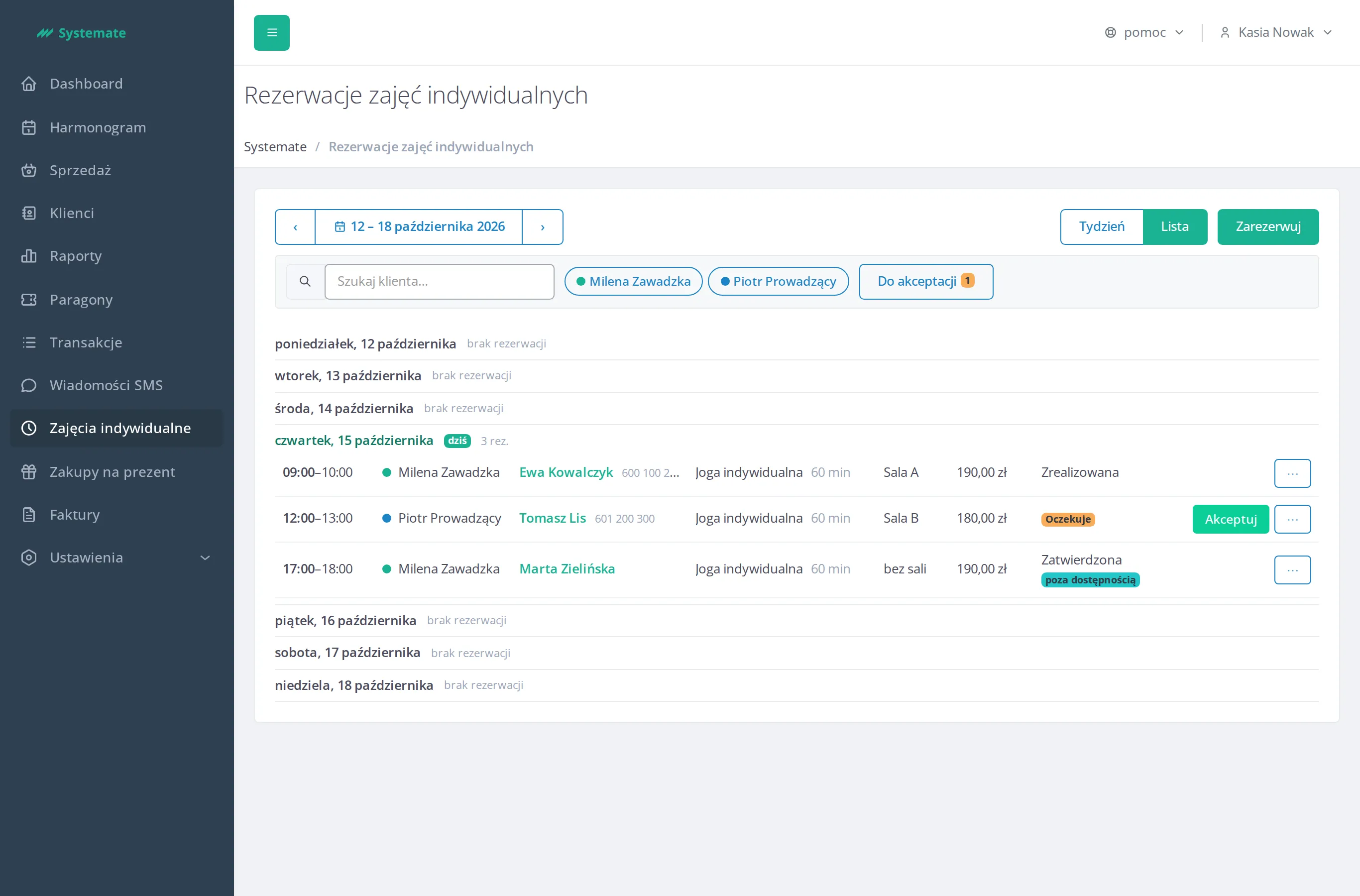
Click the customer’s name in a row to see the reservation’s details and its history.
Filters
Section titled “Filters”The filters stand under the date bar:
- Search for a client… — type the customer’s surname and pick them from the suggestions. The screen shows that customer’s Upcoming Reservations list, from today, across all days and in every status. The list ends with the sentence “These are all scheduled reservations of …”. The Show the client’s previous reservations link adds the reservations before today. The × button next to the name clears the filter and returns to the view and the week shown before.
- Instructors — every instructor who teaches private lessons has a button in their own colour. Click it to see only their reservations; click it again to see everyone again.
- Pending approval — the number on the button is the studio’s reservations waiting for acceptance. Click the button to see all of them in the Upcoming Reservations list; click it again to return to the previous view.
The customer filter and Pending approval exclude each other, and the instructor filter narrows both lists. Clicking Week in a narrowed list ends the narrowing and shows the week grid.
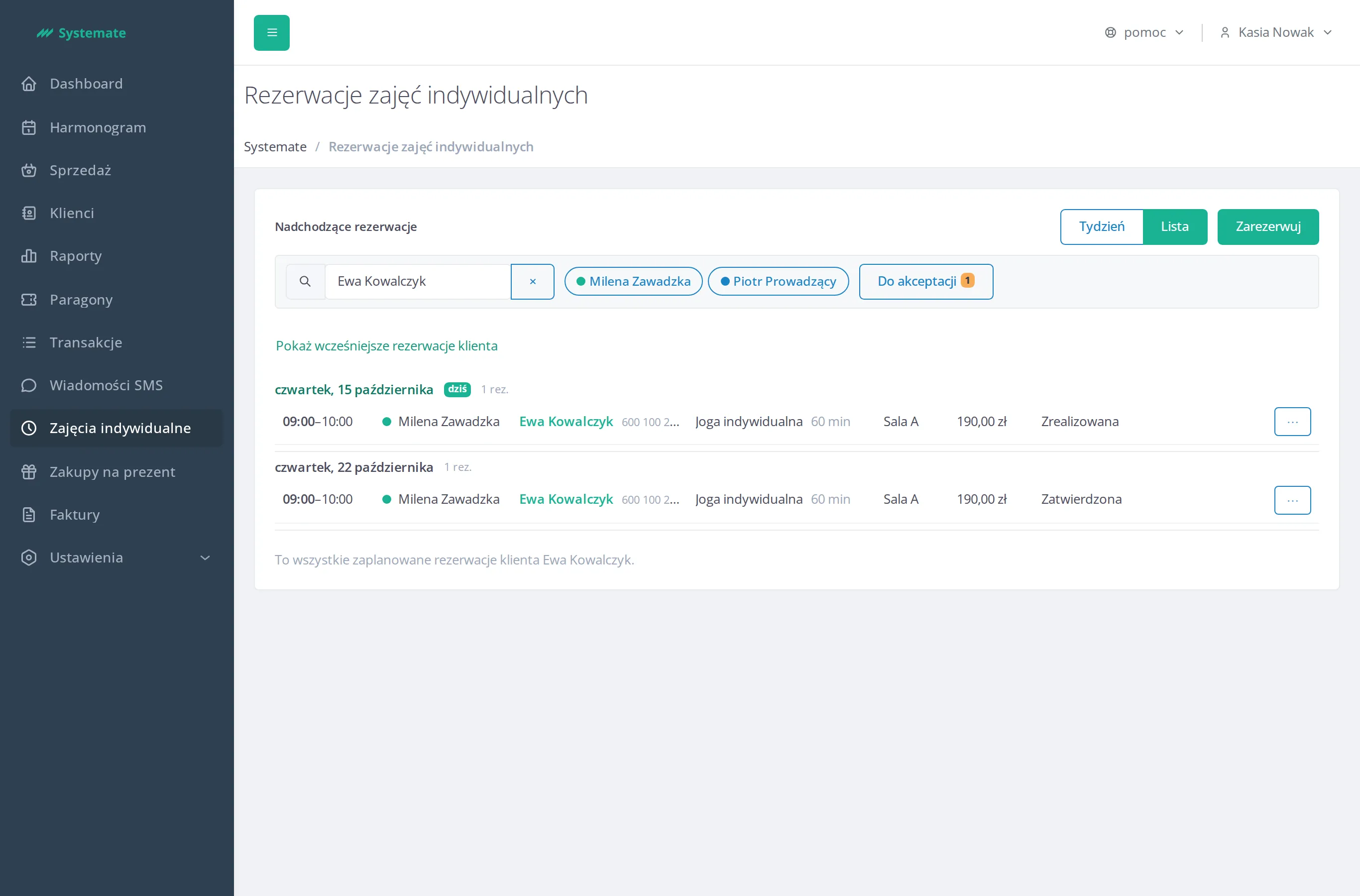
Book a lesson for a customer
Section titled “Book a lesson for a customer”- Click Book now. The New reservation screen opens in place of the reservations. When the list was narrowed to a customer, that customer is already filled in.
- In the customer field, type the customer’s surname and pick them from the suggestions.
- In the lesson type field the panel picks the first lesson type with an assigned instructor straight away — change it if the customer wants another lesson.
- Choose the length of the lesson (the lengths of this lesson type).
- In the instructor field All instructors is chosen straight away — keep it when the time matters most to the customer, or choose one of the instructors assigned to this lesson type.
- Under the fields stands the calendar of a month. The bar under a day says how many free starts it has: green — plenty, orange — few (one to three), red — none. A day without the instructors’ hours of availability has no bar and is muted. Click the day that suits the customer. The ‹ and › arrows next to the month’s name change the month; after the change the panel picks the first day with a free start itself.
- On the right the panel shows the chosen day and its starts. Full and half hours show by default; the Show start times every 15 minutes switch shows all of them (for a length that is not a multiple of 30 minutes it is on straight away). With All instructors the times stand in a separate box for each instructor who has a free start that day: with their name and the price of a lesson with them. Click the time the customer chose — in a box you pick the instructor and the time at once.
- At the bottom the panel shows the summary: the customer, the lesson type with its length, the day with the times, the instructor, the room and the Reservation price (you do not change this price). The room is assigned automatically. If the customer wants a particular room, click change next to the room and pick it from the list: Rooms for these types of classes at the top, Other rooms below.
- Click Book now. The panel returns to the reservations and shows the week of the new reservation.
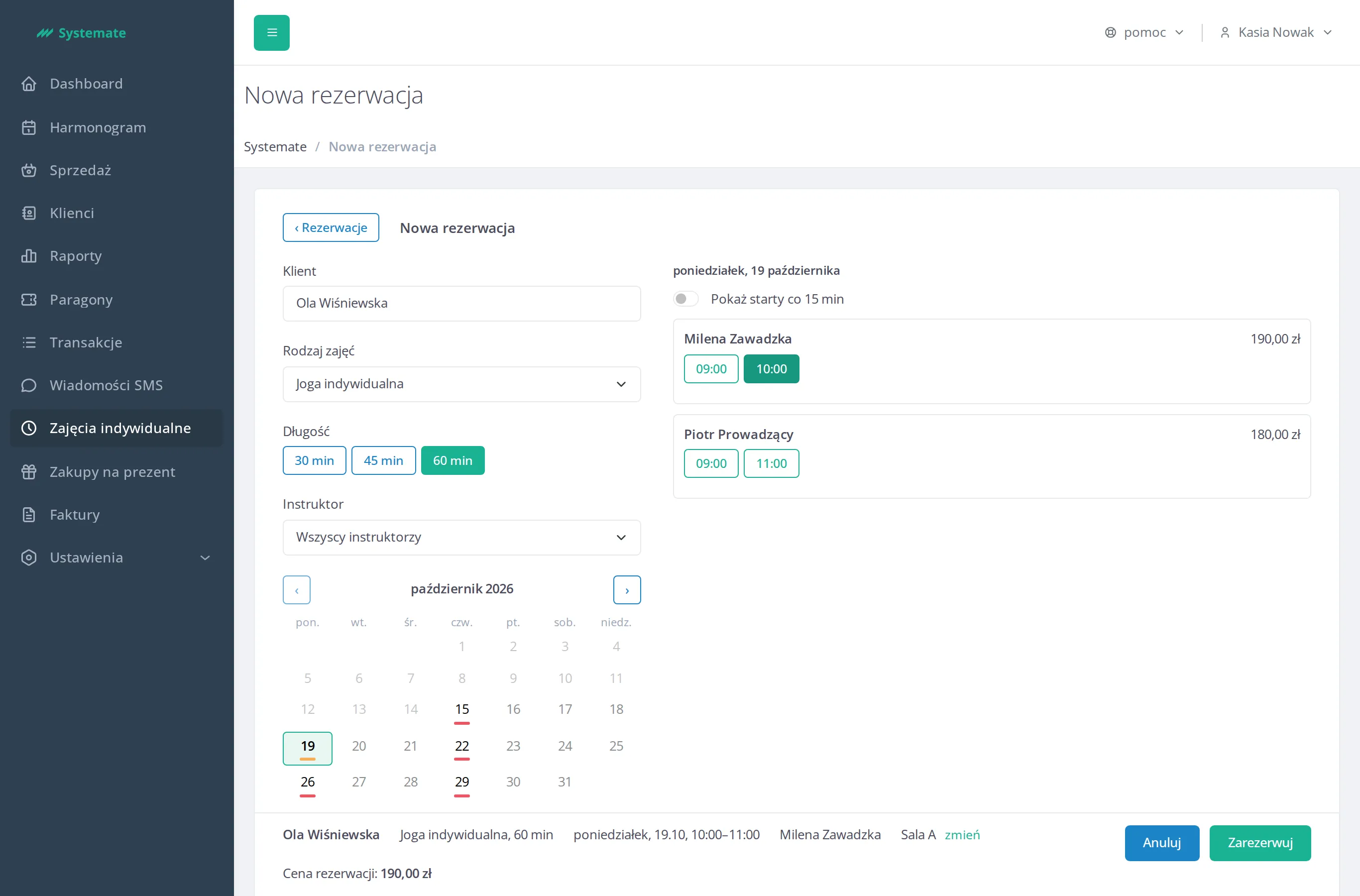
Cancel and ‹ Reservations return to the reservations with the view, the week and the filters shown before, booking nothing.
When a room you chose by hand is taken at that time, the panel says what takes it (for example “group classes 10:00–11:00”). When the room is not one of this lesson type’s rooms, the panel says so too. The screen keeps everything you filled in — save again to book that room anyway. Such a reservation carries the room conflict mark in the list and in the details. When no room of this lesson type is free with Automatically, the panel says so and lets you pick a room by hand.
When no lesson type has an assigned instructor yet, the screen shows the Class Types link to the settings, where you add them, in place of the form. If someone changes the lesson type in the settings while you book (deletes it, unassigns an instructor or a length), the panel shows a message, reads the lesson types again and keeps the customer and the date.
When the chosen day has no free start, the panel shows “No availability on this day.”. When someone else takes a slot before you book it, the panel says the slot is no longer free — choose another one.
A time outside the instructor’s availability
Section titled “A time outside the instructor’s availability”When an instructor agrees to teach at a time outside their availability, choose them in the instructor field, click the A different time (outside of availability)… link under the times and type the time in the Your own start time field (in steps of 5 minutes). This way you can also book a muted day of the calendar. When the time falls outside the instructor’s availability, the panel asks whether to book anyway. Click Book anyway. In the list such a reservation carries the outside availability mark.
Accept, reschedule or cancel a reservation
Section titled “Accept, reschedule or cancel a reservation”In the list a reservation waiting for acceptance has the Accept button, and the other actions are in the menu under ⋯. In the Week view you find the same actions in the reservation’s details after clicking its block. The actions depend on the reservation’s status (a cancelled reservation has none):
-
Accept — on a reservation that is Pending. After the click the reservation is Approved.
-
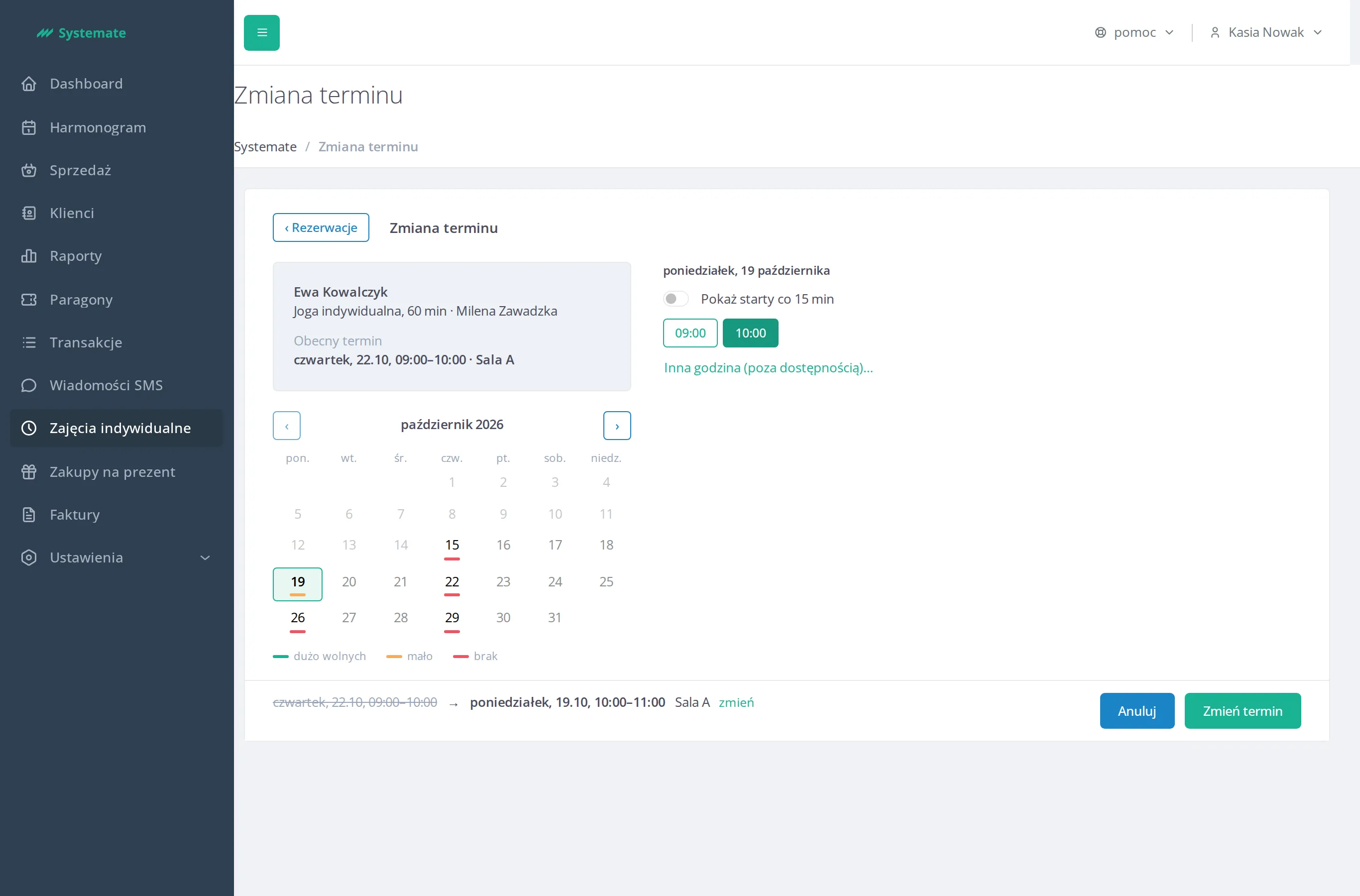
Change the date — opens the Rescheduling screen, laid out like the booking screen. Rescheduling changes only the time and the room: the customer, the lesson type, the instructor, the length and the price stay as in the reservation, and the panel on the left names them together with the Current term. Choose a day in the calendar and a time as when booking, or type your own time after clicking A different time (outside of availability)…. The summary shows the current time crossed out and the new one. Click Change the date. You change the room with the change link — a taken room or a room outside this lesson type’s rooms is confirmed by saving again, as when booking. A time outside the instructor’s availability is confirmed with Reschedule anyway.
-
Cancel — opens the Canceling a reservation window. Optionally type a reason (at most 500 characters) and click Cancel a reservation. The reservation becomes Canceled, with a note of who cancelled it.
Mark a no-show
Section titled “Mark a no-show”When a customer did not come to an approved lesson, click No-show after it has started. The reservation gets the No-show status and outcome. If the no-show was marked by mistake, click Undo no-show.
The panel marks the lessons that took place as Completed in the list.