Check the status of the program and the printer
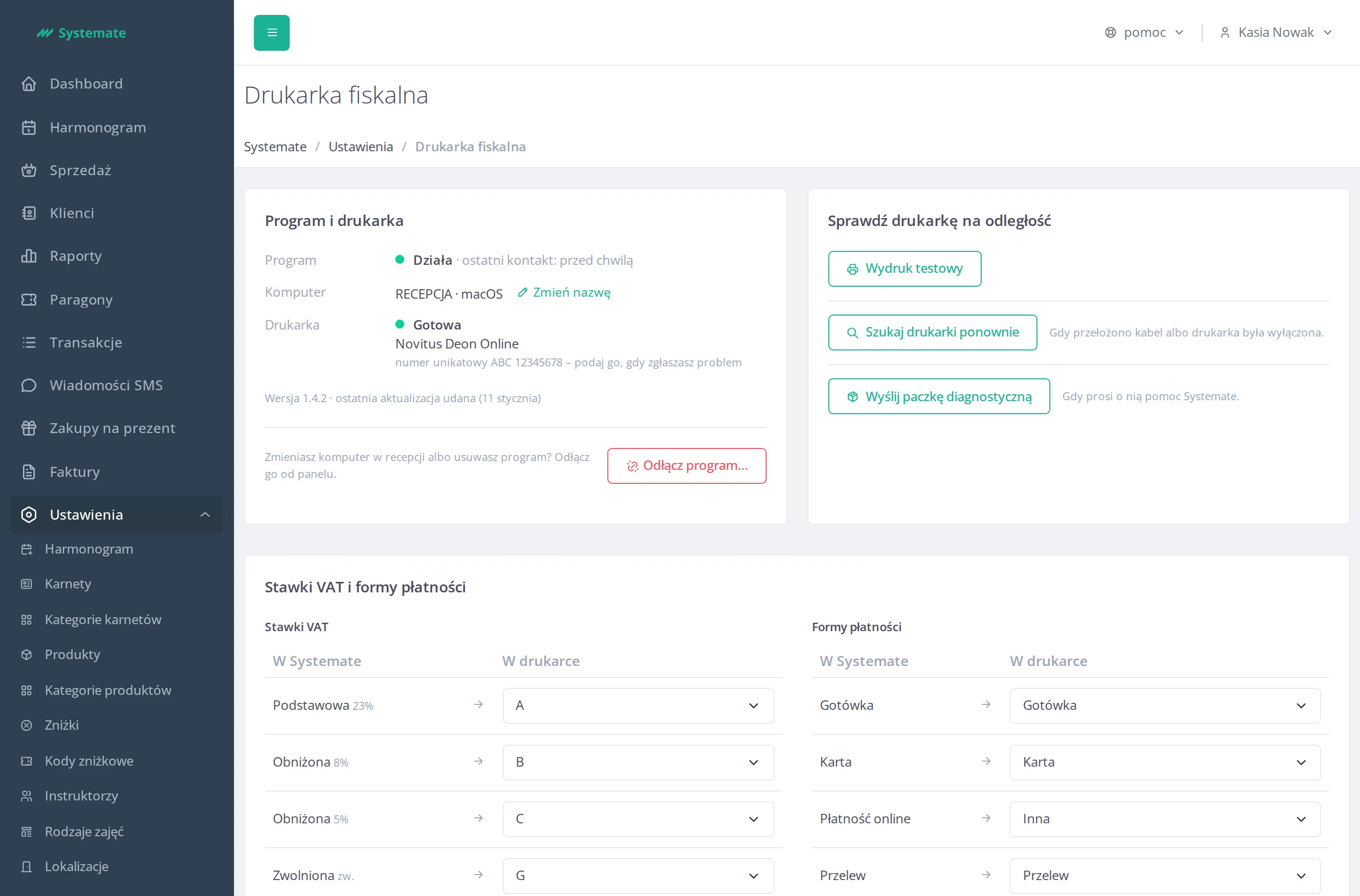
The Program and printer box shows whether the Systemate Paragony program is running, on which computer it is installed, and whether the fiscal printer is ready to print receipts.
Where to find the box
Section titled “Where to find the box”You’ll find the box under Settings → Fiscal Printer, above the VAT rates and payment methods card. It is visible to employees with the Fiscal Printer Management permission. The box appears once the program is activated and the VAT rates and payment methods are assigned.
The “Program” row
Section titled “The “Program” row”- Running — the program is in contact with Systemate. Next to it you see when the last contact was, for example last contact: just now.
- Silent since … — the program has not contacted Systemate for more than 15 minutes. You see the hour of the last contact, for example Silent since 14:05, and the day as well if the contact was earlier than today.
The “Computer” row
Section titled “The “Computer” row”The row shows the name of the computer the program runs on and its system (macOS or Windows). Until you give the computer a name of your own, you see its system name.
To give the computer a name of your own:
- Click Change the name.
- Type the name in the Computer name field (up to 255 characters).
- Click Save. If you change your mind, click Cancel.
The “Printer” row
Section titled “The “Printer” row”- Ready — the printer can print receipts.
- Connecting to the printer… — the program is restoring the connection to the printer by itself. You don’t need to do anything.
- Not responding since …, In the menu, Waiting for the OK button, Printer not found — the printer cannot print right now. With Not responding since … you see the hour since which the printer has not responded. A command telling you what to do then appears above the box — see Follow the command on the printer screen.
- Unknown — the program has not reported the state of the printer, or it is silent.
Below the state you see the printer model and its unique number. Give this number when you report a problem to Systemate Support.
The program version and a withdrawn update
Section titled “The program version and a withdrawn update”Below the rows you see the program version and, if the program has updated, whether the last update succeeded.
If an update failed, the box shows an orange message: the program has returned to the previous version and prints normally. You don’t need to do anything. Below the message there is the link download the installer — use it only when Systemate Support asks you to.
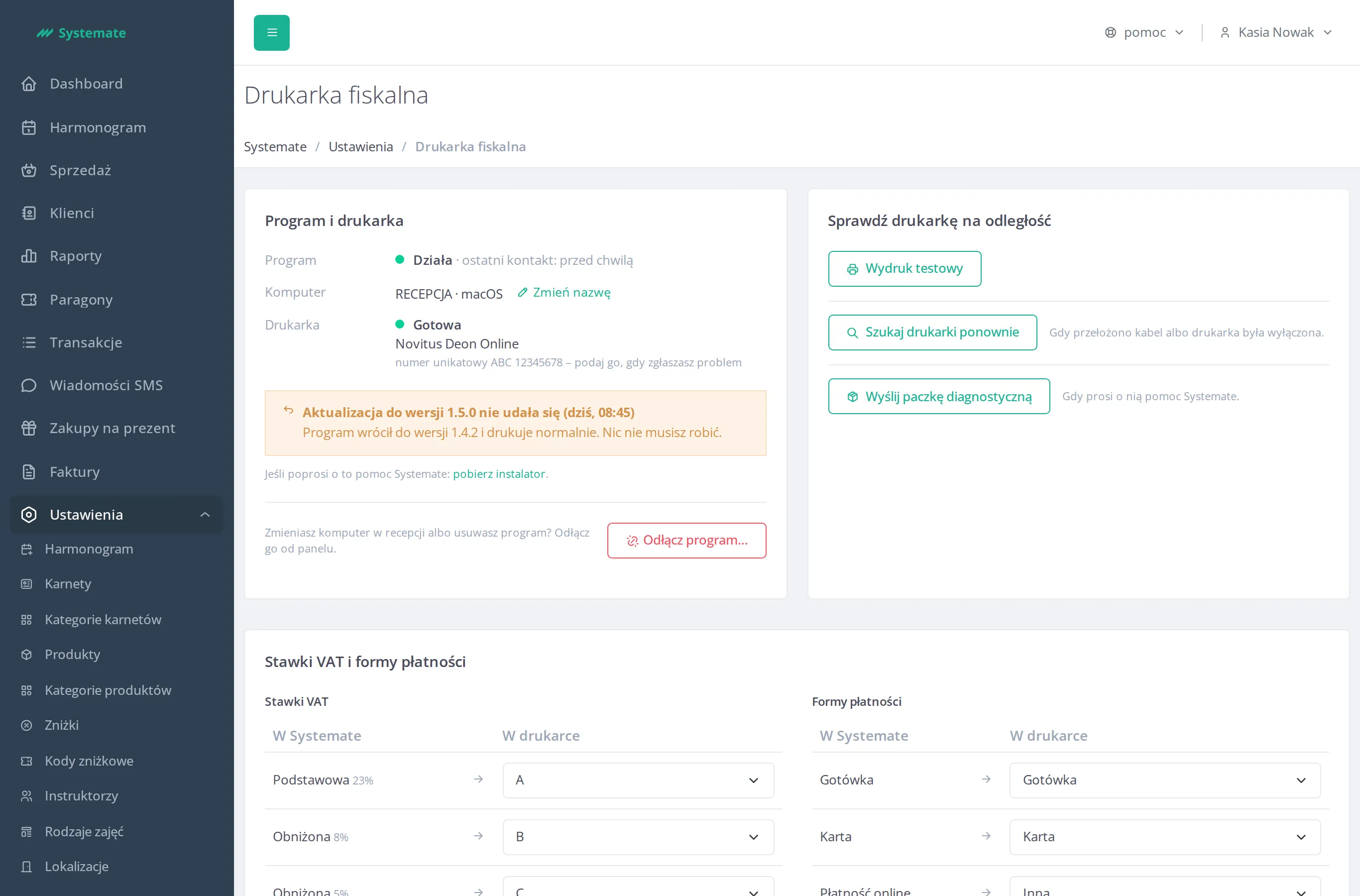
The box ends with the Disconnect the program… button — use it when you replace the computer at the front desk or uninstall the program; see Disconnect the fiscal printer program.
The box refreshes by itself
Section titled “The box refreshes by itself”You don’t need to reload the page. The box shows a new state as soon as the program reports it, and the time of the last contact updates every half minute.