Assign VAT rates and payment methods to a printer
The Systemate Paragony program prints a receipt only if every VAT rate and every payment method on the receipt has a fiscal printer designation assigned to it: VAT rate — a printer letter, payment method — the printer’s payment method.
Where the assignments are
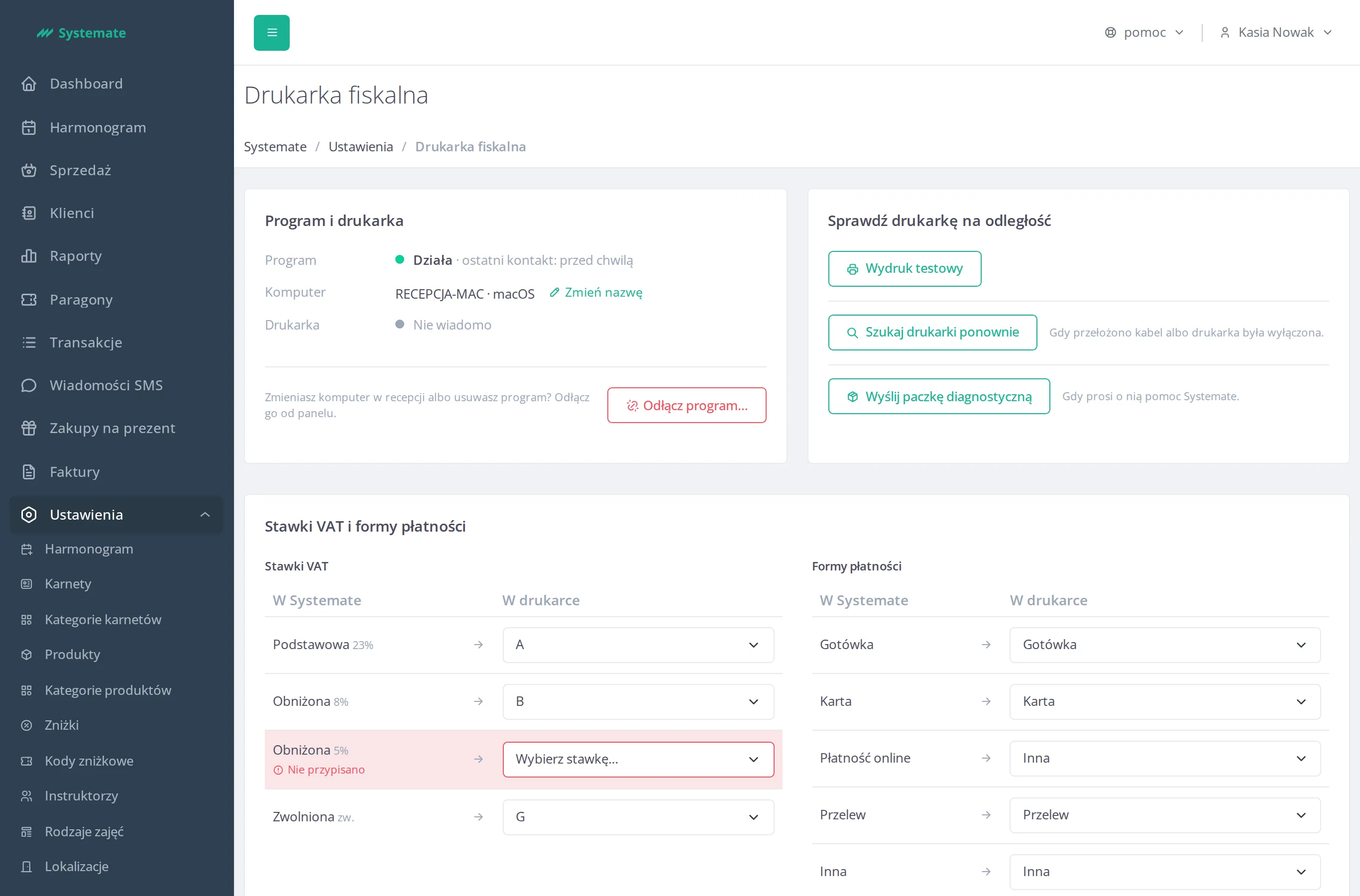
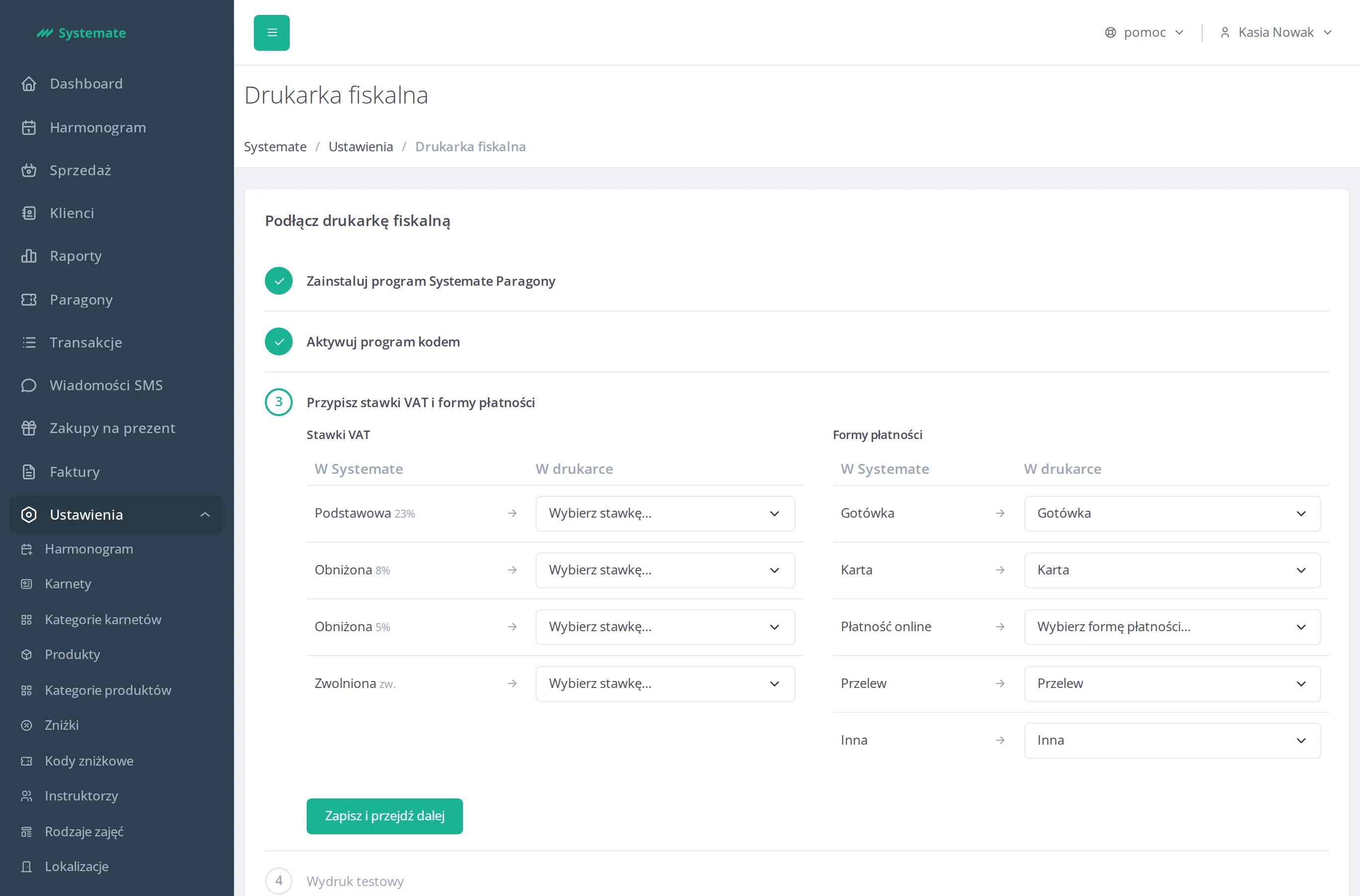
Section titled “Where the assignments are”You set up the assignments in step 3 of the Connect Fiscal Printer wizard, immediately after activating the program (see Connect Fiscal Printer). Later, you can change them in the VAT Rates and Payment Methods card under Settings → Fiscal Printer. Employees with the Fiscal Printer Management permission can view them.
VAT Rates
Section titled “VAT Rates”The VAT Rates table has one row for each VAT rate used by your studio. Rates with the same percentage are listed in a single row. For each row, select one of the printer letters, from A to G.
Systemate does not read rates from the printer, so check the letter for a given rate on the receipt printed by that printer or ask the service provider that maintains it.
Payment Methods
Section titled “Payment Methods”The Payment Methods table has five rows: Cash, Card, Online Payment, Bank Transfer, and Other. For each one, select one of the printer’s payment methods: Cash, Card, Check, Voucher, Other, Credit, Client Account, Currency, or Bank Transfer.
Cash, Card, Bank Transfer, and Other are initially assigned the printer’s payment method with the same name. Online Payment has no assignment until you select one — decide on the payment method for it with your accountant.
Saving
Section titled “Saving”In the wizard, click Save and Continue. Later, on the VAT Rates and Payment Methods card, click Save Assignments. The change applies to receipts printed after it is saved.
No Assignment
Section titled “No Assignment”A row without an assignment is highlighted in red in the VAT Rates and Payment Methods card and displays the text Not Assigned. Receipts with such a VAT rate or payment method will result in a Print Error status until you select an assignment and save it.