Follow the command on the printer screen
When the Systemate Paragony program or the fiscal printer stops printing receipts, the panel shows a command: what to do to get receipts printing again.
Where the command appears
Section titled “Where the command appears”You’ll find the command under Settings → Fiscal Printer, above the Program and printer box. It is visible to employees with the Fiscal Printer Management permission. When everything works, there is no command.
“Receipts are not printing”
Section titled ““Receipts are not printing””This command appears when the program has not contacted Systemate for more than 15 minutes. Sales are recorded as usual. Receipts with the status Ready to Print will print when the program is back.
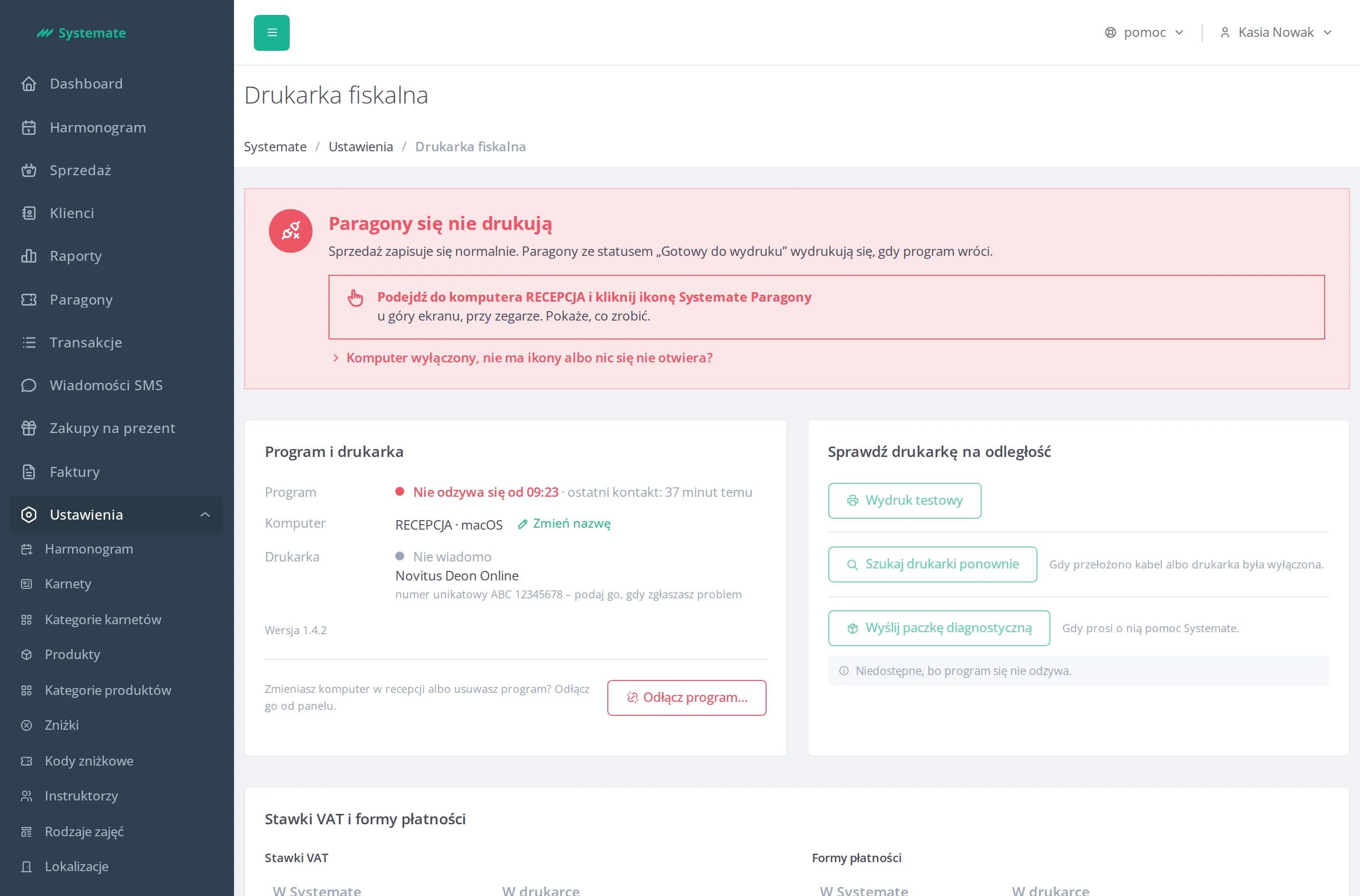
Go to the computer named in the command and click the Systemate Paragony icon. The program will show you what to do. You’ll find the icon:
- on macOS — at the top of the screen, next to the clock;
- on Windows — on the taskbar next to the clock.
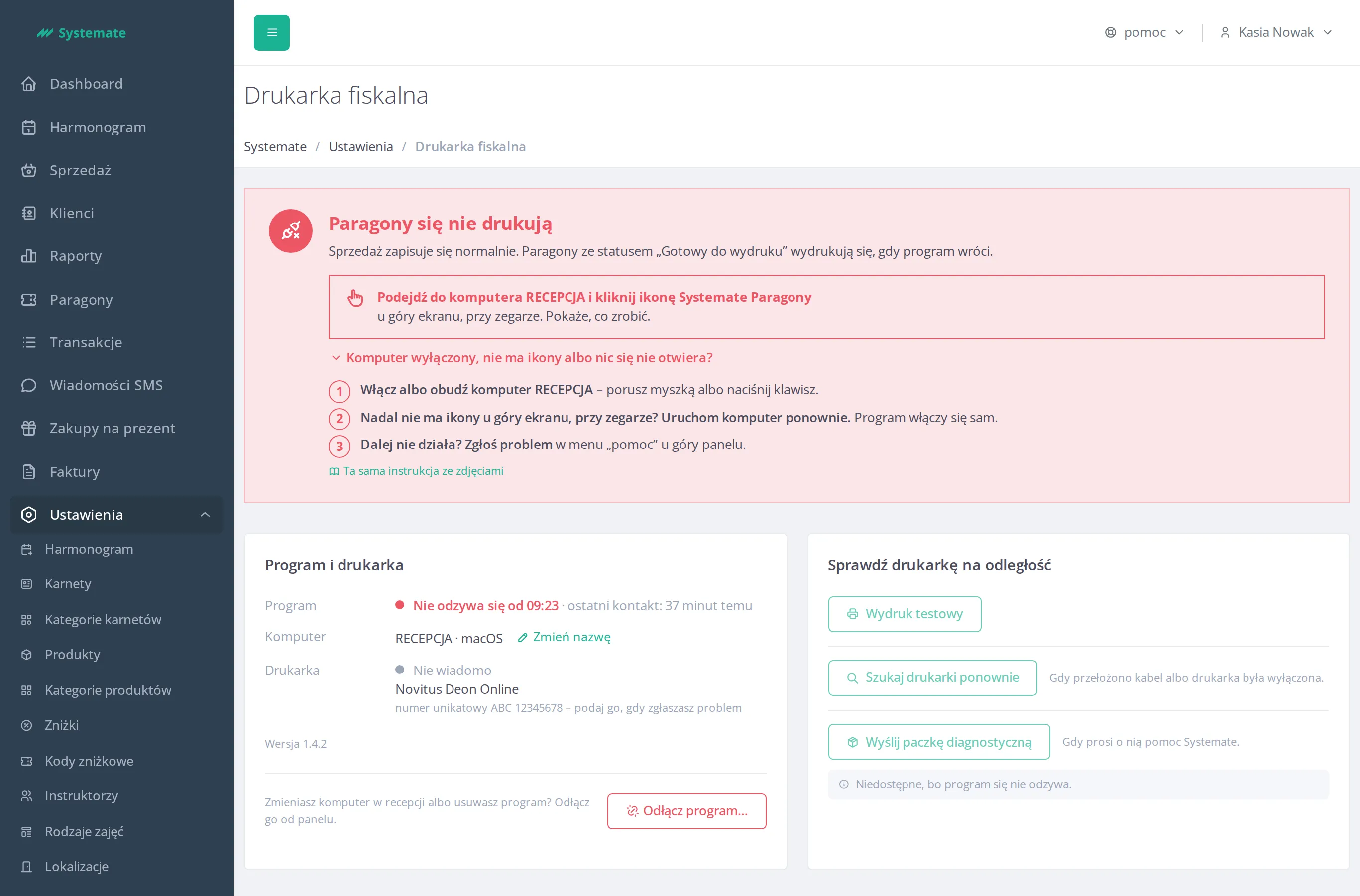
If the computer is turned off, there is no icon or nothing opens, click Is your computer turned off, is there no icon, or won’t anything open?. The command shows the further steps:
- Turn on or wake up the computer — move the mouse or press a key.
- Still no icon next to the clock? Restart the computer. The program will start automatically.
- Still not working? Report the issue in the Help menu at the top of the panel.
“Turn the printer off and on”
Section titled ““Turn the printer off and on””This command appears when the printer is not responding.
- Turn off the printer using the power button.
- Turn it back on once the display goes dark.
- Wait — the message will disappear on its own.
Don’t worry: an interrupted receipt will not print a second time by itself — it will appear in the list with the status Print error. If that does not help, check that the USB cable is plugged into both the printer and the computer.

Other commands
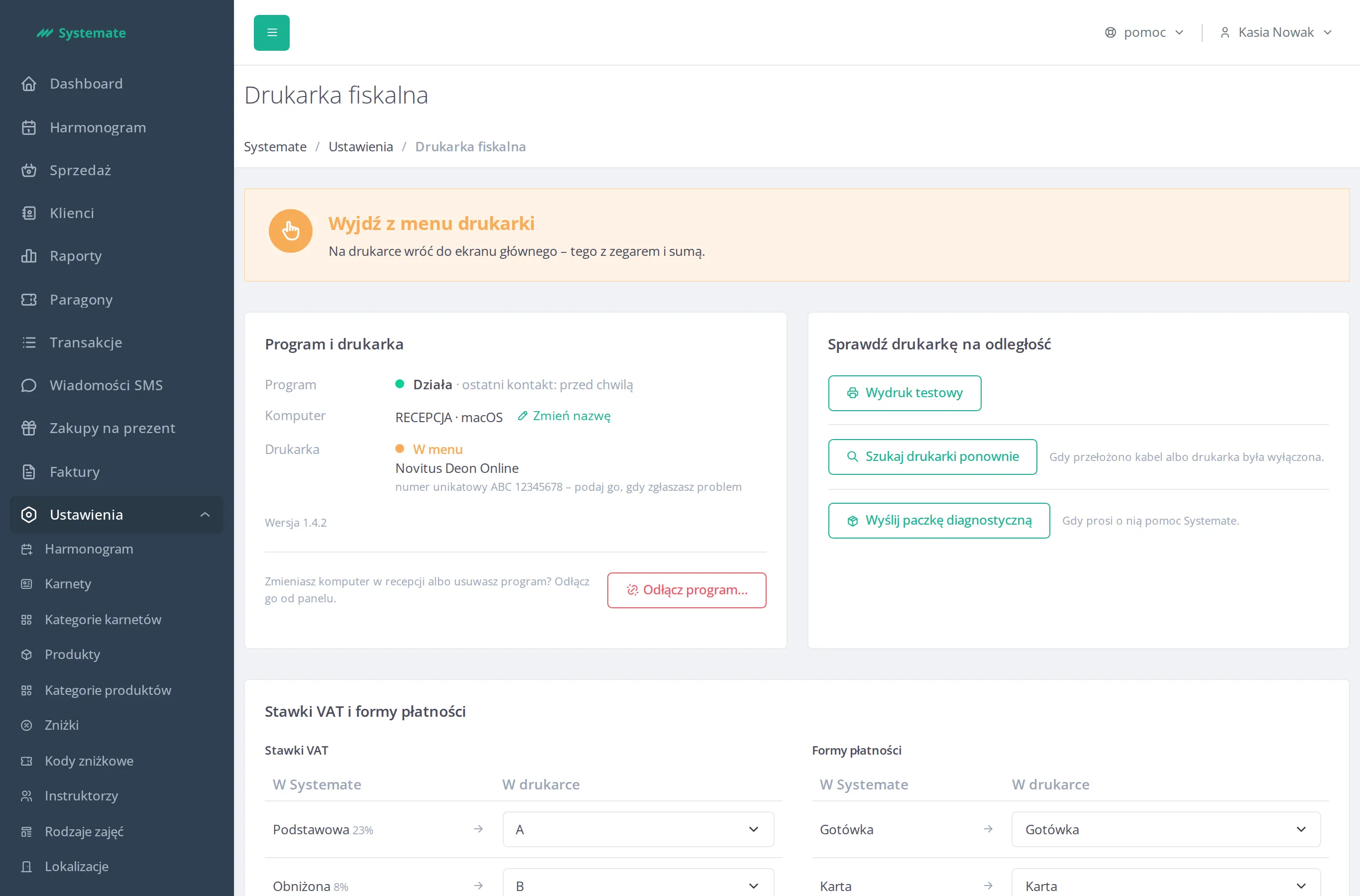
Section titled “Other commands”- Exit the printer menu — on the printer, return to the main screen, the one with the clock and the total.
- Press OK on the printer — first read the message on the printer’s display; if it tells you to replace the paper, do so before pressing OK. Then wait a moment.
- Check the cable — check that the printer is turned on and that the USB cable is plugged into both the printer and the computer. Then wait a moment.
“Connecting to the printer…”
Section titled ““Connecting to the printer…””When the Printer row shows Connecting to the printer…, there is no command — the program restores the connection to the printer by itself. You don’t need to do anything.
The command disappears by itself
Section titled “The command disappears by itself”You don’t need to close anything or refresh the page. The command disappears by itself once the printer is Ready again.