Book a private lesson
The private lessons tab appears in the customer panel only when the studio offers such lessons. You need to be signed in to book.
-
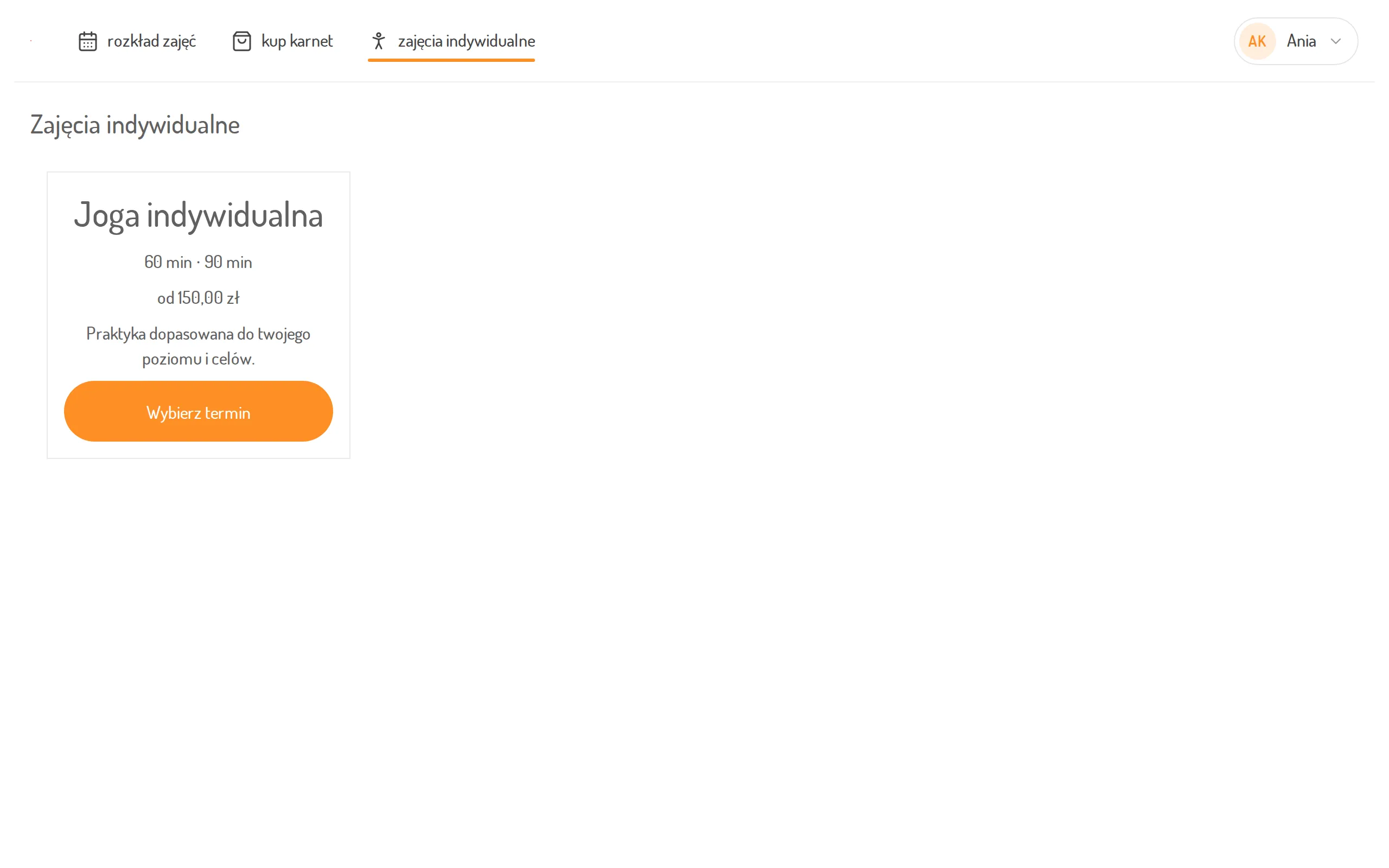
Open private lessons. You will see the lesson types the studio offers, with the length, a “from” price and a description. Next to the type you want, click Select a term.
-
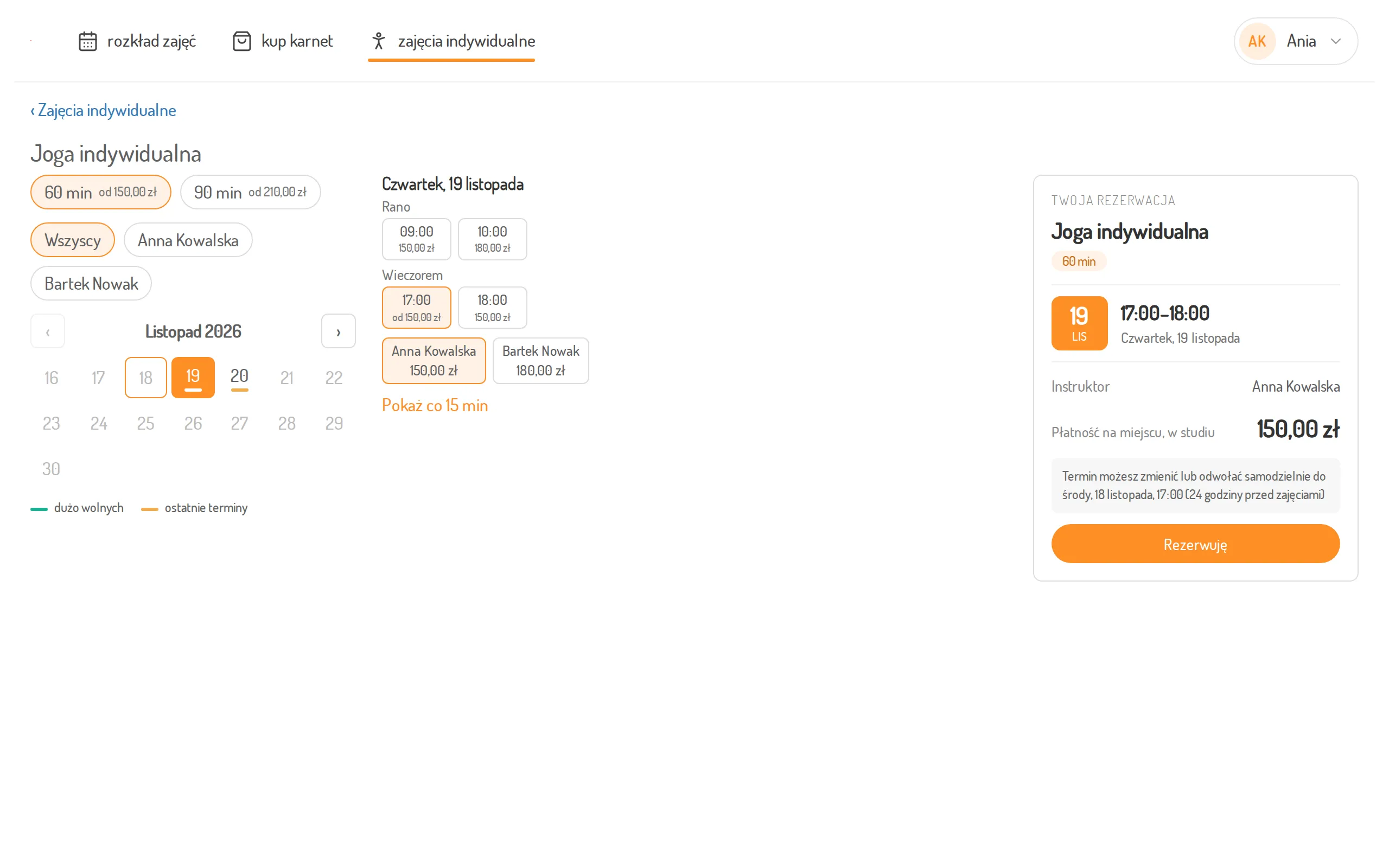
Choose the lesson length (e.g. 60 or 90 minutes) and — if you like — a specific instructor. By default you see the times of all instructors.
-
Click a day in the month calendar. The line under a day shows whether it has many free times or only the last few. Use the arrows to move to another month.
-
Click a start time. The chosen day is shown above the times, which are grouped into morning, afternoon and evening; Display every 15 minutes shows a denser list. Under the time you will see the instructors who can take you then, with their prices. If there are several, pick one.
-
Check the Your reservation summary: the lesson type and length, the time, the instructor, the price and until when you can change or cancel the booking yourself. You pay on site, at the studio. If the studio requires a phone number and your profile has none, enter it here. On a phone, the summary opens after you tap Next in the bottom bar.
-
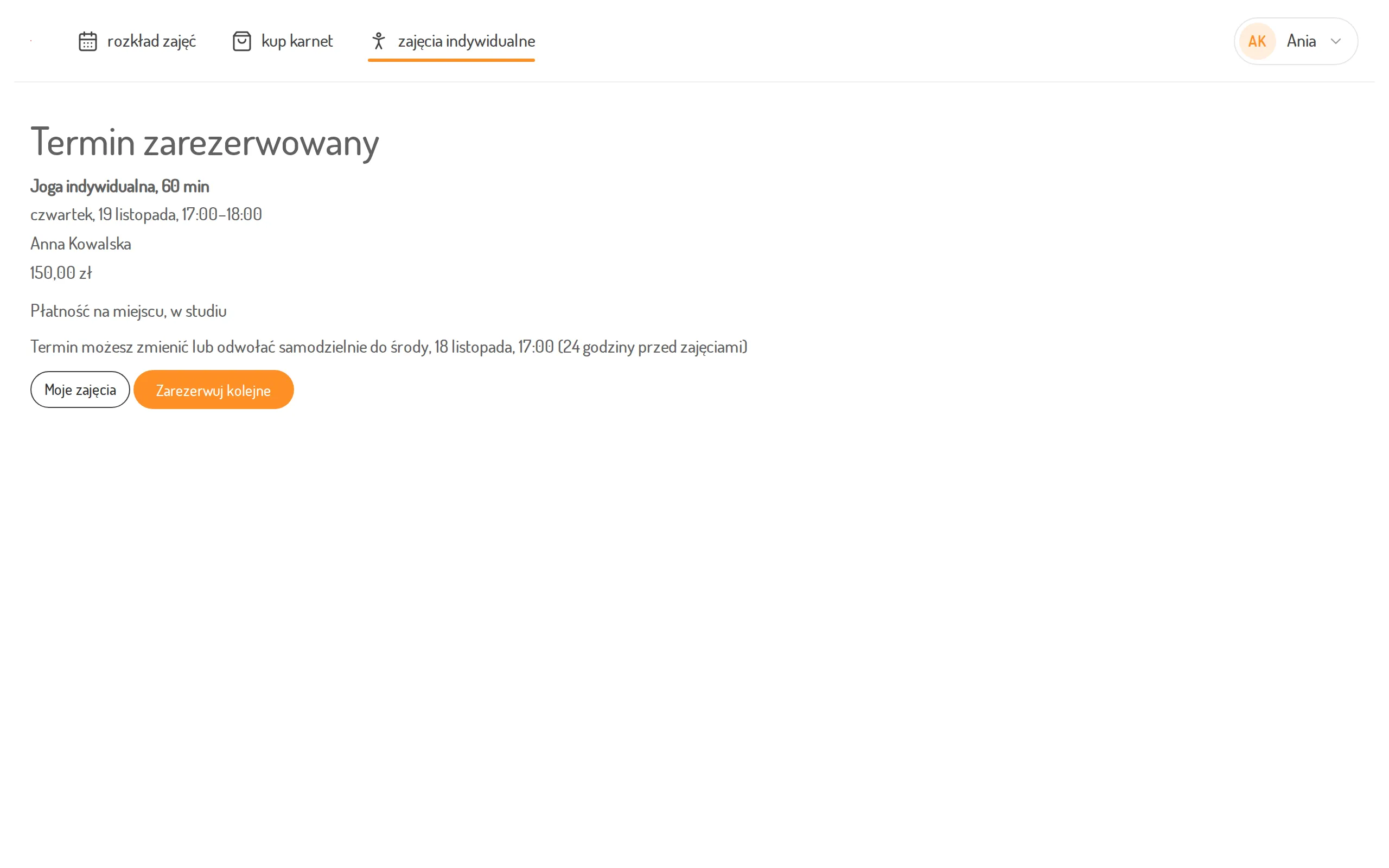
Click Book. You will see Booking confirmed or — when the instructor has to accept the booking — Waiting for confirmation; we will let you know when they do. Book another takes you back to the list of lesson types.