Accept payment for a private lesson
You accept payment for a private lesson on the Private lessons screen, at the reservation. You can do it before the lesson (a prepayment), after it, and also when the customer did not show up. A reservation that is waiting for approval or has been cancelled cannot be paid.
Accept payment
Section titled “Accept payment”- In the List view, open the ⋯ menu of a reservation and choose Accept payment. The same action is in the reservation’s details.
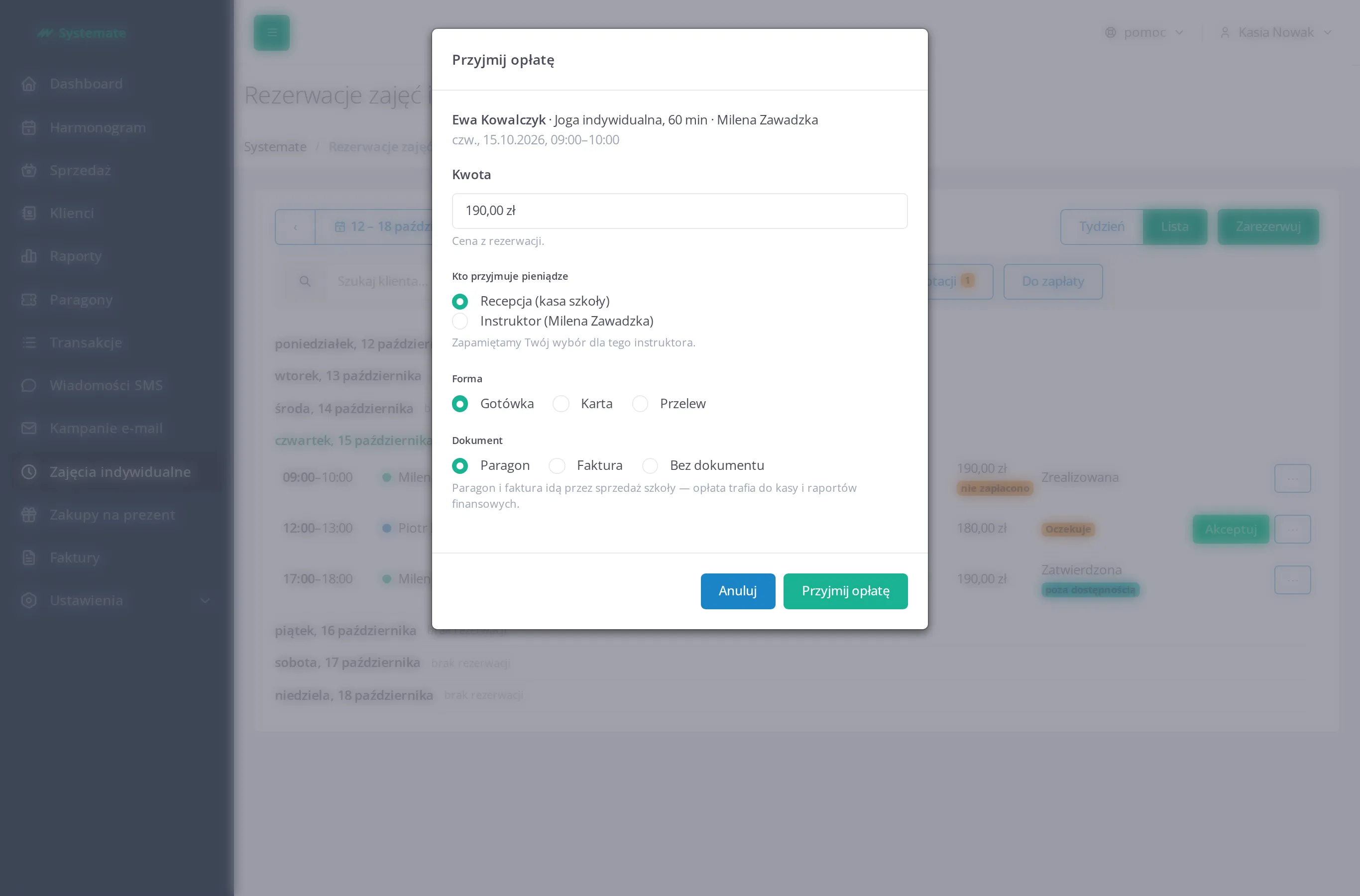
- The Accept payment window shows the customer, the lesson type, the instructor and the date, and in Amount — the price from the reservation. The amount cannot be changed.
- Under Who handles the money? choose Reception (school front desk) or Instructor (with the instructor’s name). The panel remembers your choice for this instructor and opens the window on it next time.
- Under Payment method choose Cash, Card or Bank Transfer.
- Under Document choose Receipt, Invoice or No document. With an invoice, choose the customer’s invoice data.
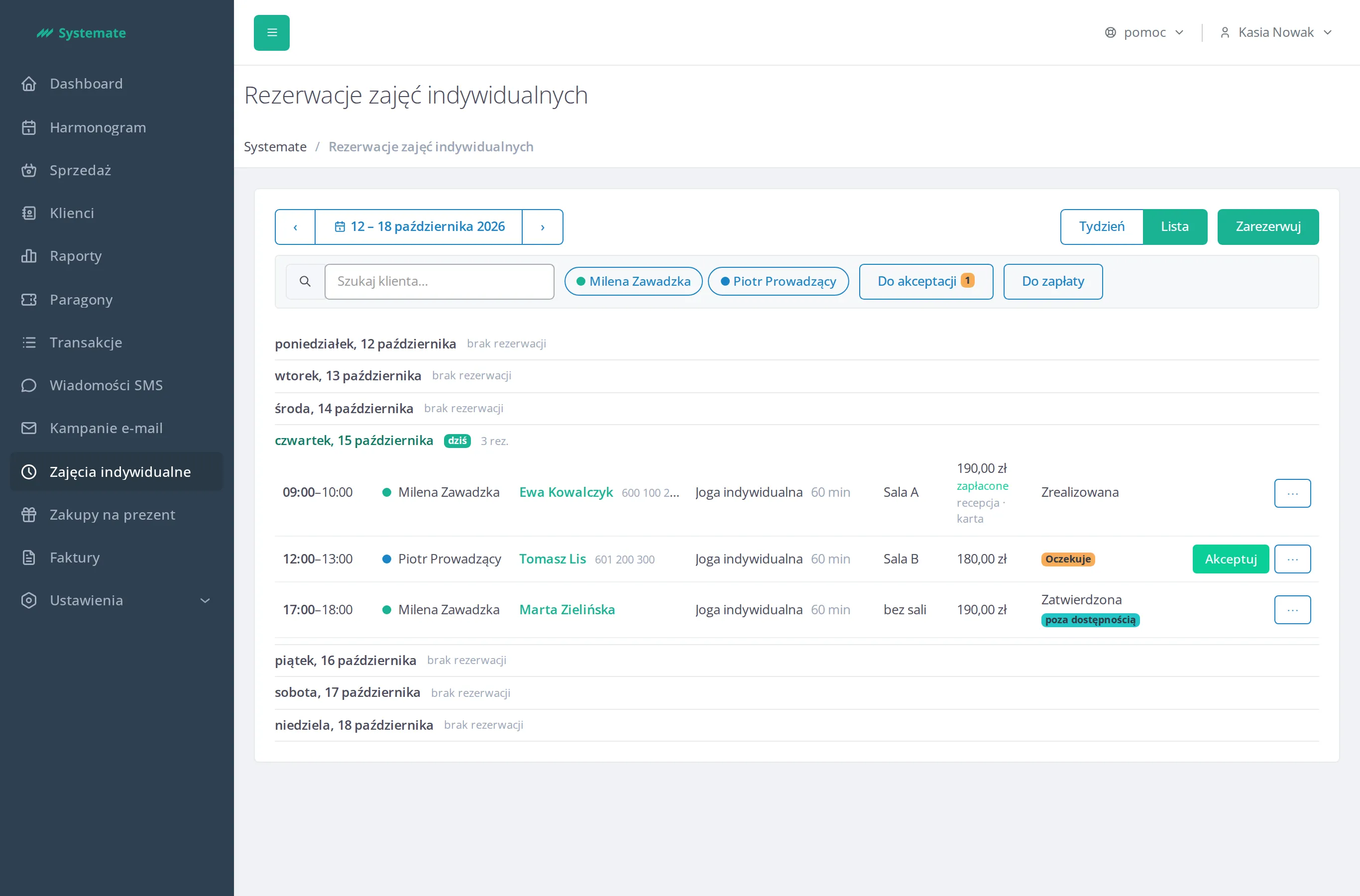
- Click Accept payment. The panel confirms the payment, and the reservation’s row shows Paid with who took the money and how.
A lesson that has taken place and is not paid is marked not paid in its row.
Who takes the money — and what it means for the till
Section titled “Who takes the money — and what it means for the till”- Reception (school front desk) — the payment is a sale of the school: it goes to the till, to the transactions and to the financial reports, under the name and VAT rate from the section Front desk payments. All documents are available: receipt, invoice or no document. Only an employee with the sales permission can choose this option.
- Instructor — the money stays with the instructor. The school issues no document (only No document is left), and the payment goes neither to the till nor to the financial reports — it counts only in the settlement with the instructor.
While the section Front desk payments is not saved, the front desk option is disabled and the window asks you to set the name and VAT rate, with a link to the settings.
The payment’s details
Section titled “The payment’s details”The reservation’s details show the payment: the amount, who took the money, the form and the document, and under them who recorded it and when. A payment taken at the front desk has the link Transaction, which opens its transaction. The reservation’s history records accepting and cancelling a payment.
Cancelling or rescheduling a paid reservation does not change its payment. Whether to give the money back is the school’s decision — giving it back means cancelling the payment.
Undo a payment
Section titled “Undo a payment”- A payment taken by the instructor — in the reservation’s details click Undo payment and confirm. The reservation is unpaid again.
- A payment taken at the front desk — cancel it like any sale: click Transaction in the reservation’s details and reverse the transaction. The reservation is unpaid again.
After that the lesson can be paid again, either way.
The Payment Due list
Section titled “The Payment Due list”The Payment Due button in the filter bar shows Classes to be paid for: every lesson that has taken place and is not paid, from all days, oldest first. No-shows, upcoming, pending and cancelled reservations are never on it. A lesson disappears from the list once it is paid. × on the button turns the filter off.
An instructor in the My lessons tab sees neither payments nor the Payment Due filter.